基于 Vue3 + FullCalendar 打造高效拖拽式日历组件
·
在现代 Web 应用中,日历组件是许多业务场景的核心功能,尤其是在项目管理、日程安排类应用中。本文将介绍如何使用 Vue3 结合 FullCalendar 库,构建一个支持月 / 周 / 日视图切换、事件拖拽和快速添加的高效日历组件。
一、效果展示
拖拽日历
二、技术栈选择
本日历组件主要采用以下技术栈构建:
- Vue3:采用最新的组合式 API(
<script setup>语法),提供更简洁的代码组织方式 - FullCalendar:功能强大的 JavaScript 日历库,支持多种视图和交互方式
- Element Plus:提供弹窗、表单等 UI 组件,优化用户体验
- FullCalendar 交互插件:实现拖拽功能的核心依赖
这种技术组合既能发挥 Vue3 的响应式优势,又能利用 FullCalendar 丰富的日历功能,同时通过 Element Plus 快速构建一致的 UI 界面。
三、核心功能介绍
1. 多视图切换
日历支持三种核心视图模式,满足不同场景需求:
- 月视图(默认):全局把握当月所有事件分布
- 周视图:聚焦一周内的详细日程安排
- 日视图:查看当天的小时级时间规划
通过顶部工具栏的按钮可以快速切换,满足不同粒度的时间查看需求。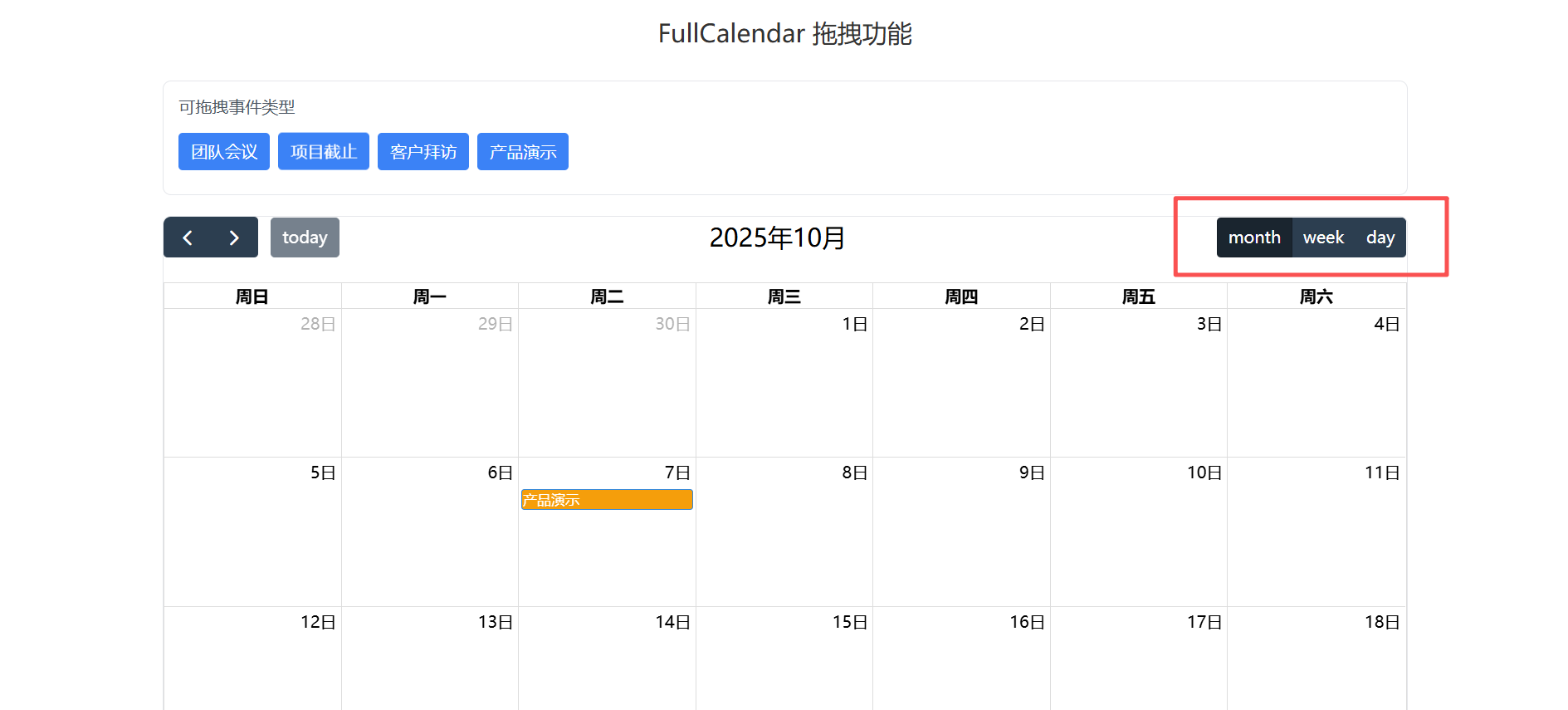
2. 事件拖拽添加
最具特色的功能是支持从外部事件源拖拽创建新事件:
- 左侧提供预设的事件类型(团队会议、项目截止等)
- 拖拽后的每个事件类型有独特的颜色标识,直观区分
- 只需将事件类型拖拽到日历的指定日期,即可快速创建
- 拖拽完成后自动设置默认时长(1 小时),后续可灵活调整

3. 事件交互操作
除了拖拽添加,组件还支持丰富的事件交互:
- 点击空白日期:快速创建新事件,自动弹出详情表单
- 点击已有事件:查看并编辑事件详情(标题、时间、描述等)
- 拖拽事件:自由调整事件的日期和时间段
- 拉伸事件边缘:调整事件的持续时长
所有操作都会实时反馈,并通过通知提示操作结果,提升用户体验。
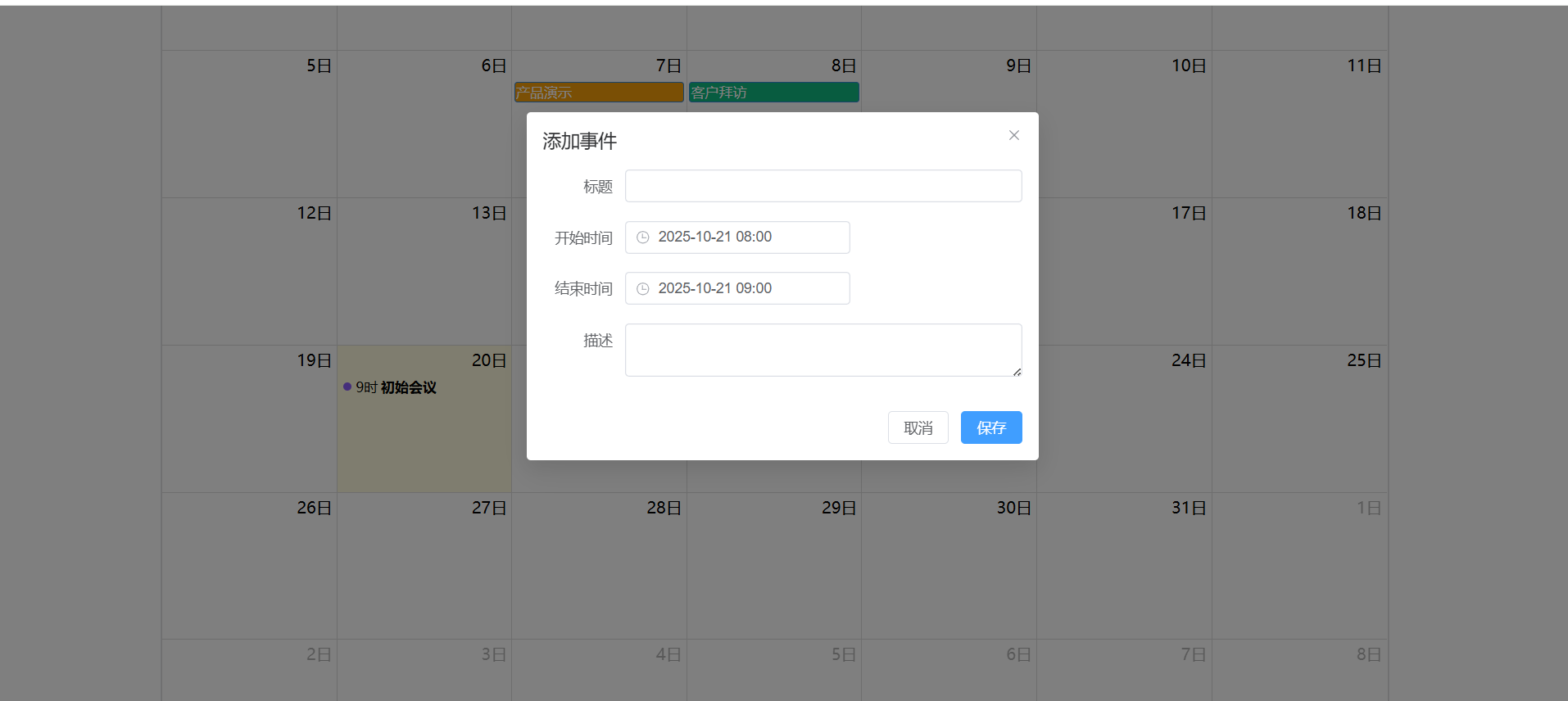
4. 事件详情管理
通过 Element Plus 的弹窗组件,实现完整的事件管理功能:
- 支持添加 / 编辑事件标题
- 可精确设置开始和结束时间(精确到分钟)
- 提供描述字段,记录事件详情
- 所有修改实时保存并更新到日历
四、实现要点解析
1. 日历初始化
通过onMounted钩子初始化日历实例,配置必要的插件和选项:
function initCalendar() {
  const calendarEl = document.getElementById('calendar')

  calendarInstance = new Calendar(calendarEl, {
    plugins: [dayGridPlugin, timeGridPlugin, interactionPlugin],
    headerToolbar: {
      left: 'prev,next today',
      center: 'title',
      right: 'dayGridMonth,timeGridWeek,timeGridDay'
    },
    initialView: 'dayGridMonth',
    locale: 'zh-cn',
    editable: true,  // 允许事件编辑
    droppable: true, // 允许外部拖拽
    // 其他配置...
  })
  calendarInstance.render()
}
2. 拖拽功能实现
外部事件拖拽通过 FullCalendar 的Draggable类实现:
function initDraggableElements() {
  // 销毁已有实例
  if (draggableInstance) {
    draggableInstance.destroy()
  }

  const containerEl = document.querySelector('.external-events')
  draggableInstance = new Draggable(containerEl, {
    itemSelector: '.external-event',
    eventData: function(eventEl) {
      return {
        title: eventEl.innerText,
        backgroundColor: eventEl.getAttribute('data-color')
      }
    }
  })
}
当元素拖拽到日历后,通过drop回调处理事件创建:
function initDraggableElements() {
  const containerEl = document.querySelector('.external-events')
  draggableInstance = new Draggable(containerEl, {
    itemSelector: '.external-event',
    eventData: function(eventEl) {
      return {
        title: eventEl.innerText,
        backgroundColor: eventEl.getAttribute('data-color')
      }
    }
  })
}
3. 事件响应与状态管理
通过 FullCalendar 提供的各类回调函数,处理用户交互并更新 Vue 的响应式数据:
eventDrop:处理事件拖拽后的日期更新eventResize:处理事件时长调整dateClick:处理空白日期点击,打开新建事件表单eventClick:处理事件点击,打开编辑表单
所有操作都会同步更新events响应式数组,确保数据一致性。
五、具体实现代码
**<template>
  <div class="container">
    <h2>FullCalendar 拖拽功能</h2>
    <!-- 可拖拽的外部事件源 -->
    <div class="external-events">
      <h3>可拖拽事件类型</h3>
      <div
          class="external-event"
          data-title="团队会议"
          data-color="#3b82f6"
      >
        团队会议
      </div>
      <div
          class="external-event"
          data-title="项目截止"
          data-color="#ef4444"
      >
        项目截止
      </div>
      <div
          class="external-event"
          data-title="客户拜访"
          data-color="#10b981"
      >
        客户拜访
      </div>
      <div
          class="external-event"
          data-title="产品演示"
          data-color="#f59e0b"
      >
        产品演示
      </div>
    </div>

    <!-- 日历容器 -->
    <div class="calendar-container">
      <div id="calendar"></div>
    </div>

    <!-- 事件详情弹窗 -->
    <el-dialog
        v-model="dialogVisible"
        :title="dialogTitle"
        width="500px"
    >
      <el-form :model="eventForm" label-width="80px">
        <el-form-item label="标题">
          <el-input v-model="eventForm.title" />
        </el-form-item>
        <el-form-item label="开始时间">
          <el-date-picker
              v-model="eventForm.start"
              type="datetime"
              format="YYYY-MM-DD HH:mm"
          />
        </el-form-item>
        <el-form-item label="结束时间">
          <el-date-picker
              v-model="eventForm.end"
              type="datetime"
              format="YYYY-MM-DD HH:mm"
          />
        </el-form-item>
        <el-form-item label="描述">
          <el-input
              v-model="eventForm.description"
              type="textarea"
          />
        </el-form-item>
      </el-form>
      <template #footer>
        <el-button @click="dialogVisible = false">取消</el-button>
        <el-button type="primary" @click="saveEvent">保存</el-button>
      </template>
    </el-dialog>
  </div>
</template>

<script setup>
import { ref, onMounted, onUnmounted, reactive,nextTick } from 'vue'
import { Calendar } from '@fullcalendar/core'
import dayGridPlugin from '@fullcalendar/daygrid'
import timeGridPlugin from '@fullcalendar/timegrid'
import interactionPlugin, { Draggable } from '@fullcalendar/interaction'
import { ElDialog, ElForm, ElFormItem, ElInput, ElDatePicker, ElButton, ElNotification } from 'element-plus'
import 'element-plus/dist/index.css'

// 日历实例
let calendarInstance = null
// 拖拽实例
let draggableInstance = null

// 事件数据
const events = ref([
  {
    id: '1',
    title: '初始会议',
    start: new Date().toISOString().split('T')[0] + 'T09:00:00',
    end: new Date().toISOString().split('T')[0] + 'T10:30:00',
    backgroundColor: '#8b5cf6',
    description: '每周团队例会'
  }
])

// 弹窗相关
const dialogVisible = ref(false)
const dialogTitle = ref('添加事件')
const currentEvent = ref(null)
const eventForm = reactive({
  title: '',
  start: null,
  end: null,
  description: ''
})

// 初始化日历
function initCalendar() {
  const calendarEl = document.getElementById('calendar')

  // 销毁已有实例
  if (calendarInstance) {
    calendarInstance.destroy()
  }

  calendarInstance = new Calendar(calendarEl, {
    plugins: [dayGridPlugin, timeGridPlugin, interactionPlugin],
    headerToolbar: {
      left: 'prev,next today',
      center: 'title',
      right: 'dayGridMonth,timeGridWeek,timeGridDay'
    },
    initialView: 'dayGridMonth',
    locale: 'zh-cn',
    editable: true, // 允许事件拖拽和调整大小
    droppable: true, // 允许外部元素拖入
    events: events.value,

    // 外部元素拖入日历
    drop: function(info) {
      // 恢复拖拽元素样式
      info.draggedEl.style.opacity = 1

      // 获取拖拽元素的数据
      const title = info.draggedEl.getAttribute('data-title')
      const color = info.draggedEl.getAttribute('data-color')

      // 创建新事件
      const newEvent = {
        id: `event_${Date.now()}`,
        title: title,
        start: info.dateStr + 'T10:00:00',
        end: info.dateStr + 'T11:00:00',
        backgroundColor: color,
        description: ''
      }

      // 添加到事件列表
      events.value.push(newEvent)
      // 刷新日历
      calendarInstance.refetchEvents()
      ElNotification({
        title: '成功',
        message: '事件已添加',
        type: 'success'
      })
    },

    // 拖拽开始时的样式变化
    eventDragStart: function(info) {
      info.el.style.opacity = 0.5
    },

    // 拖拽结束时的样式恢复
    eventDragEnd: function(info) {
      info.el.style.opacity = 1
    },

    // 事件拖拽完成
    eventDrop: function(info) {
      // 更新事件数据
      const eventIndex = events.value.findIndex(e => e.id === info.event.id)
      if (eventIndex !== -1) {
        events.value[eventIndex].start = info.event.startStr
        events.value[eventIndex].end = info.event.endStr

        ElNotification({
          title: '成功',
          message: '事件已移动',
          type: 'success'
        })
      }
    },

    // 事件大小调整完成
    eventResize: function(info) {
      // 更新事件数据
      const eventIndex = events.value.findIndex(e => e.id === info.event.id)
      if (eventIndex !== -1) {
        events.value[eventIndex].end = info.event.endStr

        ElNotification({
          title: '成功',
          message: '事件时间已调整',
          type: 'success'
        })
      }
    },

    // 点击日期添加新事件
    dateClick: function(info) {
      currentEvent.value = null
      dialogTitle.value = '添加事件'
      eventForm.title = ''
      eventForm.start = new Date(info.dateStr)
      eventForm.end = new Date(info.dateStr)
      eventForm.end.setHours(eventForm.start.getHours() + 1)
      eventForm.description = ''
      dialogVisible.value = true
    },

    // 点击事件查看详情
    eventClick: function(info) {
      currentEvent.value = info.event
      dialogTitle.value = '编辑事件'
      eventForm.title = info.event.title
      eventForm.start = new Date(info.event.startStr)
      eventForm.end = info.event.endStr ? new Date(info.event.endStr) : new Date(info.event.startStr)
      eventForm.description = info.event.extendedProps.description || ''
      dialogVisible.value = true
    }
  })

  calendarInstance.render()
}

// 初始化外部拖拽元素
function initDraggableElements() {
  // 销毁已有实例
  if (draggableInstance) {
    draggableInstance.destroy()
  }

  const containerEl = document.querySelector('.external-events')
  draggableInstance = new Draggable(containerEl, {
    itemSelector: '.external-event',
    eventData: function(eventEl) {
      return {
        title: eventEl.innerText,
        backgroundColor: eventEl.getAttribute('data-color')
      }
    }
  })
}

// 保存事件
function saveEvent() {
  if (!eventForm.title || !eventForm.start) {
    ElNotification({
      title: '错误',
      message: '请填写标题和开始时间',
      type: 'error'
    })
  }

  // 格式化时间
  const formatDate = (date) => {
    return date.toISOString().slice(0, 19)
  }
  console.log('currentEvent', currentEvent.value)

  if (currentEvent.value) {
    console.log('currentEvent', currentEvent.value)
    // 编辑现有事件
    currentEvent.value.setProp('title', eventForm.title)
    currentEvent.value.setStart(formatDate(eventForm.start))
    currentEvent.value.setEnd(formatDate(eventForm.end))
    currentEvent.value.setExtendedProp('description', eventForm.description)

    // 更新本地数据
    const eventIndex = events.value.findIndex(e => e.id === currentEvent.value.id)
    if (eventIndex !== -1) {
      events.value[eventIndex] = {
        ...events.value[eventIndex],
        title: eventForm.title,
        start: formatDate(eventForm.start),
        end: formatDate(eventForm.end),
        description: eventForm.description
      }
    }
  } else {
    // 添加新事件
    const newEvent = {
      id: `event_${Date.now()}`,
      title: eventForm.title,
      start: formatDate(eventForm.start),
      end: formatDate(eventForm.end),
      backgroundColor: '#8b5cf6',
      description: eventForm.description
    }

    events.value.push(newEvent)
    console.log('events.value-----',events.value)
    initCalendar()
  }

  dialogVisible.value = false
  ElNotification({
    title: '成功',
    message: currentEvent.value ? '事件已更新' : '事件已添加',
    type: 'success'
  })
}

// 生命周期
onMounted(() => {
  initCalendar()
  initDraggableElements()
})

onUnmounted(() => {
  if (calendarInstance) {
    calendarInstance.destroy()
  }
  if (draggableInstance) {
    draggableInstance.destroy()
  }
})
</script>

<style scoped>
.container {
  max-width: 1200px;
  margin: 0 auto;
  padding: 20px;
}

h2 {
  text-align: center;
  margin-bottom: 30px;
  color: #333;
}

.external-events {
  margin-bottom: 20px;
  padding: 15px;
  border: 1px solid #e5e7eb;
  border-radius: 8px;
}

h3 {
  margin-top: 0;
  margin-bottom: 15px;
  color: #4b5563;
  font-size: 16px;
}

.external-event {
  padding: 8px 12px;
  margin: 0 8px 8px 0;
  background-color: #3b82f6;
  color: white;
  border-radius: 4px;
  display: inline-block;
  cursor: move;
  user-select: none;
  transition: transform 0.2s;
}

.external-event:hover {
  transform: translateY(-2px);
}

.calendar-container {
  border: 1px solid #e5e7eb;
  border-radius: 8px;
  overflow: hidden;
  min-height: 600px;
}

/* 日历样式穿透 */
::v-deep .fc-event {
  cursor: pointer;
}

::v-deep .fc-toolbar-title {
  font-size: 1.5rem !important;
}

::v-deep .fc-daygrid-day {
  min-height: 80px;
}
</style>
**
六、总结
本组件通过 Vue3 与 FullCalendar 的结合,实现了一个功能丰富、交互友好的日历应用。核心优势在于:
- 直观的拖拽操作,降低用户使用成本
- 多视图切换,满足不同场景需求
- 完整的事件管理流程,从创建到编辑一站式完成
- 响应式设计,适配不同屏幕尺寸
这种实现方式既发挥了 FullCalendar 在日历功能上的专业性,又利用了 Vue3 的响应式特性和 Element Plus 的 UI 组件,为用户提供了流畅高效的日程管理体验。后续可以考虑添加更多高级功能,如事件分类、重复事件、资源管理等,进一步扩展日历的应用场景。
仅供参考,如有bug,可自行修正

Agent 垂直技术社区,欢迎活跃、内容共建。
更多推荐


 36
36 0
0- 0


 已为社区贡献3条内容

所有评论(0)