React Native for OpenHarmony 实战:折扣计算实现
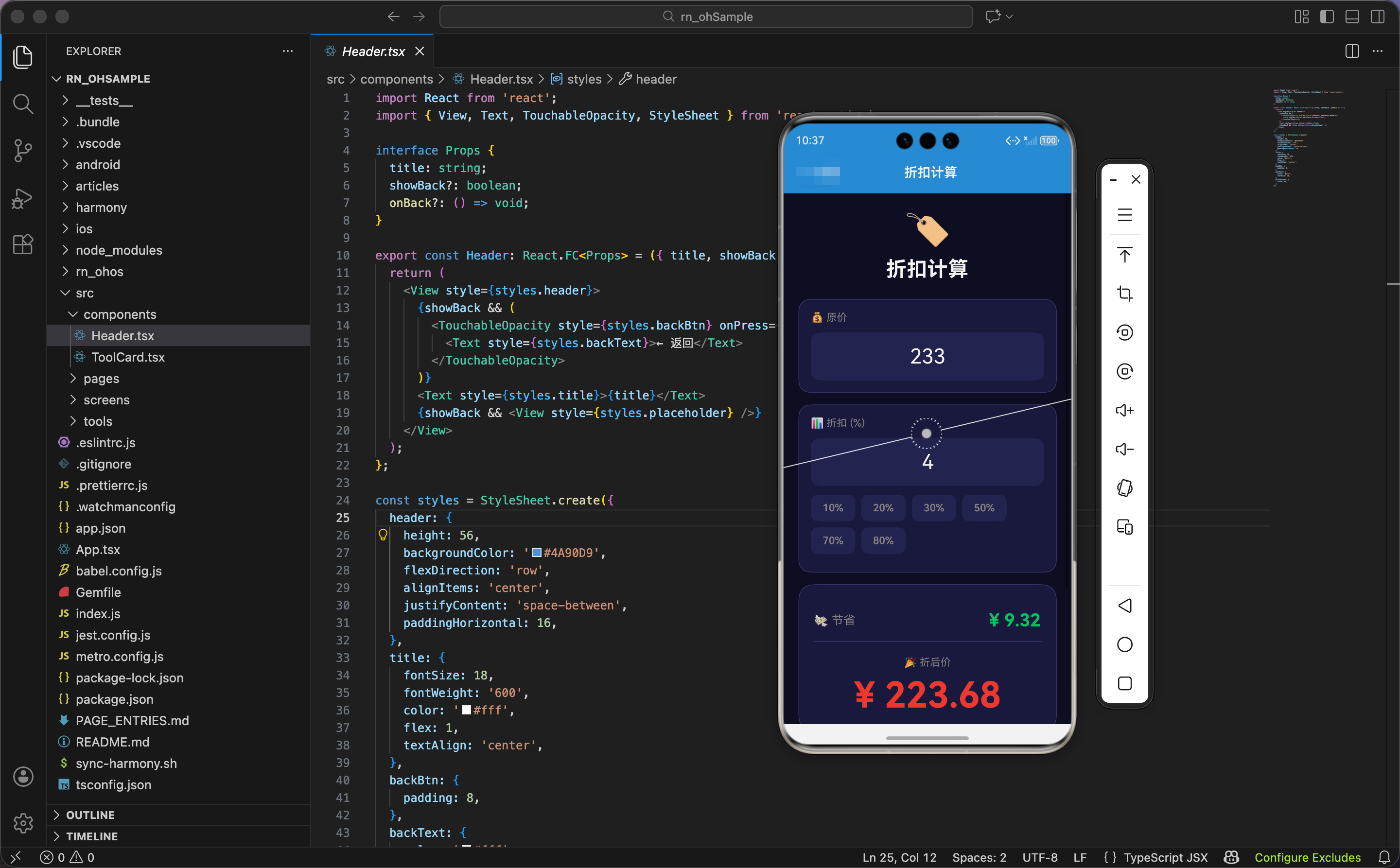
今天我们用 React Native 实现一个折扣计算工具,支持快速选择折扣,实时显示节省金额和折后价。
状态设计
import React, { useState, useRef, useEffect } from 'react';
import { View, Text, TextInput, TouchableOpacity, StyleSheet, ScrollView, Animated } from 'react-native';

export const DiscountCalculator: React.FC = () => {
  const [price, setPrice] = useState('');
  const [discount, setDiscount] = useState('');

  const resultAnim = useRef(new Animated.Value(1)).current;
  const savedAnim = useRef(new Animated.Value(1)).current;
  const pulseAnim = useRef(new Animated.Value(1)).current;
状态设计包含原价、折扣、动画值。
原价:price 是字符串类型,存储用户输入的原价。
折扣:discount 是字符串类型,存储用户输入的折扣百分比。
三个动画值:
resultAnim:结果卡片的缩放动画savedAnim:节省金额的缩放动画pulseAnim:折后价的脉冲动画(循环放大缩小)
为什么折扣用百分比?因为折扣通常用百分比表示,比如"打 8 折"就是"20% off"。用百分比更符合用户习惯。
脉冲动画
  useEffect(() => {
    Animated.loop(
      Animated.sequence([
        Animated.timing(pulseAnim, { toValue: 1.05, duration: 1000, useNativeDriver: true }),
        Animated.timing(pulseAnim, { toValue: 1, duration: 1000, useNativeDriver: true }),
      ])
    ).start();
  }, []);
组件挂载时,启动折后价的脉冲动画。
循环动画:Animated.loop() 让动画无限循环。
序列动画:
- 放大到 105%(1 秒)
- 缩回到 100%(1 秒)
为什么用脉冲动画?因为折后价是用户最关心的信息,脉冲动画让它更醒目。折后价不断放大缩小,像"心跳"一样,吸引用户注意力。
输入变化动画
  useEffect(() => {
    Animated.sequence([
      Animated.timing(resultAnim, { toValue: 0.95, duration: 100, useNativeDriver: true }),
      Animated.spring(resultAnim, { toValue: 1, friction: 4, useNativeDriver: true }),
    ]).start();
  }, [price, discount]);
监听原价和折扣变化,触发结果卡片的动画。
依赖数组:[price, discount] 表示当原价或折扣变化时,执行动画。
序列动画:
- 缩小到 95%(100ms)
- 弹回到 100%(弹簧动画)
为什么监听输入变化?因为用户每次修改原价或折扣,结果都会变化。动画让用户感知到"结果更新了",增加交互反馈。
计算函数
  const calculate = () => {
    const p = parseFloat(price) || 0;
    const d = parseFloat(discount) || 0;
    const saved = p * d / 100;
    const final = p - saved;
    return { saved: saved.toFixed(2), final: final.toFixed(2) };
  };
计算节省金额和折后价。
解析输入:
parseFloat(price) || 0:把原价转成浮点数,如果失败(NaN)则默认 0parseFloat(discount) || 0:把折扣转成浮点数,如果失败则默认 0
计算节省金额:saved = p * d / 100。比如原价 100,折扣 20%,节省 100 × 20 / 100 = 20。
计算折后价:final = p - saved。比如原价 100,节省 20,折后价 100 - 20 = 80。
保留 2 位小数:toFixed(2) 让结果更易读,比如 19.99 而不是 19.989999…。
为什么用 || 0 而不是验证输入?因为折扣计算是实时的,用户输入过程中可能出现空字符串或无效输入。用 || 0 让计算不会报错,显示 0 而不是 NaN。
快速选择折扣
  const handleDiscountSelect = (d: number) => {
    Animated.sequence([
      Animated.timing(savedAnim, { toValue: 1.2, duration: 100, useNativeDriver: true }),
      Animated.spring(savedAnim, { toValue: 1, friction: 3, useNativeDriver: true }),
    ]).start();
    setDiscount(String(d));
  };

  const result = calculate();
  const quickDiscounts = [10, 20, 30, 50, 70, 80];
快速选择折扣函数触发动画,设置折扣。
节省金额动画:序列动画,先放大到 120%(100ms),再弹回到 100%。强调"节省金额变化了"。
设置折扣:setDiscount(String(d)) 把数字转成字符串,设置到状态中。
快速折扣数组:[10, 20, 30, 50, 70, 80] 是常见的折扣百分比。
为什么提供快速选择?因为折扣通常是固定的几个值,比如"打 8 折"(20% off)、“打 5 折”(50% off)。快速选择让用户不需要手动输入,点击按钮就能选择。
界面渲染:头部和原价输入
  return (
    <ScrollView style={styles.container}>
      <View style={styles.header}>
        <Text style={styles.headerIcon}>🏷️</Text>
        <Text style={styles.headerTitle}>折扣计算</Text>
      </View>

      <View style={styles.inputCard}>
        <Text style={styles.label}>💰 原价</Text>
        <View style={styles.inputWrapper}>
          <TextInput style={styles.input} value={price} onChangeText={setPrice} keyboardType="numeric" placeholder="0.00" placeholderTextColor="#666" />
        </View>
      </View>
头部显示标题,原价输入卡片包含标签和输入框。
头部:
- 图标:🏷️ 标签(折扣标签)
- 标题:折扣计算
原价输入卡片:
- 标签:💰 原价
- 输入框:
keyboardType="numeric"弹出数字键盘,textAlign: 'center'居中对齐,字号 28
为什么输入框字号这么大?因为价格是重要信息,大字号让用户看得更清楚。输入价格时,用户需要确认"输入的数字对不对",大字号减少输入错误。
折扣输入和快速选择
      <View style={styles.inputCard}>
        <Text style={styles.label}>📊 折扣 (%)</Text>
        <View style={styles.inputWrapper}>
          <TextInput style={styles.input} value={discount} onChangeText={setDiscount} keyboardType="numeric" placeholder="0" placeholderTextColor="#666" />
        </View>
        <View style={styles.quickBtns}>
          {quickDiscounts.map(d => (
            <TouchableOpacity key={d} style={[styles.quickBtn, discount === String(d) && styles.quickBtnActive]} onPress={() => handleDiscountSelect(d)} activeOpacity={0.7}>
              <Text style={[styles.quickText, discount === String(d) && styles.quickTextActive]}>{d}%</Text>
            </TouchableOpacity>
          ))}
        </View>
      </View>
折扣输入卡片包含标签、输入框、快速选择按钮。
标签:📊 折扣 (%)
输入框:同原价输入框,字号 28,居中对齐。
快速选择按钮:
- 遍历
quickDiscounts数组,生成 6 个按钮 - 当前选中的按钮用蓝色背景(
quickBtnActive) - 按钮文字显示折扣百分比,比如"10%"
为什么快速选择按钮在输入框下面?因为快速选择是"辅助功能",不是主要功能。用户可以手动输入折扣,也可以点击按钮快速选择。把按钮放在输入框下面,不会干扰输入,但又很容易点击。
结果显示
      <Animated.View style={[styles.result, { transform: [{ scale: resultAnim }] }]}>
        <View style={styles.resultRow}>
          <Text style={styles.resultLabel}>💸 节省</Text>
          <Animated.Text style={[styles.resultSaved, { transform: [{ scale: savedAnim }] }]}>¥ {result.saved}</Animated.Text>
        </View>
        <Animated.View style={[styles.resultRowMain, { transform: [{ scale: pulseAnim }] }]}>
          <Text style={styles.resultLabelMain}>🎉 折后价</Text>
          <Text style={styles.resultFinal}>¥ {result.final}</Text>
        </Animated.View>
      </Animated.View>
结果卡片显示节省金额和折后价。
结果卡片动画:应用缩放动画,输入变化时缩小再弹回。
节省金额行:
- 标签:💸 节省
- 金额:绿色文字,字号 24,应用缩放动画
折后价行:
- 标签:🎉 折后价
- 金额:红色文字,字号 48,应用脉冲动画
为什么节省金额用绿色,折后价用红色?因为绿色代表"省钱",红色代表"价格"。绿色让用户感觉"省了钱,很开心",红色让用户关注"最终要付多少钱"。
为什么折后价字号更大?因为折后价是用户最关心的信息。用户购物时,最想知道的是"最终要付多少钱"。大字号 + 红色 + 脉冲动画,让折后价成为视觉焦点。
折扣换算提示
      <View style={styles.tips}>
        <Text style={styles.tipsTitle}>💡 折扣换算</Text>
        <View style={styles.tipsList}>
          {[
            { zh: '打9折', en: '10% off' },
            { zh: '打8折', en: '20% off' },
            { zh: '打7折', en: '30% off' },
            { zh: '打5折', en: '50% off' },
          ].map((item, i) => (
            <View key={i} style={styles.tipItem}>
              <Text style={styles.tipZh}>{item.zh}</Text>
              <Text style={styles.tipEn}>{item.en}</Text>
            </View>
          ))}
        </View>
      </View>
    </ScrollView>
  );
};
折扣换算提示显示中文折扣和英文折扣的对应关系。
标题:💡 折扣换算
提示列表:
- 打 9 折 = 10% off
- 打 8 折 = 20% off
- 打 7 折 = 30% off
- 打 5 折 = 50% off
为什么显示折扣换算?因为中文和英文的折扣表示方式不同。中文说"打 8 折",意思是"付 80%“,折扣是 20%。英文说"20% off”,意思是"减 20%",折扣也是 20%。很多人搞不清楚,显示换算表帮助用户理解。
为什么只显示 4 个常见折扣?因为这 4 个是最常见的折扣。打 9 折(小折扣)、打 8 折(常见折扣)、打 7 折(较大折扣)、打 5 折(半价)。显示太多会让界面拥挤,4 个刚好。
鸿蒙 ArkTS 对比:折扣计算
@State price: string = ''
@State discount: string = ''

calculate() {
  const p = parseFloat(this.price) || 0
  const d = parseFloat(this.discount) || 0
  const saved = p * d / 100
  const final = p - saved
  return { saved: saved.toFixed(2), final: final.toFixed(2) }
}

build() {
  Column() {
    Text('折扣计算')
      .fontSize(28)
      .fontWeight(FontWeight.Bold)

    Column() {
      Text('💰 原价')
        .fontSize(14)
        .fontColor('#888')
      TextInput({ text: this.price, placeholder: '0.00' })
        .type(InputType.Number)
        .fontSize(28)
        .textAlign(TextAlign.Center)
        .onChange((value: string) => {
          this.price = value
        })
    }

    Column() {
      Text('📊 折扣 (%)')
        .fontSize(14)
        .fontColor('#888')
      TextInput({ text: this.discount, placeholder: '0' })
        .type(InputType.Number)
        .fontSize(28)
        .textAlign(TextAlign.Center)
        .onChange((value: string) => {
          this.discount = value
        })

      Row() {
        ForEach([10, 20, 30, 50, 70, 80], (d: number) => {
          Button(`${d}%`)
            .backgroundColor(this.discount === String(d) ? '#4A90D9' : '#252550')
            .onClick(() => {
              this.discount = String(d)
            })
        })
      }
    }

    Column() {
      Row() {
        Text('💸 节省')
        Text(`¥ ${this.calculate().saved}`)
          .fontSize(24)
          .fontColor('#2ecc71')
          .fontWeight(FontWeight.Bold)
      }

      Column() {
        Text('🎉 折后价')
        Text(`¥ ${this.calculate().final}`)
          .fontSize(48)
          .fontColor('#e74c3c')
          .fontWeight(FontWeight.Bold)
      }
    }
  }
}
ArkTS 中的折扣计算逻辑完全一样。核心是公式:节省 = 原价 × 折扣 / 100,折后价 = 原价 - 节省。parseFloat()、toFixed() 都是标准 JavaScript API,跨平台通用。
为什么算法跨平台通用?因为折扣计算是纯数学运算,不涉及 UI、动画、平台 API。只要语言支持浮点数运算,就能实现折扣计算。
样式定义
const styles = StyleSheet.create({
  container: { flex: 1, backgroundColor: '#0f0f23', padding: 20 },
  header: { alignItems: 'center', marginBottom: 24 },
  headerIcon: { fontSize: 50, marginBottom: 8 },
  headerTitle: { fontSize: 28, fontWeight: '700', color: '#fff' },
  inputCard: { backgroundColor: '#1a1a3e', borderRadius: 16, padding: 16, marginBottom: 16, borderWidth: 1, borderColor: '#3a3a6a' },
  label: { fontSize: 14, color: '#888', marginBottom: 12 },
  inputWrapper: { backgroundColor: '#252550', borderRadius: 12 },
  input: { padding: 16, fontSize: 28, textAlign: 'center', color: '#fff' },
  quickBtns: { flexDirection: 'row', flexWrap: 'wrap', marginTop: 12 },
  quickBtn: { paddingVertical: 10, paddingHorizontal: 16, backgroundColor: '#252550', borderRadius: 10, marginRight: 8, marginBottom: 8 },
  quickBtnActive: { backgroundColor: '#4A90D9' },
  quickText: { color: '#888', fontWeight: '600' },
  quickTextActive: { color: '#fff' },
  result: { backgroundColor: '#1a1a3e', padding: 20, borderRadius: 20, marginBottom: 20, borderWidth: 1, borderColor: '#3a3a6a' },
  resultRow: { flexDirection: 'row', justifyContent: 'space-between', alignItems: 'center', paddingVertical: 14, borderBottomWidth: 1, borderBottomColor: '#3a3a6a' },
  resultLabel: { fontSize: 16, color: '#888' },
  resultSaved: { fontSize: 24, color: '#2ecc71', fontWeight: '700' },
  resultRowMain: { paddingTop: 20, alignItems: 'center' },
  resultLabelMain: { fontSize: 14, color: '#888', marginBottom: 8 },
  resultFinal: { fontSize: 48, color: '#e74c3c', fontWeight: '700' },
  tips: { backgroundColor: '#1a1a3e', padding: 16, borderRadius: 16, borderWidth: 1, borderColor: '#3a3a6a' },
  tipsTitle: { fontSize: 16, fontWeight: '600', marginBottom: 16, color: '#fff' },
  tipsList: {},
  tipItem: { flexDirection: 'row', justifyContent: 'space-between', paddingVertical: 10, borderBottomWidth: 1, borderBottomColor: '#3a3a6a' },
  tipZh: { color: '#fff', fontSize: 14 },
  tipEn: { color: '#4A90D9', fontSize: 14 },
});
容器用深蓝黑色背景。输入卡片用深蓝色背景,圆角 16。输入框字号 28,居中对齐。快速选择按钮用网格布局,自动换行。节省金额绿色,字号 24。折后价红色,字号 48。
小结
这个折扣计算工具展示了实时计算和动画反馈的实现。用公式计算节省金额和折后价,监听输入变化触发动画。快速选择按钮让用户不需要手动输入折扣。脉冲动画让折后价更醒目。
欢迎加入开源鸿蒙跨平台社区:https://openharmonycrossplatform.csdn.net

Agent 垂直技术社区,欢迎活跃、内容共建。
更多推荐

 14
14 0
0- 0


 已为社区贡献2条内容

所有评论(0)