10分钟0失误!在电脑上部署属于自己的openclaw小龙虾(全程复制/粘贴)小白友好篇
为了帮助你更快地安装,我整理了这套只需要复制/粘贴,10分钟0失误在Windows/MACOS/Linux 全平台成功安装openclaw 的教程。
1.准备工作
1.1 阿里云https://account.aliyun.com/扫码登录,
1.2 访问 https://www.aliyun.com/product/bailian 获取千问大模型的API key

选择"密钥管理"
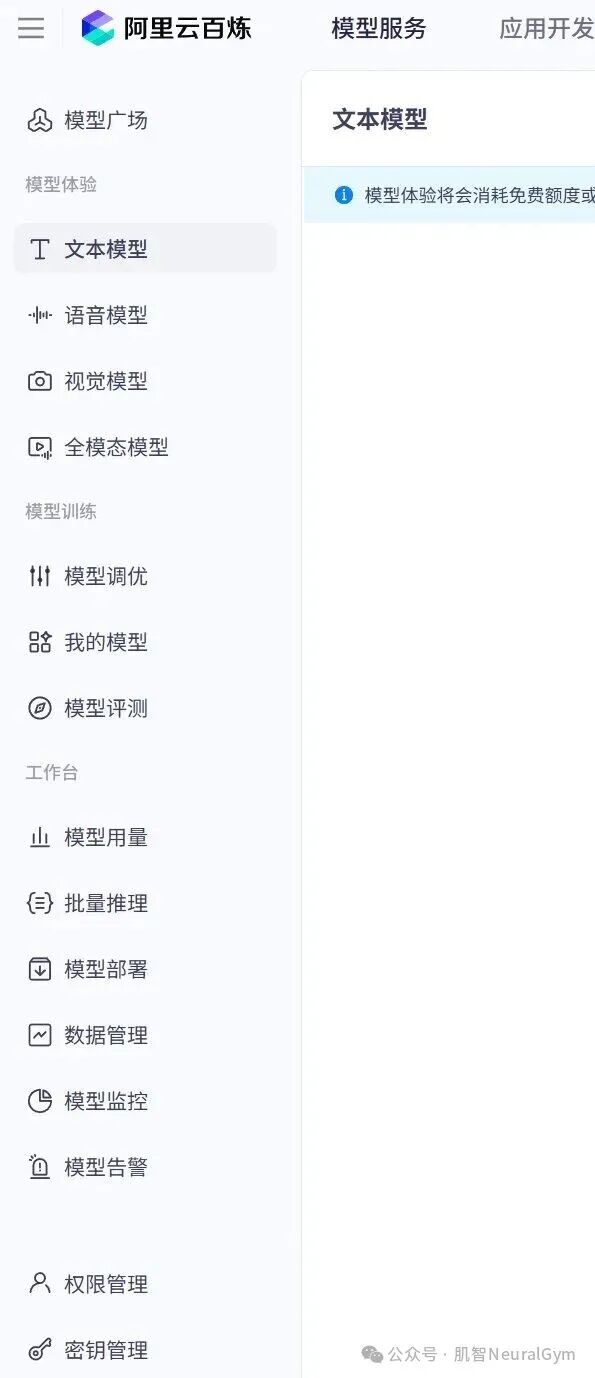
创建API Key,复制你的API Key(下面会使用到)

1.3 到node官网https://nodejs.org/en/download下载nodejs,按照你的系统安装对应的nodejs
1.4. 到git官网https://git-scm.com/下载安装git
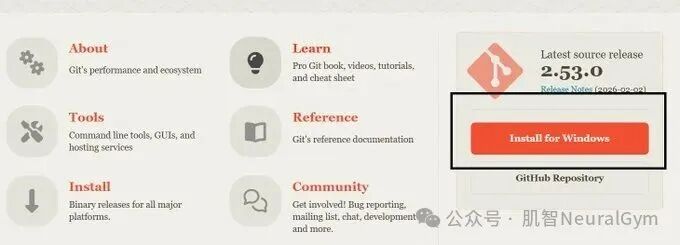
2. 开始安装openclaw
2.1 打开上网工具的TUN模式和系统代理功能(如没有安装方式,详见下述)
2.2 我用Windows来举例, 其他系统也类似,用管理员权限打开Windows的powershell,linux 和macOS 应该是打开terminal 终端。
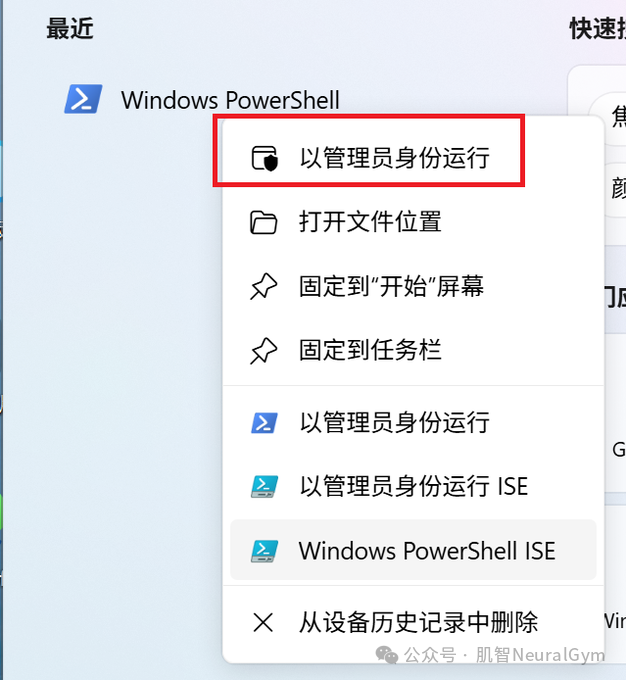
windows 系统需要开启权限, 其他平台不需要输入这条命令
Set-ExecutionPolicy -ExecutionPolicy Bypass -Scope LocalMachine -Force
安装openclaw ,这部分就取决你的网速。
npm install -g openclaw@latest

上述没有上网工具的,这部分使用该方法安装。
npm install -g openclaw@latest -registry=https://registry.npmmirror.com
2.3 安装完成后,继续复制下面的命令到powershell 中, 创建龙虾的配置文件夹。
Windows命令:
mkdir ~/.openclaw
New-Item -Path "~/.openclaw/openclaw.json" -ItemType "file"
mac/linux系统
mkdir ~/.openclaw
touch ~/.openclaw/openclaw.json
2.4 到当前用户的文件夹下面,可以看到一个.openclaw 的文件夹,进去以后可以看到一个名字为openclaw.json 的文件(以文本的形式打开它)。mac系统的文件是在 /Users/用户名/.openclaw/ 路径下
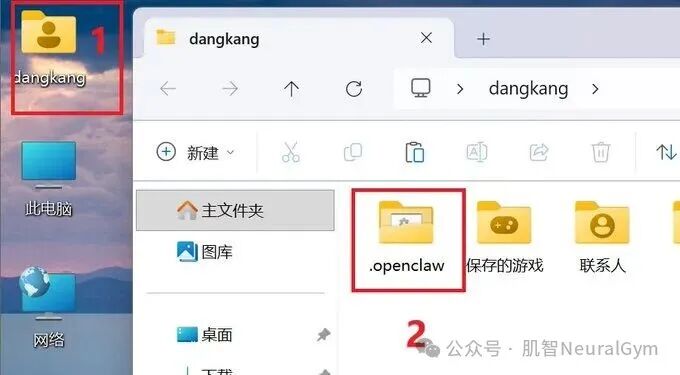
打开后将原来的内容全部替换掉
windows版
{

"meta": {

   "lastTouchedVersion": "2026.1.29",

   "lastTouchedAt": "2026-02-01T15:50:41.101Z"

},

"wizard": {

   "lastRunAt": "2026-02-01T15:50:41.073Z",

   "lastRunVersion": "2026.1.29",

   "lastRunCommand": "configure",

   "lastRunMode": "local"

},

   "models": {

   "providers": {

     "cc": {

       "baseUrl": "https://dashscope.aliyuncs.com/apps/anthropic",

       "apiKey": "xxxxxxxx",  //这里粘贴你的API Key

       "api": "anthropic-messages",

       "models": [

         {

           "id": "qwen3-max-2026-01-23",

           "name": "Claude Opus 4.5",

           "reasoning": true,

           "input": ["text", "image"],

           "cost": {

             "input": 0,

             "output": 0,

             "cacheRead": 0,

             "cacheWrite": 0

           },

           "contextWindow": 200000,

           "maxTokens": 4096

         }

       ]

     }

   }

},

   "agents": {

   "defaults": {

     "workspace": "C:/Users/xxx/.openclaw/workspace", //这里填写你的用户文件下的用户名

     "model": {

       "primary": "cc/qwen3-max-2026-01-23"

     },

     "maxConcurrent": 4,

     "subagents": {

       "maxConcurrent": 8

     }

   }

},

"messages": {

   "ackReactionScope": "group-mentions"

},

"commands": {

   "native": "auto",

   "nativeSkills": "auto"

},

"hooks": {

   "internal": {

     "enabled": true,

     "entries": {

       "boot-md": {

         "enabled": true

       },

       "command-logger": {

         "enabled": true

       },

       "session-memory": {

         "enabled": true

       }

     }

   }

},

"channels": {

   "discord": {

     "token": "xxxxxxx",

     "groupPolicy": "allowlist",

     "enabled":false,

     "guilds": {}

}

},

"gateway": {

   "port": 18789,

   "mode": "local",

   "bind": "loopback",

   "auth": {

     "mode": "token",

     "token": "ilove_claw"

   },

   "tailscale": {

     "mode": "off",

     "resetOnExit": false

   }

},

"plugins": {

   "entries": {

     "discord": {

       "enabled": false

     }

   }

}

}
mac系统:
{

"meta": {

   "lastTouchedVersion": "2026.1.29",

   "lastTouchedAt": "2026-02-01T15:50:41.101Z"

},

"wizard": {

   "lastRunAt": "2026-02-01T15:50:41.073Z",

   "lastRunVersion": "2026.1.29",

   "lastRunCommand": "configure",

   "lastRunMode": "local"

},

   "models": {

   "providers": {

     "cc": {

       "baseUrl": "https://dashscope.aliyuncs.com/apps/anthropic",

       "apiKey": "xxxxxxxx",  //这里粘贴你的API Key

       "api": "anthropic-messages",

       "models": [

         {

           "id": "qwen3-max-2026-01-23",

           "name": "Claude Opus 4.5",

           "reasoning": true,

           "input": ["text", "image"],

           "cost": {

             "input": 0,

             "output": 0,

             "cacheRead": 0,

             "cacheWrite": 0

           },

           "contextWindow": 200000,

           "maxTokens": 4096

         }

       ]

     }

   }

},

   "agents": {

   "defaults": {

     "workspace": "/Users/xxx/.openclaw/workspace", //这里填写你的用户文件下的用户名

     "model": {

       "primary": "cc/qwen3-max-2026-01-23"

     },

     "maxConcurrent": 4,

     "subagents": {

       "maxConcurrent": 8

     }

   }

},

"messages": {

   "ackReactionScope": "group-mentions"

},

"commands": {

   "native": "auto",

   "nativeSkills": "auto"

},

"hooks": {

   "internal": {

     "enabled": true,

     "entries": {

       "boot-md": {

         "enabled": true

       },

       "command-logger": {

         "enabled": true

       },

       "session-memory": {

         "enabled": true

       }

     }

   }

},

"channels": {

   "discord": {

     "token": "xxxxxxx",

     "groupPolicy": "allowlist",

     "enabled":false,

     "guilds": {}

}

},

"gateway": {

   "port": 18789,

   "mode": "local",

   "bind": "loopback",

   "auth": {

     "mode": "token",

     "token": "ilove_claw"

   },

   "tailscale": {

     "mode": "off",

     "resetOnExit": false

   }

},

"plugins": {

   "entries": {

     "discord": {

       "enabled": false

     }

   }

}

}
2.5 继续复制下面的命令到powershell 中,运行的过程中,任何询问都选yes, 不要管。
openclaw doctor
2.6 启动openclaw 网关
openclaw gateway stop (先停止之前的doctor的启动)
openclaw gateway
2.7 等待2分钟,然后打开浏览器, 输入127.0.0.1:18789/?token=ilove_claw 127.0.0.1:18789/?token=ilove_claw

2.8 最后, 见证奇迹的时刻到了
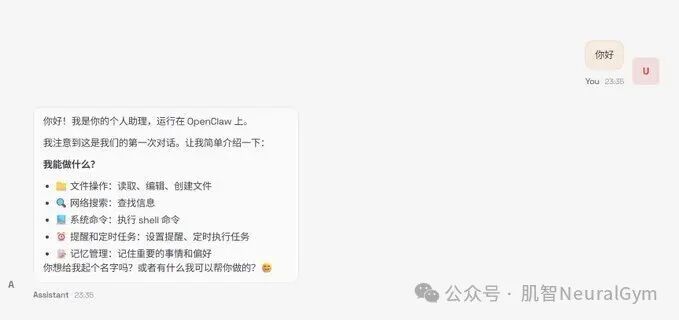
Tips:
下次打开网站时,发现加载不了,可参考如下
电脑左下角搜索框搜索poweshell
输入 openclaw gateway
然后网址搜索
127.0.0.1:18789/?token=ilove_claw
即可使用openclaw
打不开界面按这个操作,能用的话直接使用

Agent 垂直技术社区,欢迎活跃、内容共建。
更多推荐

 8
8 0
0- 0


 已为社区贡献1条内容

所有评论(0)