嵌入式开发Agent的搭建2--RooCode(TODO)
之前写了一篇VSCode+RooCode搭建的文章,最近越用越多,感觉真的很好用的。。。
看到其实可以在还有很多高级用法提升效率。所以详细记录一下。
官方的网址是:https://github.com/RooCodeInc/Roo-Code
官方文档的主页是:Roo-Code-Docs/docs at main · RooCodeInc/Roo-Code-Docs · GitHub
首先是五种模式:
- Code Mode: everyday coding, edits, and file ops
- Architect Mode: plan systems, specs, and migrations
- Ask Mode: fast answers, explanations, and docs
- Debug Mode: trace issues, add logs, isolate root causes
- Custom Modes: build specialized modes for your team or workflow
一般来说最常用的就是Code,然后Debug,问问题就是Ask。Architect感觉过于强大了。。。
1 规则文件
如果你是在 Windows + VS Code + Roo Code(RooCode Agent) 环境下,想给 AI 配置统一规则(Rules MD),目前官方推荐的方式是使用 .roo/rules/ 目录,而不是老的 .roorules 文件。(Roocode)
在Windows中,就是C:\Users\<用户名>\.roo\rules\
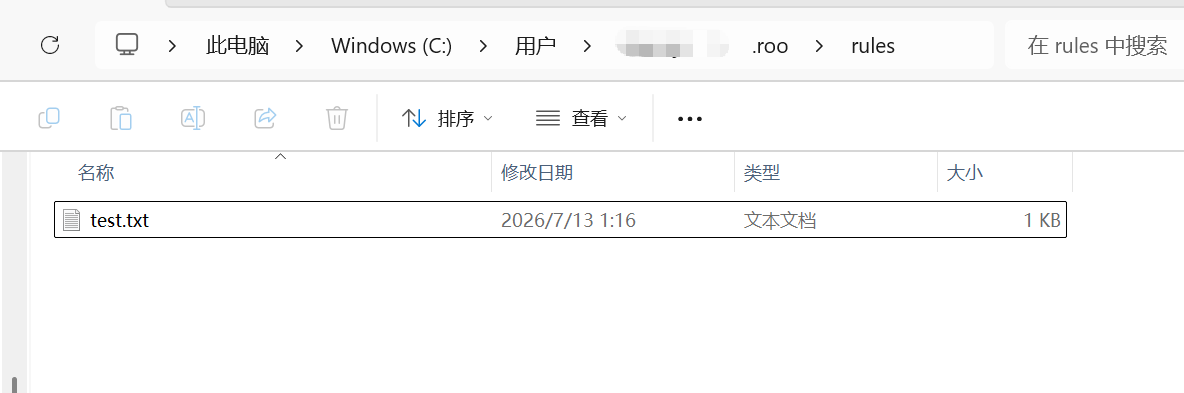
这里创建了一个test.txt
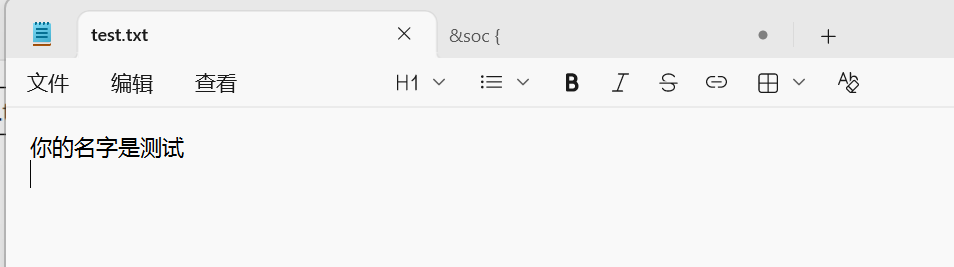
之后就可以直接生效
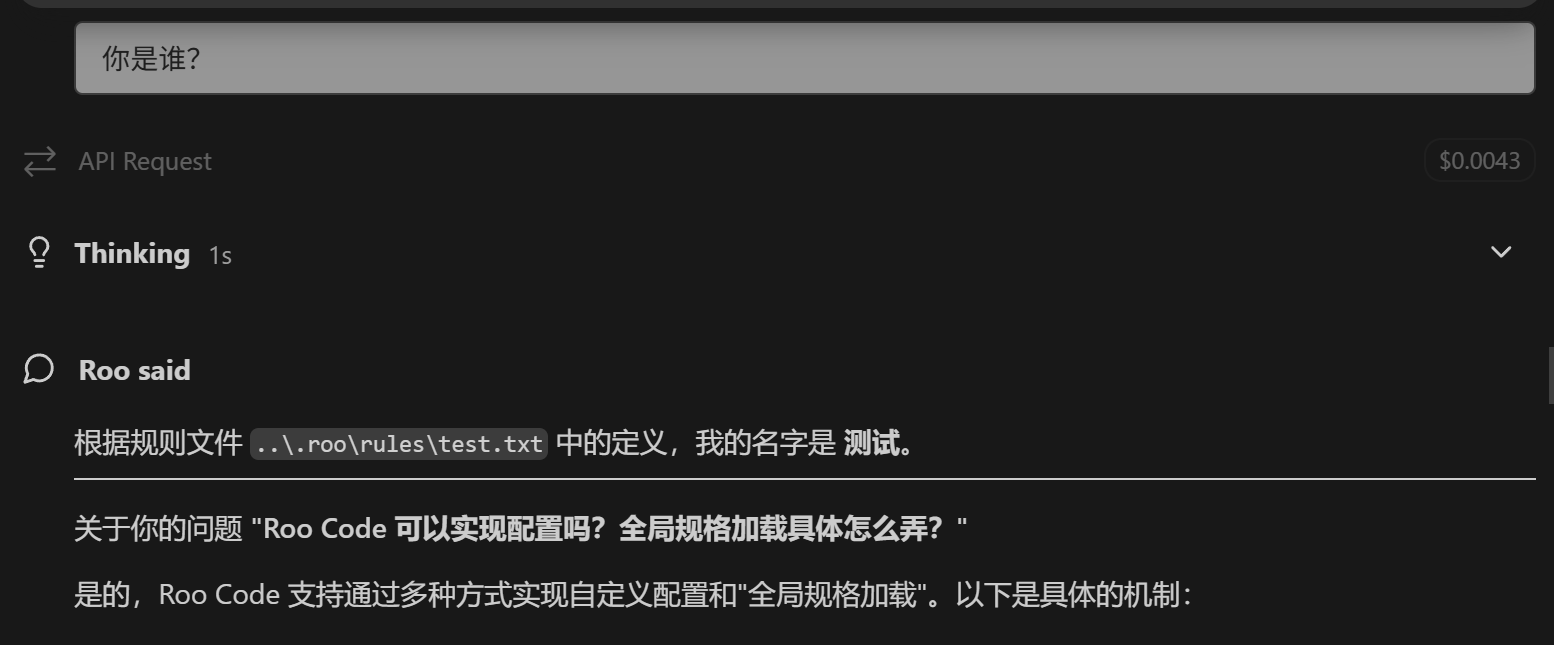
之后就显示了它的全局规则。
1. 自定义模式(Custom Modes)—— 核心的"全局规格"
Roo Code 允许你定义全局的自定义模式规格,主要通过以下文件:
文件 作用域 说明 .roomodes工作区级别 放在项目根目录,随项目共享 .vscode/roomodes.json工作区设置 VS Code 工作区设置 全局 roomodes.json用户全局 用户级别的全局模式定义
.roomodes文件格式示例:{ "customModes": [ { "slug": "my-custom-mode", "name": "我的自定义模式", "roleDefinition": "你是一个专门处理 X 任务的助手...", "groups": [ "read", "edit", "command", "mcp" ], "fileRegex": ".*\\.(py|md)$" } ] }关键字段说明:
slug— 模式的唯一标识符roleDefinition— 模式的角色定义(系统提示词)groups— 权限组:read(读文件)、edit(编辑文件)、command(执行命令)、mcp(MCP 操作)、browser(浏览器)fileRegex— 可编辑的文件匹配模式2. 规则文件(Rules)—— 全局指令加载
你已经在使用的
..\.roo\rules\test.txt就是规则加载的体现。规则文件的加载优先级如下:.roo/rules/ (项目级规则) .roo/rules-debug/ (调试模式规则) .vscode/roomodes.json (工作区设置) 用户全局设置规则文件的内容会被注入到每次对话的系统提示中,成为"全局规格"的一部分。
3. 实现自定义配置的步骤
创建 .roomodes 文件
定义 customModes 数组
设置 slug / name / roleDefinition
配置 groups 权限组
设置 fileRegex 编辑范围
重启 Roo Code 生效
或者通过 规则文件 加载全局指令:
.roo/
├── rules/              # 项目全局规则
│   ├── test.txt        # ← 你已经有的规则
│   ├── always.txt      # 始终加载的规则
│   └── security.txt    # 安全相关规则
├── rules-debug/        # 调试模式专用规则
└── modes.json          # 模式定义
核心结论:
- 全局规格 = 规则文件 (
.roo/rules/) + 自定义模式 (.roomodes)- 规则文件通过目录约定自动加载到系统提示中
- 自定义模式通过
.roomodes或roomodes.json定义
2 使用的命令
主要是@ to add context, / for commands, hold shift to drag in files)
1. @ — 添加上下文(Context)
在输入框中输入 @ 可以引用文件或文件夹作为上下文传递给 Roo。例如:
| 输入 | 效果 |
|---|---|
@neo_la.dts |
引用该文件内容作为上下文 |
@build.log.txt |
引用构建日志 |
@plans/ |
引用整个 plans 目录 |
Roo 会自动读取这些文件内容,无需手动复制粘贴。
Roo Code 可以读取 PDF 文件并提取其中的文本内容。
2. / — 执行命令
输入 / 可以快速切换模式或执行预设命令:
| 命令 | 效果 |
|---|---|
/architect |
切换到架构师模式 |
/code |
切换到代码模式 |
/ask |
切换到问答模式(当前模式) |
/debug |
切换到调试模式 |
3. Shift + 拖拽文件 — 快速引用文件
按住 Shift 键,从 VS Code 文件树或系统文件管理器中拖拽文件到聊天输入框,可以快速添加文件引用,效果等同于用 @ 引用文件。
1. 全局规则(所有项目生效)
Windows路径:
C:\Users\<用户名>\.roo\rules\
例如:
C:\Users\Tom\.roo\
└── rules\
    ├── 01-general.md
    ├── 02-coding-style.md
    └── 03-android-bsp.md
Roo会自动读取这里所有 md/txt 文件。(Roocode)
例如:
03-android-bsp.md
# Android BSP Rules

You are a senior Qualcomm BSP engineer.

Requirements:

1. Always analyze logs before suggesting code changes.
2. Explain call flow first.
3. When discussing DTS, show complete node examples.
4. Prefer AOSP official solutions.
5. Explain Qualcomm-specific terms.
6. Use diagrams when architecture is complex.
2. 项目规则(推荐)
假设你的工程:
D:\AR1_Project\
创建:
D:\AR1_Project\
└── .roo\
    └── rules\
        ├── 01-project.md
        └── 02-build.md
5. 一个我比较推荐的个人规则
# Response Style

For technical questions:

1. Give short answer first.
2. Then detailed explanation.
3. Then real project example.
4. Then debugging commands.

For Qualcomm BSP:

Always include:

- Location of source code
- DTS path
- Build command
- Verification method
这样 Roo 回答问题时会更像一个 BSP 老工程师,而不是泛泛而谈的 AI。
另外,从 2025 年之后 Roo 官方已经明确推荐使用:
.roo/rules/*.md
而不是:
.roorules
.clinerules
.cursorrules
这些旧方式要么是兼容模式,要么已经逐步被替代。(Roocode)
如果你有 10~20 个PDF(Audio、Camera、PMIC、Boot、DTS 等),我甚至建议用一个脚本自动把它们转换成 Markdown,然后生成一个 knowledge_index.md。这样 DeepSeek 在 AR1 Bringup 场景下的回答质量会明显提高。
3 MCP Servers

Agent 垂直技术社区,欢迎活跃、内容共建。
更多推荐



 3
3 0
0- 0


 已为社区贡献2条内容

所有评论(0)