uniapp+vue2 城市索引列表(含:滑动)
·
准备好自己的小手手开始吧!
前言
最近需要做一个小程序涉及到了城市索引列表的功能,在网上没有看到合适自己的。就自己写了一个,以便后面自己随时查看复习。我使用的是uniapp,因为公司不确定以后会不会有app,所以保险起见我使用uniapp,后续就算要app,也不需要再写一套代码。
先看效果
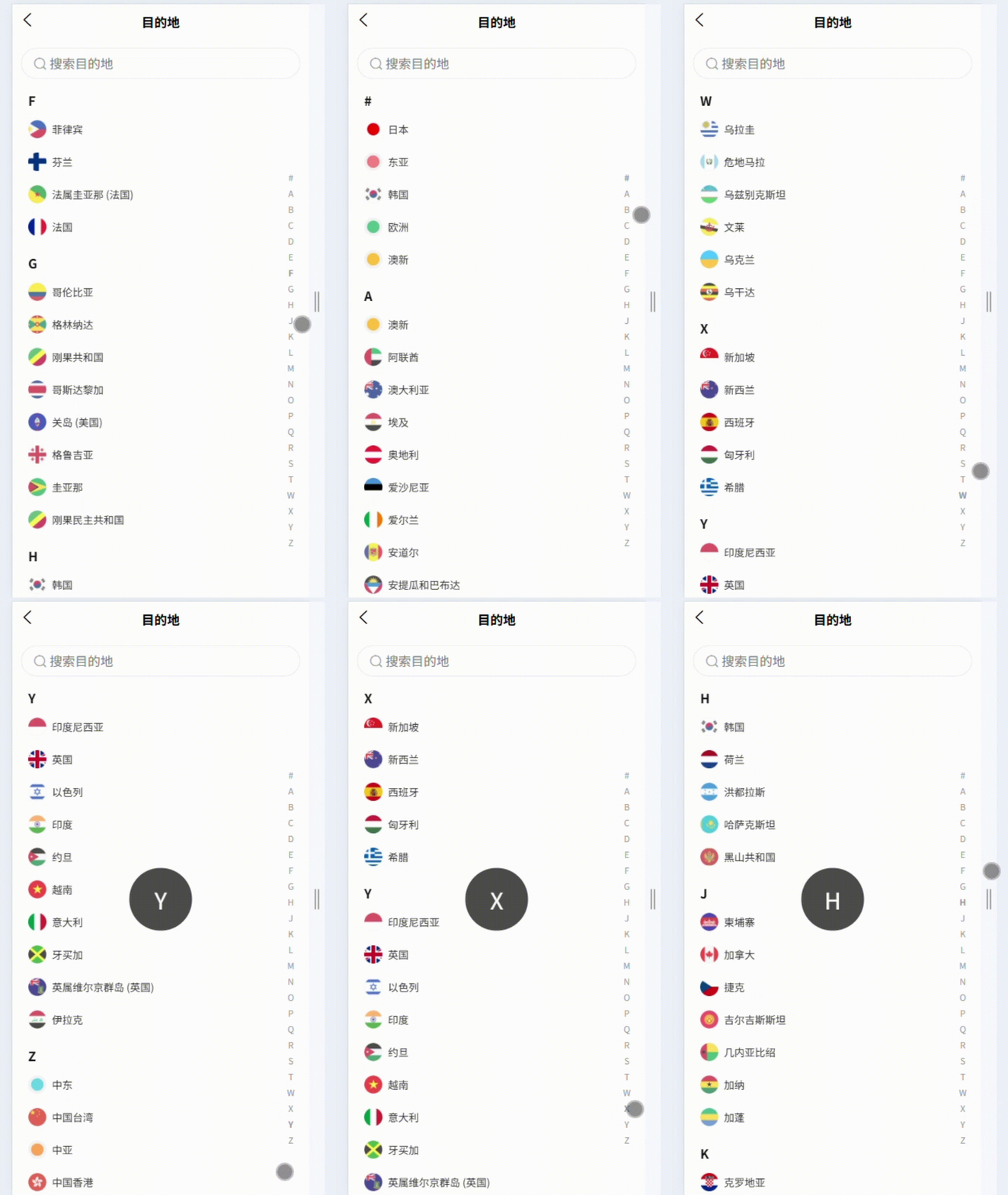
html 结构
<template>
	<view style="padding: 0 24upx;">
		<view class="search">
			<span class="iconfont icon-sousuo"></span>
			<input type="text" placeholder="搜索目的地" v-model="searchValue" />
		</view>

		<view class="address-book-container">
			<!-- 左侧通讯录 -->
			<scroll-view class="scroll-container" scroll-y="true" :scroll-into-view="toView"
				:scroll-with-animation="shouldAnimateScroll">
				<view class="address-book" v-for="(item, index) in dataList" :key="index"
					:id="item.id === '#' ? 'group_special' : 'group_' + item.id">
					<view class="address-book-index">{{ item.id }}</view>
					<view class="contact-container" v-for="(contact, contactIndex) in item.data" :key="contactIndex">
						<view class="contact-detail-container">
							<image :src="contact.imgUrl" mode=""></image>
							<view class="contact-name">{{ contact.name }}</view>
						</view>
					</view>
				</view>
			</scroll-view>

			<!-- 右侧字母导航条 - 添加触摸事件 -->
			<view class="letter-nav" @touchstart="handleTouchStart" @touchmove="handleTouchMove" @touchend="handleTouchEnd">
				<view class="item" v-for="(item, index) in indexList" :key="index" :class="{ 'active': currentIndex === index }"
					@click="toSelectIndex(item)">{{ item }}
				</view>
				<!-- 滑动时显示的当前字母 -->
				<view class="current-letter" v-if="showCurrentLetter">{{ currentLetter }}</view>
			</view>
		</view>
	</view>
</template>
数据获取
- 前端自己定义数据
- 从后端获取处理
先说我这边,后端没有写好接口,但是给我了模板.json文件,大致数据格式就是下方的格式:
[{
	"imgUrl": "https://aloy.oss-cn-hangzhou.aliyuncs.com/h5store/395ce69f59dbfbc92399de7fe6867a36.png",
	"shareTitle": "",
	"merchantId": 2,
	"shareImgUrl": "",
	"productCnt": 17,
	"name": "日本",
	"imgUrlBackGround": "null",
	"orderBy": 1,
	"id": 1,
	"viceName": "null",
	"type": 0,
	"status": 1
}, {
	"imgUrl": "https://aloy.oss-cn-hangzhou.aliyuncs.com/h5store/6b8bd32c40047f56d69166bdc23d0ad0.png",
	"shareTitle": "",
	"merchantId": 2,
	"shareImgUrl": "",
	"productCnt": 10,
	"name": "东亚",
	"imgUrlBackGround": "https://aloy.oss-cn-hangzhou.aliyuncs.com/h5store/058b58426dc6cc67027e4b2f6a9bb11a.png",
	"orderBy": 1,
	"id": 419,
	"viceName": "日韩 港澳 东南亚",
	"type": 1,
	"status": 1
}, {
	"imgUrl": "https://op-flow-public.oss-cn-hangzhou.aliyuncs.com/module/country/hanguo.png",
	"shareTitle": "",
	"merchantId": 2,
	"shareImgUrl": "",
	"productCnt": 12,
	"name": "韩国",
	"imgUrlBackGround": "null",
	"orderBy": 2,
	"id": 46,
	"viceName": "null",
	"type": 0,
	"status": 1
}, {
	"imgUrl": "https://aloy.oss-cn-hangzhou.aliyuncs.com/h5store/9fd9d16d6d9e477753e02192984c7efc.png",
	"shareTitle": "",
	"merchantId": 2,
	"shareImgUrl": "",
	"productCnt": 6,
	"name": "欧洲",
	"imgUrlBackGround": "https://aloy.oss-cn-hangzhou.aliyuncs.com/h5store/2735c85f47cb34d5aead6c2768ad1538.png",
	"orderBy": 2,
	"id": 418,
	"viceName": "欧洲23 欧洲33国",
	"type": 1,
	"status": 1
},......]
这里可以看到这些数据都没有进行处理的,接下来我们就需要对数据进行处理。
将获取到的数据进行二次处理
我这里使用的自己定义的死数据,所以引入后就直接在mounted方法里调用了,如果是接口就直接在获取到数据的地方调用sortAndGroupData方法。
这块我们需要对中文进行首字母拼音排序,所以需要下载pinyin
	//下载
	npm i js-pinyin

	//下载完后成需要在页面引入
	pinyin.setOptions({
		charCase: 1
	})
	import cityData from "@/utils/cityData.json"

	mounted() {
		this.sortAndGroupData();
		/**这里是样式滑动所需要的函数 文章最后我会把整体代码附上 这里我们先处理数据 **/
		this.updateLetterItemsRects();
	},
	methods: {
		sortAndGroupData() {
			let scenicData = []
			cityData.forEach((item, index) => {
				let obj = item
				obj.pin = pinyin.getFullChars((item.name))
				scenicData.push(obj)
			})
			this.dataList = this.filterCity(scenicData)
		},
		filterCity(list) {
			let letterArray = []
			for (let i = 65; i < 91; i++) {
				letterArray.push(String.fromCharCode(i))
			}
			let newCities = []
			/**这里我们的业务需求需要截取前面几项数据展示在最前面**/
			newCities.push({
				id: '#',
				data: cityData.slice(0, 5)
			})
			letterArray.forEach(item => {
				newCities.push({
					id: `${item}`,
					data: list.filter((val) => {
						return val.pin.slice(0, 1).toUpperCase() === `${item}`
					})
				})
			})
			newCities = newCities.filter(item => item.data.length > 0 || item.id === '#')
			this.indexList = []
			newCities.forEach((item => this.indexList.push(item.id)))
				return newCities
			},
		}
最终数据处理结果(结构)
[{
id:'#',
data:[
	{'符合条件的每一项'},
	{'符合条件的每一项'}]
},{
id:'A',
data:[
	{'符合条件的每一项'},
	{'符合条件的每一项'}]
},......]
到这里我们数据处理好页面就可以直接使用啦!
附:全篇代码
最后附上整体代码,以便参考。
<template>
	<view style="padding: 0 24upx;">
		<view class="search">
			<span class="iconfont icon-sousuo"></span>
			<input type="text" placeholder="搜索目的地" v-model="searchValue" />
		</view>

		<view class="address-book-container">
			<!-- 左侧通讯录 -->
			<scroll-view class="scroll-container" scroll-y="true" :scroll-into-view="toView"
				:scroll-with-animation="shouldAnimateScroll">
				<view class="address-book" v-for="(item, index) in dataList" :key="index"
					:id="item.id === '#' ? 'group_special' : 'group_' + item.id">
					<view class="address-book-index">{{ item.id }}</view>
					<view class="contact-container" v-for="(contact, contactIndex) in item.data" :key="contactIndex">
						<view class="contact-detail-container">
							<image :src="contact.imgUrl" mode=""></image>
							<view class="contact-name">{{ contact.name }}</view>
						</view>
					</view>
				</view>
			</scroll-view>

			<!-- 右侧字母导航条 - 添加触摸事件 -->
			<view class="letter-nav" @touchstart="handleTouchStart" @touchmove="handleTouchMove" @touchend="handleTouchEnd">
				<view class="item" v-for="(item, index) in indexList" :key="index" :class="{ 'active': currentIndex === index }"
					@click="toSelectIndex(item)">{{ item }}
				</view>
				<!-- 滑动时显示的当前字母 -->
				<view class="current-letter" v-if="showCurrentLetter">{{ currentLetter }}</view>
			</view>
		</view>
	</view>
</template>

<script>
	import cityDatafrom "@/utils/cityData.json"
	import pinyin from 'js-pinyin'
	pinyin.setOptions({
		charCase: 1
	})
	export default {
		data() {
			return {
				indexList: [],
				toView: '',
				searchValue: '',
				currentIndex: -1,
				currentLetter: '',
				showCurrentLetter: false,
				isTouching: false,
				dataList: [],
				letterItemsRects: [],
				lastUpdateTime: 0,
				UPDATE_THROTTLE: 30,
				shouldAnimateScroll: true,
				lastScrollTime: 0,
				SCROLL_THROTTLE: 80
			}
		},
		mounted() {
			this.sortAndGroupData();
			this.updateLetterItemsRects();
		},
		methods: {
			sortAndGroupData() {
				let scenicData = []
				cityData.forEach((item, index) => {
					let obj = item
					obj.pin = pinyin.getFullChars((item.name))
					scenicData.push(obj)
				})
				this.dataList = this.filterCity(scenicData)
			},

			filterCity(list) {
				let letterArray = []
				for (let i = 65; i < 91; i++) {
					letterArray.push(String.fromCharCode(i))
				}
				let newCities = []
				newCities.push({
					id: '#',
					data: aaa.slice(0, 5)
				})
				letterArray.forEach(item => {
					newCities.push({
						id: `${item}`,
						data: list.filter((val) => {
							return val.pin.slice(0, 1).toUpperCase() === `${item}`
						})
					})
				})
				newCities = newCities.filter(item => item.data.length > 0 || item.id === '#')
				this.indexList = []
				newCities.forEach((item => this.indexList.push(item.id)))
				return newCities
			},

			toSelectIndex(item) {
				this.updateSelection(this.indexList.indexOf(item));
				this.showCurrentLetter = true;
				setTimeout(() => this.showCurrentLetter = false, 800);
			},

			updateLetterItemsRects() {
				uni.createSelectorQuery().selectAll('.item').boundingClientRect(rects => {
					this.letterItemsRects = rects;
				}).exec();
			},

			getIndexFromTouch(touchY) {
				for (let i = 0; i < this.letterItemsRects.length; i++) {
					const rect = this.letterItemsRects[i];
					if (rect && touchY >= rect.top && touchY <= rect.bottom) {
						return i;
					}
				}
				return -1;
			},
			handleTouchStart(e) {
				this.isTouching = true;
				this.shouldAnimateScroll = false;
				this.updateLetterItemsRects();
				this.handleTouchMove(e);
			},

			handleTouchMove(e) {
				if (!this.isTouching) return;

				const now = Date.now();
				if (now - this.lastUpdateTime < this.UPDATE_THROTTLE) {
					return;
				}
				this.lastUpdateTime = now;
				this.updateLetterItemsRects();
				const touchY = e.touches[0].clientY;
				const index = this.getIndexFromTouch(touchY);
				this.updateSelection(index);
			},

			handleTouchEnd() {
				this.isTouching = false;
				this.shouldAnimateScroll = true;
				setTimeout(() => this.showCurrentLetter = false, 800);
			},

			updateSelection(index) {
				if (index >= 0 && index < this.indexList.length && index !== this.currentIndex) {
					const now = Date.now();

					if (now - this.lastScrollTime >= this.SCROLL_THROTTLE) {
						this.lastScrollTime = now;
						this.currentIndex = index;
						this.currentLetter = this.indexList[index];
						// 特殊处理#的ID
						this.toView = this.indexList[index] === '#' ? 'group_special' : 'group_' + this.indexList[index];
						this.showCurrentLetter = true;
					}
				}
			}
		}
	}
</script>

<style lang="scss" scoped>
	page {
		background-color: #fff;
	}

	.search {
		background-color: #fff;
		height: 80upx;
		border: 1px solid #EFEFEF;
		border-radius: 200upx;
		display: flex;
		align-items: center;
		padding: 0 32upx;
		margin: 24upx 0;
		box-sizing: border-box;

		.iconfont {
			color: #A7A6A7;
		}

		input {
			width: 100%;
			height: 100%;
			padding-left: 10upx;
		}
	}

	.address-book-container {
		display: flex;
		justify-content: space-between;
		height: calc(100vh - 128upx);

		::-webkit-scrollbar {
			width: 0;
			height: 0;
			color: transparent;
		}

		.scroll-container {
			flex: 1;
			height: 100%;

			.address-book {
				padding-bottom: 20upx;

				.address-book-index {
					background-color: #fff;
					padding: 10upx 20upx;
					font-weight: bold;
				}

				.contact-container {
					padding: 20upx;

					.contact-detail-container {
						display: flex;
						align-items: center;
						color: #333333;
						font-size: 28upx;
						font-weight: normal !important;

						image {
							width: 48upx;
							height: 48upx;
							margin-right: 16upx;
						}
					}
				}
			}
		}
	}


	.letter-nav {
		position: relative;
		width: 50upx;
		height: 100%;
		display: flex;
		flex-direction: column;
		align-items: center;
		justify-content: center;
	}

	.item {
		width: 100%;
		text-align: center;
		padding: 5upx 0;
		font-size: 24upx;
		color: #999999;
	}

	.item.active {
		font-weight: bold;
	}

	.current-letter {
		position: fixed;
		left: 50%;
		top: 50%;
		transform: translate(-50%, -50%);
		width: 160upx;
		height: 160upx;
		border-radius: 80upx;
		background-color: rgba(0, 0, 0, 0.7);
		color: white;
		font-size: 60upx;
		display: flex;
		align-items: center;
		justify-content: center;
	}
</style>

Agent 垂直技术社区,欢迎活跃、内容共建。
更多推荐

 16
16 0
0- 0


 已为社区贡献1条内容

所有评论(0)