【原创】使用 Python + Playwright 自动登录手动输入验证 RuoYi-Vue 并抓取部门表格数据(含系统浏览器路径自动检测)
·
🧩 一、前言
在 Web 自动化测试或数据采集中,Playwright 是一款比 Selenium 更现代、速度更快、支持多浏览器的强大工具。
本文将带你用 Python + Playwright 实现自动化登录 RuoYi-Vue 官方演示站,手动输入验证码后自动进入系统管理页面,抓取“部门管理”表格数据并保存为 table_data.json 文件。
同时,脚本可 自动检测操作系统 并选择正确的 Chrome / Chromium 浏览器路径,跨 Windows、macOS、Linux 都能用!
🧰 二、环境准备
1️⃣ 安装 Playwright
pip install playwright
2️⃣ 安装浏览器依赖
playwright install #可省略安装浏览器📦 如果你希望使用系统已有的 Chrome 浏览器(而不是 Playwright 自带的 Chromium),本文代码会自动检测路径并调用它。
⚙️ 三、完整代码
将以下代码保存为
ruoyi_playwright.py并运行即可。
import asyncio
import json
import platform
from playwright.async_api import async_playwright

# 自动检测浏览器路径
def detect_os():
    chromium_path = ""
    if platform.system() == 'Windows':
        chromium_path = r"C:\Program Files\Google\Chrome\Application\chrome.exe"
    elif platform.system() == 'Darwin':  # macOS
        chromium_path = "/Applications/Google Chrome.app/Contents/MacOS/Google Chrome"
    else:
        chromium_path = "/usr/bin/google-chrome"  # Linux 默认路径
    return chromium_path

async def main():
    chromium_path = detect_os()
    print(f"✅ 检测到浏览器路径: {chromium_path}")

    async with async_playwright() as p:
        browser = await p.chromium.launch(
            headless=False,
            executable_path=chromium_path,   # 使用检测到的浏览器路径
            args=["--start-maximized"]
        )

        # 创建无痕浏览器上下文
        context = await browser.new_context()
        page = await context.new_page()

        # 打开登录页面
        await page.goto("https://vue.ruoyi.vip/login")

        # 选择器定义
        username_selector = "input[placeholder='账号']"
        password_selector = "input[placeholder='密码']"
        captcha_selector = "input[placeholder='验证码']"
        submit_button_selector = ".el-button.el-button--primary"

        # 手动输入验证码
        captcha_value = input("请输入验证码:")

        # 等待输入框加载
        await page.wait_for_selector(username_selector)
        await page.wait_for_selector(password_selector)
        await page.wait_for_selector(captcha_selector)

        # 清空并输入
        await page.fill(username_selector, "")
        await page.fill(password_selector, "")
        await page.fill(captcha_selector, "")

        await page.fill(username_selector, "admin")
        await page.fill(password_selector, "admin123")
        await page.fill(captcha_selector, captcha_value)

        # 点击登录并等待跳转
        async with page.expect_navigation(wait_until="networkidle"):
            await page.click(submit_button_selector)

        # 登录后访问部门管理页面
        await page.goto("https://vue.ruoyi.vip/system/dept", wait_until="networkidle")

        # 等待表格加载完成
        await page.wait_for_selector(".el-table__body")

        # 抓取表格数据
        table_data = await page.evaluate("""
        () => {
            const rows = Array.from(document.querySelectorAll('.el-table__body-wrapper tbody tr'));
            return rows.map(row => {
                const cells = Array.from(row.querySelectorAll('td .cell'));
                return cells.map(cell => cell.innerText.trim());
            });
        }
        """)

        print("表格数据:")
        for row in table_data:
            print(row)

        # 保存 JSON
        with open("table_data.json", "w", encoding="utf-8") as f:
            json.dump(table_data, f, ensure_ascii=False, indent=2)

        print("✅ 已保存到 table_data.json")

        # 可选:关闭浏览器
        # await browser.close()

# 异步入口
asyncio.run(main())
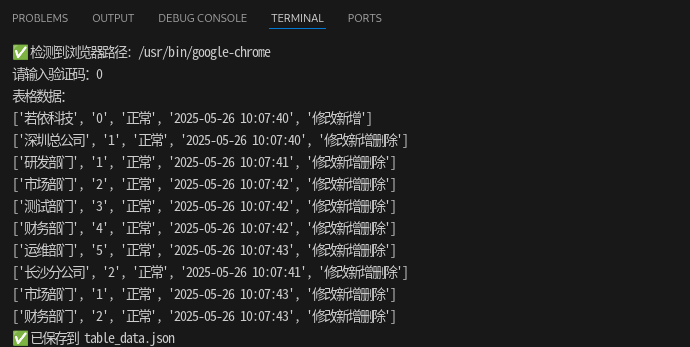
📄 四、运行效果
运行后控制台将输出:
五、参考高级版
https://blog.csdn.net/weixin_46244623/article/details/154332290?spm=1011.2415.3001.5331
六、合规与伦理说明
- 本文爬虫仅用于个人学习、求职调研,不得用于商业用途或批量爬取网站数据,避免侵犯网站版权和用户隐私;
- 爬取时严格控制请求频率,避免给网站服务器造成压力,遵守《网络安全法》和目标网站的用户协议;
- 若网站明确禁止爬虫(如
robots.txt文件标注),请停止爬取行为。

Agent 垂直技术社区,欢迎活跃、内容共建。
更多推荐
 3
3 0
0- 0


 已为社区贡献31条内容

所有评论(0)