【前端实战】手把手教你实现图片文字识别工具(百度OCR + Node.js)
·
主要功能:
-
上传图片,自动识别文字
-
支持中英文混合识别
-
一键复制识别结果
技术栈:
-
前端:HTML + CSS + JavaScript
-
后端:Node.js + Express
-
API:百度OCR文字识别
一、项目架构设计
┌─────────────┐
│   前端页面   │ (ocr_baidu_demo.html)
└──────┬──────┘
       │ ① 上传图片
       ↓
┌─────────────┐
│  后端服务器  │ (ocr_server.js)
└──────┬──────┘
       │ ② 调用API
       ↓
┌─────────────┐
│  百度OCR API │
└──────┬──────┘
       │ ③ 返回结果
       ↓
┌─────────────┐
│   显示文字   │
└─────────────┘
二、准备工作
步骤一:注册账号
-
访问百度AI开放平台:https://ai.baidu.com/
-
点击右上角「注册/登录」
步骤二:创建应用
-
进入「控制台」
-
选择「产品服务」→「文字识别」
-
点击「创建应用」
-
填写应用名称和描述
-
提交审核(通常秒过)
步骤三:获取密钥
创建成功后,你会得到:
-
API Key:类似AbCdEfGh1234567890 -
Secret Key:类似XyZaBcDeFg0987654321
三、项目搭建
3.1 项目目录结构
baidu-ocr-demo/
├── ocr_baidu_demo.html    # 前端页面
├── ocr_server.js           # 后端服务器
├── package.json            # 项目配置
└── README.md               # 说明文档
3.2 初始化项目
在终端中创建项目文件夹:
mkdir baidu-ocr-demo
cd baidu-ocr-demo
创建package.json:
{
  "name": "baidu-ocr-demo",
  "version": "1.0.0",
  "description": "百度OCR图片文字识别工具",
  "main": "ocr_server.js",
  "scripts": {
    "start": "node ocr_server.js"
  },
  "dependencies": {
    "express": "^4.18.2",
    "cors": "^2.8.5",
    "axios": "^1.6.0"
  }
}
安装依赖:
npm install四、node开发
4.1 创建服务器(ocr_server.js)
完整代码如下:
/**
 * 百度OCR后端服务器
 * 功能:接收前端上传的图片,调用百度OCR API进行识别
 */

const express = require('express');
const cors = require('cors');
const axios = require('axios');

const app = express();
const PORT = 3000;

// ========== 配置百度API密钥 ==========
// ⚠️ 请替换为你自己的密钥
const BAIDU_API_KEY = '你的API_KEY';
const BAIDU_SECRET_KEY = '你的SECRET_KEY';

// ========== 中间件配置 ==========
app.use(cors());  // 允许跨域
app.use(express.json({ limit: '10mb' }));  // 解析JSON,限制10MB

// ========== 全局变量 ==========
let accessToken = null;      // 访问令牌
let tokenExpireTime = 0;     // 令牌过期时间

/**
 * 获取百度API访问令牌
 * 令牌有效期30天,会自动缓存
 */
async function getAccessToken() {
    // 如果令牌存在且未过期,直接返回
    if (accessToken && Date.now() < tokenExpireTime) {
        return accessToken;
    }

    try {
        console.log('🔑 正在获取访问令牌...');

        // 调用百度OAuth API
        const response = await axios.get(
            'https://aip.baidubce.com/oauth/2.0/token',
            {
                params: {
                    grant_type: 'client_credentials',
                    client_id: BAIDU_API_KEY,
                    client_secret: BAIDU_SECRET_KEY
                }
            }
        );

        // 保存令牌(提前5分钟过期,避免边界问题)
        accessToken = response.data.access_token;
        tokenExpireTime = Date.now() + (response.data.expires_in - 300) * 1000;

        console.log('✅ 令牌获取成功');
        return accessToken;

    } catch (error) {
        console.error('❌ 获取令牌失败:', error.message);
        throw new Error('获取百度API令牌失败');
    }
}

/**
 * 调用百度OCR API识别文字
 */
async function recognizeText(imageBase64) {
    try {
        const token = await getAccessToken();

        console.log('🔍 正在识别文字...');

        // 调用百度OCR API
        const response = await axios.post(
            'https://aip.baidubce.com/rest/2.0/ocr/v1/general_basic',
            `image=${encodeURIComponent(imageBase64)}`,
            {
                headers: {
                    'Content-Type': 'application/x-www-form-urlencoded'
                },
                params: {
                    access_token: token
                }
            }
        );

        console.log('✅ 识别完成');
        return response.data;

    } catch (error) {
        console.error('❌ 识别失败:', error.message);
        throw new Error('百度OCR识别失败');
    }
}

// ========== API路由 ==========

/**
 * POST /ocr - 文字识别接口
 */
app.post('/ocr', async (req, res) => {
    try {
        const { image } = req.body;

        // 验证参数
        if (!image) {
            return res.status(400).json({ error: '缺少图片数据' });
        }

        // 检查是否配置密钥
        if (BAIDU_API_KEY === '你的API_KEY') {
            return res.status(500).json({
                error: '请先配置百度API密钥'
            });
        }

        console.log('📥 收到识别请求');

        // 调用识别服务
        const result = await recognizeText(image);

        // 返回结果
        res.json(result);

    } catch (error) {
        console.error('❌ 处理失败:', error);
        res.status(500).json({ error: error.message });
    }
});

/**
 * GET / - 服务状态
 */
app.get('/', (req, res) => {
    res.json({
        status: 'running',
        message: '百度OCR服务器运行中',
        version: '1.0.0'
    });
});

// ========== 启动服务器 ==========
app.listen(PORT, () => {
    console.log('================================');
    console.log('🚀 百度OCR服务器启动成功!');
    console.log(`📡 服务地址:http://localhost:${PORT}`);
    console.log('================================');
});
关键点1:获取访问令牌
async function getAccessToken() {
    // 缓存机制:避免频繁请求
    if (accessToken && Date.now() < tokenExpireTime) {
        return accessToken;
    }

    // 调用OAuth API获取令牌
    const response = await axios.get(
        'https://aip.baidubce.com/oauth/2.0/token',
        {
            params: {
                grant_type: 'client_credentials',
                client_id: BAIDU_API_KEY,
                client_secret: BAIDU_SECRET_KEY
            }
        }
    );

    return response.data.access_token;
}
关键点2:调用OCR API
const response = await axios.post(
    'https://aip.baidubce.com/rest/2.0/ocr/v1/general_basic',
    `image=${encodeURIComponent(imageBase64)}`,  // URL编码
    {
        headers: {
            'Content-Type': 'application/x-www-form-urlencoded'
        },
        params: {
            access_token: token  // 令牌通过query参数传递
        }
    }
);
五、前端开发
5.1 创建页面(ocr_baidu_demo.html)
完整代码如下:
<!DOCTYPE html>
<html lang="zh-CN">
<head>
    <meta charset="UTF-8">
    <meta name="viewport" content="width=device-width, initial-scale=1.0">
    <title>百度OCR文字识别</title>
    <style>
        /* 基础样式 */
        body {
            font-family: Arial, sans-serif;
            max-width: 800px;
            margin: 50px auto;
            padding: 20px;
            background-color: #f5f5f5;
        }

        .container {
            background: white;
            padding: 30px;
            border-radius: 10px;
            box-shadow: 0 2px 10px rgba(0,0,0,0.1);
        }

        h1 {
            text-align: center;
            color: #333;
        }

        /* 提示框 */
        .info {
            background: #e3f2fd;
            padding: 15px;
            margin: 20px 0;
            border-radius: 5px;
            font-size: 14px;
        }

        /* 上传区域 */
        .upload-box {
            border: 2px dashed #4CAF50;
            padding: 40px;
            text-align: center;
            margin: 20px 0;
            border-radius: 8px;
            cursor: pointer;
            transition: all 0.3s;
        }

        .upload-box:hover {
            background-color: #f0f0f0;
        }

        /* 按钮 */
        .btn {
            background-color: #4CAF50;
            color: white;
            padding: 10px 20px;
            border: none;
            border-radius: 5px;
            cursor: pointer;
            margin: 5px;
            transition: all 0.3s;
        }

        .btn:hover {
            background-color: #45a049;
        }

        /* 加载动画 */
        #loading {
            display: none;
            text-align: center;
            margin: 20px 0;
        }

        .spinner {
            border: 4px solid #f3f3f3;
            border-top: 4px solid #4CAF50;
            border-radius: 50%;
            width: 40px;
            height: 40px;
            animation: spin 1s linear infinite;
            margin: 0 auto;
        }

        @keyframes spin {
            0% { transform: rotate(0deg); }
            100% { transform: rotate(360deg); }
        }

        /* 结果显示 */
        #result {
            display: none;
            margin-top: 20px;
        }

        #previewImg {
            max-width: 100%;
            max-height: 300px;
            margin: 10px 0;
            border: 1px solid #ddd;
            border-radius: 5px;
        }

        #textOutput {
            width: 100%;
            min-height: 150px;
            padding: 10px;
            border: 1px solid #ddd;
            border-radius: 5px;
            margin: 10px 0;
            font-size: 14px;
            line-height: 1.6;
        }
    </style>
</head>
<body>
    <div class="container">
        <h1>百度OCR文字识别</h1>

        <!-- 提示信息 -->
        <div class="info">
            ⚠️ 使用前请先启动后端服务:<code>node ocr_server.js</code>
        </div>

        <!-- 上传区域 -->
        <div class="upload-box" id="uploadBox"
             onclick="document.getElementById('fileInput').click()">
            <p>点击选择图片</p>
            <p style="color: #999; font-size: 14px;">
                支持 JPG、PNG、BMP 格式,大小不超过 4MB
            </p>
            <input type="file" id="fileInput" accept="image/*" style="display:none;">
        </div>

        <!-- 加载中 -->
        <div id="loading">
            <div class="spinner"></div>
            <p>正在识别中,请稍候...</p>
        </div>

        <!-- 结果显示 -->
        <div id="result">
            <h3>识别结果:</h3>
            <img id="previewImg" src="" alt="预览图">
            <textarea id="textOutput" readonly></textarea>
            <div style="text-align: center;">
                <button class="btn" onclick="copyText()">复制文字</button>
                <button class="btn" onclick="downloadText()">下载文本</button>
                <button class="btn" onclick="reset()">重新识别</button>
            </div>
        </div>
    </div>

    <script>
        // ========== 全局变量 ==========
        let currentText = '';
        const API_URL = 'http://localhost:3000/ocr';

        // ========== 文件选择事件 ==========
        document.getElementById('fileInput').addEventListener('change', function(e) {
            const file = e.target.files[0];
            if (file) handleFile(file);
        });

        /**
         * 处理上传的图片
         */
        async function handleFile(file) {
            // 1. 验证文件
            if (!file.type.startsWith('image/')) {
                alert('❌ 请选择图片文件!');
                return;
            }

            if (file.size > 4 * 1024 * 1024) {
                alert('❌ 图片大小不能超过 4MB!');
                return;
            }

            // 2. 切换界面状态
            document.getElementById('uploadBox').style.display = 'none';
            document.getElementById('loading').style.display = 'block';
            document.getElementById('result').style.display = 'none';

            try {
                // 3. 显示预览图
                const reader = new FileReader();
                reader.onload = (e) => {
                    document.getElementById('previewImg').src = e.target.result;
                };
                reader.readAsDataURL(file);

                // 4. 转换为Base64
                const base64Image = await fileToBase64(file);
                const base64Data = base64Image.split(',')[1];

                // 5. 调用后端API
                const response = await fetch(API_URL, {
                    method: 'POST',
                    headers: { 'Content-Type': 'application/json' },
                    body: JSON.stringify({ image: base64Data })
                });

                if (!response.ok) {
                    throw new Error('API请求失败');
                }

                const result = await response.json();

                if (result.error) {
                    throw new Error(result.error);
                }

                // 6. 显示结果
                displayResult(result);

            } catch (error) {
                alert('❌ 识别失败:' + error.message +
                      '\n\n请确保后端服务已启动!');
                reset();
            }
        }

        /**
         * 文件转Base64编码
         */
        function fileToBase64(file) {
            return new Promise((resolve, reject) => {
                const reader = new FileReader();
                reader.onload = () => resolve(reader.result);
                reader.onerror = reject;
                reader.readAsDataURL(file);
            });
        }

        /**
         * 显示识别结果
         */
        function displayResult(result) {
            // 提取所有文字
            const words = result.words_result || [];
            currentText = words.map(item => item.words).join('\n');

            // 显示文字
            document.getElementById('textOutput').value =
                currentText || '未识别到文字';

            // 切换显示
            document.getElementById('loading').style.display = 'none';
            document.getElementById('result').style.display = 'block';
        }

        /**
         * 复制文字到剪贴板
         */
        function copyText() {
            if (!currentText) {
                alert('❌ 没有可复制的内容');
                return;
            }

            // 使用现代API
            navigator.clipboard.writeText(currentText).then(() => {
                alert('✅ 已复制到剪贴板!');
            }).catch(() => {
                // 降级方案
                const textarea = document.getElementById('textOutput');
                textarea.select();
                document.execCommand('copy');
                alert('✅ 已复制到剪贴板!');
            });
        }

        /**
         * 下载为txt文件
         */
        function downloadText() {
            if (!currentText) {
                alert('❌ 没有可下载的内容');
                return;
            }

            const blob = new Blob([currentText], {
                type: 'text/plain;charset=utf-8'
            });
            const url = URL.createObjectURL(blob);
            const a = document.createElement('a');
            a.href = url;
            a.download = 'ocr_result_' + Date.now() + '.txt';
            a.click();
            URL.revokeObjectURL(url);

            alert('✅ 文件已下载!');
        }

        /**
         * 重置界面
         */
        function reset() {
            document.getElementById('uploadBox').style.display = 'block';
            document.getElementById('loading').style.display = 'none';
            document.getElementById('result').style.display = 'none';
            document.getElementById('fileInput').value = '';
            currentText = '';
        }
    </script>
</body>
</html>
六、运行测试
6.1 配置API密钥
编辑 ocr_server.js,填入你的密钥:
const BAIDU_API_KEY = 'your_api_key_here';        // 替换这里
const BAIDU_SECRET_KEY = 'your_secret_key_here';  // 替换这里
6.2 启动后端服务
在项目目录下执行:
node ocr_server.js看到以下提示表示成功:
================================
🚀 百度OCR服务器启动成功!
📡 服务地址:http://localhost:3000
================================
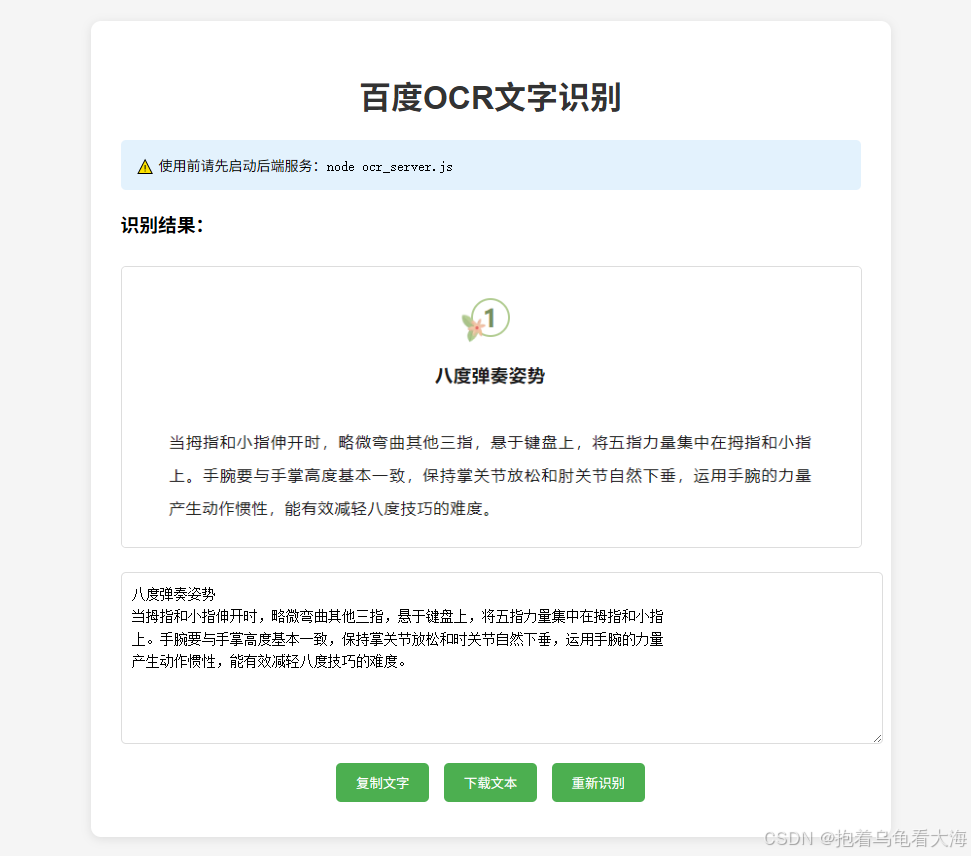
6.3 打开前端页面
-
双击打开
ocr_baidu_demo.html -
效果展示

Agent 垂直技术社区,欢迎活跃、内容共建。
更多推荐
 9
9 0
0- 0


 已为社区贡献1条内容

所有评论(0)