OpenHarmony Flutter 树形视图组件开发详解
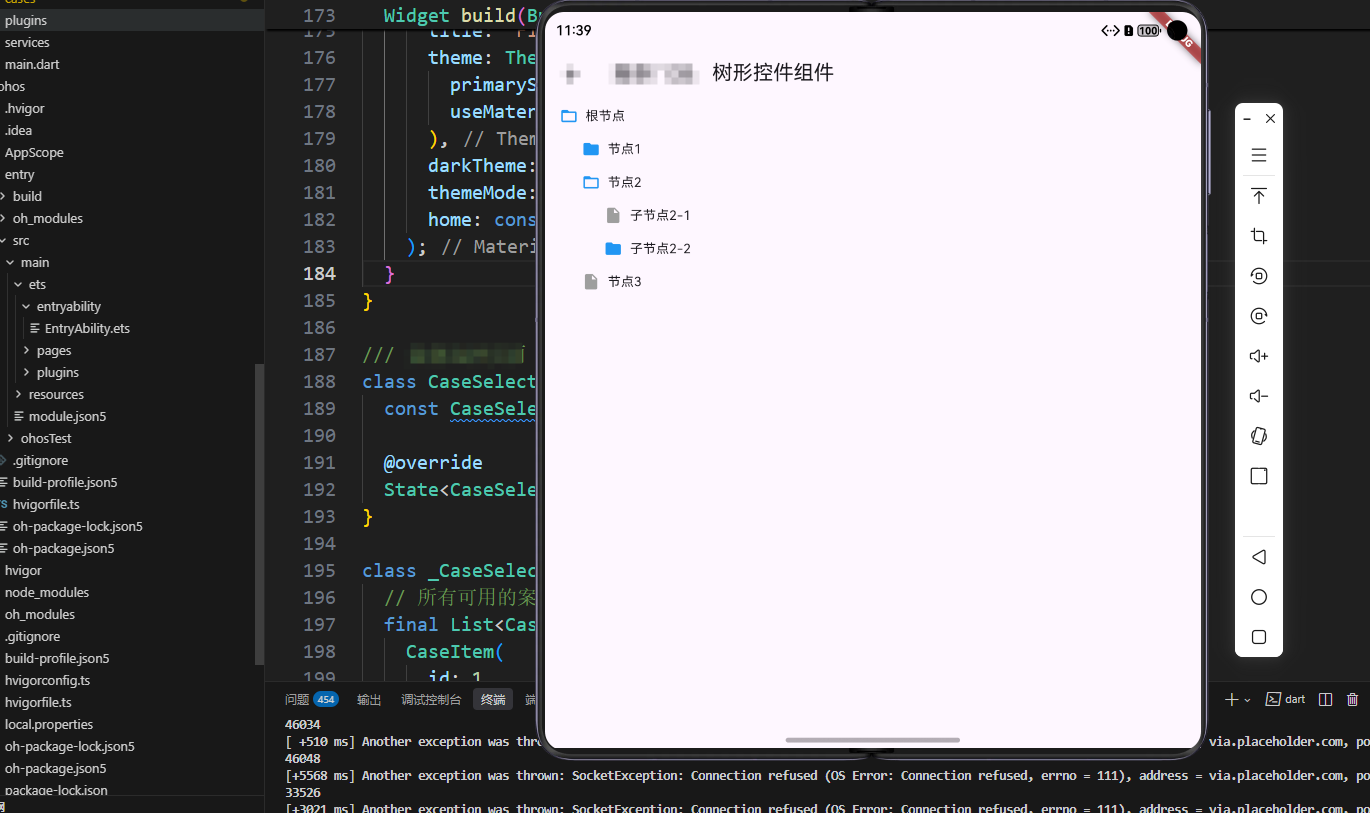
OpenHarmony 是一个开源操作系统,本文介绍如何在 OpenHarmony 平台上使用 Flutter 实现树形视图组件。
概述
树形视图(Tree View)是一种用于展示层级结构数据的UI组件,广泛应用于文件浏览器、组织架构图、分类导航等场景。它通过递归的方式展示父子关系,让用户能够清晰地了解数据的层级结构。在现代应用开发中,树形视图已经成为展示层级数据的主要方式之一。
树形视图组件的设计需要考虑多个方面的因素。首先是层级展示,组件应该能够递归地展示多层级数据,通过缩进来表示层级关系。其次是展开/收起功能,组件应该支持点击节点展开或收起子节点,让用户能够有选择地查看内容。再次是节点类型区分,组件应该能够区分不同类型的节点,比如文件夹和文件,使用不同的图标和样式来展示。最后是性能优化,当节点数量很多时,需要考虑虚拟滚动、节点缓存等优化策略。
在Flutter框架中,实现树形视图可以使用递归Widget来构建树形结构,使用Set来存储展开的节点。节点类型可以通过检查是否有子节点来判断,使用不同的图标和颜色来区分。缩进可以通过Padding组件来实现,根据节点的层级动态调整缩进值。
树形视图组件的性能优化是一个重要的考虑因素。当节点数量很多时,如果使用递归方式构建整个树,可能会导致性能问题。因此,可以考虑使用扁平化的数据结构,将树形结构转换为列表结构,然后使用ListView.builder来实现虚拟滚动。另外,节点缓存也是一个重要的优化策略,可以避免重复构建相同的节点。
本文将详细介绍如何在Flutter中实现一个功能完善的树形视图组件,从层级展示到展开/收起,从节点类型区分到性能优化,全面解析树形视图组件的实现细节和最佳实践。
核心功能特性
1. 层级展示
- 功能描述:递归展示多层级数据
- 实现方式:使用递归Widget构建树形结构
- 视觉层次:通过缩进展示层级关系
2. 展开/收起
- 功能描述:点击节点展开或收起子节点
- 实现方式:使用
Set存储展开的节点 - 交互设计:图标指示节点状态
3. 节点类型区分
- 功能描述:区分文件夹和文件节点
- 实现方式:根据是否有子节点显示不同图标
- 视觉识别:使用不同图标和颜色
技术实现详解
数据模型设计
class TreeNode {
  final String title;
  final List<TreeNode>? children;

  TreeNode({required this.title, this.children});
}

final TreeNode _root = TreeNode(
  title: '根节点',
  children: [
    TreeNode(
      title: '节点1',
      children: [
        TreeNode(title: '子节点1-1'),
        TreeNode(title: '子节点1-2'),
      ],
    ),
    // ...更多节点
  ],
);

final Set<TreeNode> _expandedNodes = {};
设计优势:
- 递归数据结构,自然表达层级关系
- 可选子节点列表,支持叶子节点
- 使用
Set存储展开节点,高效查找
树形节点构建
Widget _buildTreeNode(TreeNode node, int level) {
  final hasChildren = node.children != null && node.children!.isNotEmpty;
  final isExpanded = _expandedNodes.contains(node);

  return Column(
    crossAxisAlignment: CrossAxisAlignment.start,
    children: [
      InkWell(
        onTap: hasChildren
            ? () {
                setState(() {
                  if (isExpanded) {
                    _expandedNodes.remove(node);
                  } else {
                    _expandedNodes.add(node);
                  }
                });
              }
            : null,
        child: Container(
          padding: EdgeInsets.only(
            left: level * 24.0 + 16,
            top: 8,
            bottom: 8,
            right: 16,
          ),
          child: Row(
            children: [
              if (hasChildren)
                Icon(
                  isExpanded ? Icons.folder_open : Icons.folder,
                  size: 20,
                  color: Colors.blue,
                )
              else
                const Icon(Icons.insert_drive_file, size: 20, color: Colors.grey),
              const SizedBox(width: 8),
              Expanded(
                child: Text(node.title),
              ),
            ],
          ),
        ),
      ),
      if (hasChildren && isExpanded)
        ...node.children!.map((child) => _buildTreeNode(child, level + 1)),
    ],
  );
}
实现亮点:
- 递归调用构建子节点
- 通过
level参数控制缩进 - 条件渲染子节点列表
- 图标区分文件夹和文件
主视图实现
Widget build(BuildContext context) {
return Scaffold(
appBar: AppBar(title: const Text('案例 138:树形控件组件')),
body: ListView(
children: [
_buildTreeNode(_root, 0),
],
),
);
}
设计要点:
- 使用
ListView支持滚动 - 从根节点开始构建
- 初始层级为0
高级功能扩展
1. 节点选择
TreeNode? _selectedNode;

Widget _buildSelectableTreeNode(TreeNode node, int level) {
  final isSelected = _selectedNode == node;

  return InkWell(
    onTap: () {
      setState(() {
        _selectedNode = node;
      });
    },
    child: Container(
      color: isSelected ? Colors.blue[50] : Colors.transparent,
      child: _buildTreeNode(node, level),
    ),
  );
}
2. 复选框支持
class TreeNode {
  final String title;
  final List<TreeNode>? children;
  bool isChecked;

  TreeNode({
    required this.title,
    this.children,
    this.isChecked = false,
  });
}

Widget _buildCheckboxTreeNode(TreeNode node, int level) {
  return Row(
    children: [
      Checkbox(
        value: node.isChecked,
        onChanged: (value) {
          setState(() {
            node.isChecked = value ?? false;
            _updateChildrenCheckState(node, value ?? false);
          });
        },
      ),
      Expanded(
        child: _buildTreeNode(node, level),
      ),
    ],
  );
}

void _updateChildrenCheckState(TreeNode node, bool checked) {
  node.isChecked = checked;
  if (node.children != null) {
    for (var child in node.children!) {
      _updateChildrenCheckState(child, checked);
    }
  }
}
3. 节点搜索
String _searchQuery = '';

List<TreeNode> _filterTree(TreeNode node, String query) {
  if (query.isEmpty) {
    return [node];
  }

  final filtered = <TreeNode>[];
  final lowerQuery = query.toLowerCase();

  if (node.title.toLowerCase().contains(lowerQuery)) {
    filtered.add(node);
  } else if (node.children != null) {
    for (var child in node.children!) {
      filtered.addAll(_filterTree(child, query));
    }
  }

  return filtered;
}
4. 节点拖拽
Widget _buildDraggableTreeNode(TreeNode node, int level) {
  return LongPressDraggable<TreeNode>(
    data: node,
    feedback: Material(
      child: Container(
        padding: const EdgeInsets.all(8),
        decoration: BoxDecoration(
          color: Colors.blue,
          borderRadius: BorderRadius.circular(4),
        ),
        child: Text(node.title, style: const TextStyle(color: Colors.white)),
      ),
    ),
    child: DragTarget<TreeNode>(
      onAccept: (draggedNode) {
        // 处理拖拽逻辑
        _moveNode(draggedNode, node);
      },
      builder: (context, candidateData, rejectedData) {
        return _buildTreeNode(node, level);
      },
    ),
  );
}
5. 节点编辑
void _editNode(TreeNode node) {
  final controller = TextEditingController(text: node.title);

  showDialog(
    context: context,
    builder: (context) => AlertDialog(
      title: const Text('编辑节点'),
      content: TextField(
        controller: controller,
        decoration: const InputDecoration(
          labelText: '节点名称',
          border: OutlineInputBorder(),
        ),
      ),
      actions: [
        TextButton(
          onPressed: () => Navigator.pop(context),
          child: const Text('取消'),
        ),
        ElevatedButton(
          onPressed: () {
            setState(() {
              node.title = controller.text;
            });
            Navigator.pop(context);
          },
          child: const Text('保存'),
        ),
      ],
    ),
  );
}
6. 懒加载子节点
class TreeNode {
  final String title;
  List<TreeNode>? children;
  bool isLoading = false;

  TreeNode({
    required this.title,
    this.children,
  });
}

Future<void> _loadChildren(TreeNode node) async {
  if (node.children != null) return;

  setState(() {
    node.isLoading = true;
  });

  try {
    final children = await _fetchChildrenFromServer(node);
    setState(() {
      node.children = children;
      node.isLoading = false;
    });
  } catch (e) {
    setState(() {
      node.isLoading = false;
    });
  }
}
性能优化
1. 虚拟滚动
class FlattenedTreeNode {
  final TreeNode node;
  final int level;

  FlattenedTreeNode({required this.node, required this.level});
}

List<FlattenedTreeNode> _flattenTree(TreeNode root) {
  final result = <FlattenedTreeNode>[];

  void traverse(TreeNode node, int level) {
    result.add(FlattenedTreeNode(node: node, level: level));
    if (_expandedNodes.contains(node) && node.children != null) {
      for (var child in node.children!) {
        traverse(child, level + 1);
      }
    }
  }

  traverse(root, 0);
  return result;
}

ListView.builder(
  itemCount: _flattenedNodes.length,
  itemBuilder: (context, index) {
    final item = _flattenedNodes[index];
    return _buildTreeNode(item.node, item.level);
  },
)
2. 节点缓存
final Map<TreeNode, Widget> _nodeCache = {};

Widget _buildCachedTreeNode(TreeNode node, int level) {
  if (_nodeCache.containsKey(node)) {
    return _nodeCache[node]!;
  }

  final widget = _buildTreeNode(node, level);
  _nodeCache[node] = widget;
  return widget;
}
使用场景
- 文件浏览器:展示文件夹和文件结构
- 组织架构:展示公司组织架构
- 分类导航:商品分类、内容分类
- 权限管理:权限树形结构
最佳实践
1. 数据结构
- 使用递归结构表达层级关系
- 支持动态加载子节点
- 合理设计节点属性
2. 用户体验
- 清晰的视觉层次
- 流畅的展开/收起动画
- 支持搜索和过滤
3. 性能考虑
- 大量节点时使用虚拟滚动
- 实现节点缓存
- 懒加载子节点
总结
树形视图组件是一个功能强大的UI组件,它为用户提供了清晰的层级数据展示方式,帮助用户理解和浏览复杂的层级结构。通过合理的设计和实现,可以清晰地展示各种类型的层级数据。
在实现树形视图组件时,我们需要考虑多个方面的因素。首先是层级展示,组件应该能够递归地展示多层级数据,通过缩进来表示层级关系。其次是展开/收起功能,组件应该支持点击节点展开或收起子节点,让用户能够有选择地查看内容。再次是节点类型区分,组件应该能够区分不同类型的节点,使用不同的图标和样式来展示。最后是性能优化,当节点数量很多时,需要考虑虚拟滚动、节点缓存等优化策略。
本文提供的实现方案涵盖了层级展示、展开/收起、节点类型区分等核心功能,可以根据具体需求进行扩展和优化。在实际开发中,我们可以根据应用的具体需求,添加节点选择、节点搜索、节点拖拽等功能。同时,我们还需要考虑可访问性,确保组件能够被屏幕阅读器等辅助技术正确识别和使用。
随着应用复杂度的增加,树形视图组件也在不断演进。未来可能会出现更多先进的功能,比如智能展开、节点过滤、多选操作等。作为开发者,我们需要保持学习的态度,不断探索和尝试新的技术,为用户提供更好的层级数据展示体验。
欢迎加入开源鸿蒙跨平台社区:https://openharmonycrossplatform.csdn.net

Agent 垂直技术社区,欢迎活跃、内容共建。
更多推荐


 10
10 0
0- 0


 已为社区贡献4条内容

所有评论(0)