VSCode 新建虚拟环境时找不到自己装的 Python?三步让它永远出现在列表里
·
🎯 问题现象
- 把 Python 解压到
D:\exe\python31009并加进系统 PATH; - 终端
where python能识别,但 VSCode「Python: Create Environment…」图形向导里就是看不到这条解释器; - 换一个新文件夹,列表又空了。
🔍 根因
VSCode 的虚拟环境向导只扫描「全局已登记」的解释器,
单纯写 PATH 并不会自动登记;
而「Select Interpreter」若只在当前工作区点选,
又会被写进 .vscode/settings.json,
换工作区就失效。
✅ 一劳永逸的解决办法(3 步)
| 步骤 | 操作 |
|---|---|
| ① | 打开 用户级 settings.json |
| ② | 追加两行(路径用 / 或 \\ 均可) |
| ③ | 重载窗口,以后任何新文件夹都能看见 |
① 打开用户级 settings.json
Ctrl+Shift+P → 输入 Preferences: Open User Settings (JSON) → 回车。
② 追加配置
把下面两行粘到最外层(注意前面加逗号):
"python.defaultInterpreterPath": "D:/exe/python31009/python.exe",
"python.interpreterPath": "D:/exe/python31009/python.exe"
完整示例(仅示意位置):
...                            // 其他配置
"yaml.schemas": { ... },       // 上一段最后一行要有逗号
"python.defaultInterpreterPath": "D:/exe/python31009/python.exe",
"python.interpreterPath": "D:/exe/python31009/python.exe"
}
③ 重载窗口
Ctrl+Shift+P → Developer: Reload Window。
🎉 验证
- 新建一个空文件夹并打开;
Ctrl+Shift+P→Python: Create Environment…;- 下拉列表里出现
Python 3.10.9 (D:\exe\python31009\python.exe),选中即可创建虚拟环境。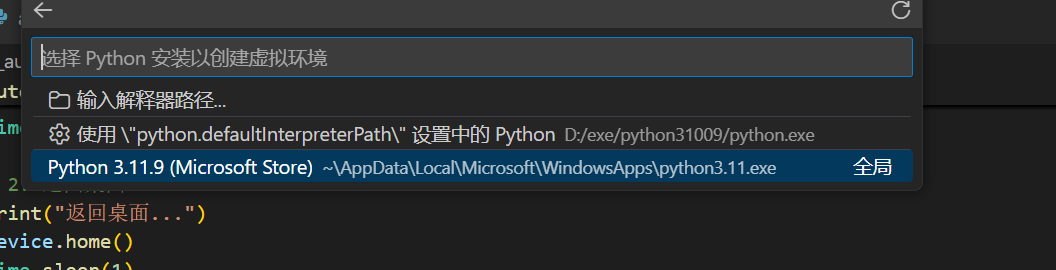
📌 小贴士
- 只加 PATH ≠ 出现在 VSCode 向导;
- 写进 User settings.json 才是「全局永久门票」;
- 升级 Python 后改一下路径同理。
全文完,亲测有效!
如果帮到你,记得点赞+收藏~

Agent 垂直技术社区,欢迎活跃、内容共建。
更多推荐
 4
4 0
0- 0


 已为社区贡献4条内容

所有评论(0)