React Native鸿蒙跨平台开发运动挑战社交应用,集成了挑战管理、进度追踪和社交互动功能。该应用采用了复杂的状态管理机制、动态进度条设计和多维度过滤系统
欢迎大家加入开源鸿蒙跨平台开发者社区,一起共建开源鸿蒙跨平台生态。
本文分析的是一个基于React Native构建的运动挑战社交应用,集成了挑战管理、进度追踪和社交互动功能。该应用采用了复杂的状态管理机制、动态进度条设计和多维度过滤系统,展现了社交+运动类应用的典型技术架构。在鸿蒙OS的跨端适配场景中,这种涉及复杂交互和实时状态更新的应用具有重要的技术参考价值。
游戏化数据
type Challenge = {
  id: number;
  title: string;
  description: string;
  progress: number;
  goal: number;
  unit: string;
  status: 'active' | 'completed' | 'upcoming';
  difficulty: 'easy' | 'medium' | 'hard';
  reward: string;
  startDate: string;
  endDate: string;
  participants: number;
};
数据模型设计理念:
- 游戏化元素集成(进度、目标、奖励、难度)
- 多状态管理支持不同业务场景
- 时间维度数据支持挑战周期管理
- 社交属性数据(参与人数)增强用户互动
鸿蒙数据模型适配方案:
// 鸿蒙ArkTS中的完整类型定义
interface Challenge {
  id: number;
  title: string;
  description: string;
  progress: number;
  goal: number;
  unit: string;
  status: 'active' | 'completed' | 'upcoming';
  difficulty: 'easy' | 'medium' | 'hard';
  reward: string;
  startDate: string;
  endDate: string;
  participants: number;
}

// 枚举类型定义
enum ChallengeStatus {
  ACTIVE = 'active',
  COMPLETED = 'completed',
  UPCOMING = 'upcoming'
}

enum ChallengeDifficulty {
  EASY = 'easy',
  MEDIUM = 'medium',
  HARD = 'hard'
}
动态可视化组件
const ChallengeCard = ({ challenge, onJoin }: {
  challenge: Challenge;
  onJoin: (id: number) => void
}) => {
  const getDifficultyColor = () => {
    switch (challenge.difficulty) {
      case 'easy': return '#10b981';
      case 'medium': return '#f59e0b';
      case 'hard': return '#ef4444';
    }
  };

  return (
    <View style={styles.challengeCard}>
      <View style={styles.challengeProgress}>
        <View style={styles.progressContainer}>
          <View style={styles.progressBarBackground}>
            <Animated.View
              style={[
                styles.progressBarFill,
                {
                  width: `${(challenge.progress / challenge.goal) * 100}%`,
                  backgroundColor: getDifficultyColor()
                }
              ]}
            />
          </View>
          <Text style={styles.progressText}>
            {challenge.progress}/{challenge.goal}{challenge.unit}
          </Text>
        </View>
      </View>
    </View>
  );
};
动态渲染技术特点:
- 基于进度的动态宽度计算
- 难度驱动的颜色映射策略
- Animated.View实现平滑的进度动画
- 百分比与绝对值的混合显示
鸿蒙动画系统适配:
// 鸿蒙中使用动画API实现进度条
@Component
struct ProgressBar {
  @Prop progress: number;
  @Prop goal: number;
  @Prop difficulty: string;

  @State currentWidth: number = 0;

  aboutToAppear() {
    // 启动宽度动画
    animateTo({ duration: 500 }, () => {
      this.currentWidth = (this.progress / this.goal) * 100;
    });
  }

  getDifficultyColor(): Color {
    const colorMap = {
      'easy': Color.Green,
      'medium': Color.Orange,
      'hard': Color.Red
    };
    return colorMap[this.difficulty] || Color.Blue;
  }

  build() {
    Column() {
      // 进度条背景
      Stack() {
        // 填充部分
        Column()
          .width(`${this.currentWidth}%`)
          .backgroundColor(this.getDifficultyColor())
          .height('100%')
      }
      .height(8)
      .backgroundColor(Color.Gray)
      .borderRadius(4)
    }
  }
}
多维度状态
const [challenges, setChallenges] = useState<Challenge[]>([]);
const [categories] = useState(['全部', '跑步', '骑行', '游泳', '综合']);
const [activeCategory, setActiveCategory] = useState('全部');
const [joinedChallenges, setJoinedChallenges] = useState<number[]>([]);
状态设计策略:
- 数据状态(challenges):管理核心业务数据
- UI状态(activeCategory):控制视图过滤
- 用户状态(joinedChallenges):跟踪用户行为
- 配置状态(categories):维护静态选项
鸿蒙状态管理迁移:
@State challenges: Challenge[] = [];
@State activeCategory: string = '全部';
@State joinedChallenges: number[] = [];
@State categories: string[] = ['全部', '跑步', '骑行', '游泳', '综合'];
复杂过滤逻辑
const filteredChallenges = activeCategory === '全部'
  ? challenges
  : challenges.filter(c => {
      if (activeCategory === '跑步') return c.title.includes('跑步');
      if (activeCategory === '骑行') return c.title.includes('骑行');
      if (activeCategory === '游泳') return c.title.includes('游泳');
      return true;
    });
过滤算法特点:
- 基于字符串的简单模式匹配
- 支持动态分类扩展
- 内存友好的过滤操作
鸿蒙过滤优化实现:
// 使用计算属性优化过滤性能
get filteredChallenges(): Challenge[] {
  if (this.activeCategory === '全部') {
    return this.challenges;
  }

  return this.challenges.filter(challenge => {
    const categoryMap = {
      '跑步': '跑步',
      '骑行': '骑行',
      '游泳': '游泳'
    };

    const keyword = categoryMap[this.activeCategory];
    return keyword ? challenge.title.includes(keyword) : true;
  });
}
加入挑战
const handleJoinChallenge = (id: number) => {
  const challenge = challenges.find(c => c.id === id);
  if (!challenge) return;

  if (challenge.status === 'completed') {
    Alert.alert('提示', '该挑战已经结束');
    return;
  }

  if (joinedChallenges.includes(id)) {
    Alert.alert('提示', '您已经加入了这个挑战');
    return;
  }

  Alert.alert(
    '加入挑战',
    `确定要加入"${challenge.title}"挑战吗?`,
    [
      { text: '取消', style: 'cancel' },
      {
        text: '确定',
        onPress: () => {
          setJoinedChallenges(prev => [...prev, id]);
          Alert.alert('成功', `已加入"${challenge.title}"挑战!`);
        }
      }
    ]
  );
};
业务逻辑设计:
- 多层验证确保操作合法性
- 用户友好的提示信息
- 确认对话框防止误操作
- 状态更新与用户反馈结合
鸿蒙交互适配:
async handleJoinChallenge(id: number) {
  const challenge = this.challenges.find(c => c.id === id);
  if (!challenge) return;

  if (challenge.status === 'completed') {
    prompt.showToast({ message: '该挑战已经结束' });
    return;
  }

  if (this.joinedChallenges.includes(id)) {
    prompt.showToast({ message: '您已经加入了这个挑战' });
    return;
  }

  const result = await prompt.showDialog({
    title: '加入挑战',
    message: `确定要加入"${challenge.title}"挑战吗?`,
    buttons: [
      { text: '取消', color: '#666666' },
      { text: '确定', color: '#007AFF' }
    ]
  });

  if (result.index === 1) {
    this.joinedChallenges = [...this.joinedChallenges, id];
    prompt.showToast({ message: `已加入"${challenge.title}"挑战!` });
  }
}
分类过滤交互
const CategoryButton = ({ title, active, onPress }: {
  title: string;
  active: boolean;
  onPress: () => void
}) => {
  return (
    <TouchableOpacity
      style={[
        styles.categoryButton,
        active && styles.activeCategoryButton
      ]}
      onPress={onPress}
    >
      <Text style={[
        styles.categoryText,
        active && styles.activeCategoryText
      ]}>
        {title}
      </Text>
    </TouchableOpacity>
  );
};
交互组件特点:
- 状态驱动的视觉反馈
- 简洁的事件处理接口
- 可复用的组件设计
鸿蒙分类组件实现:
@Component
struct CategoryButton {
  @Prop title: string;
  @Prop active: boolean;
  @Prop onClick: () => void;

  build() {
    Button(this.title, { type: ButtonType.Normal })
      .backgroundColor(this.active ? '#3b82f6' : '#e2e8f0')
      .fontColor(this.active ? '#ffffff' : '#64748b')
      .borderRadius(20)
      .padding({ horizontal: 16, vertical: 8 })
      .margin({ right: 8 })
      .onClick(() => this.onClick())
  }
}
动态进度条样式
progressBarBackground: {
  flex: 1,
  height: 8,
  backgroundColor: '#e2e8f0',
  borderRadius: 4,
  overflow: 'hidden',
  marginRight: 12,
},
progressBarFill: {
  height: '100%',
},
样式设计优势:
- 相对单位确保响应式布局
- 圆角和溢出隐藏创建现代视觉效果
- 简洁的尺寸定义便于维护
鸿蒙进度条样式:
// 鸿蒙中的样式定义
progressBarBackground: ViewStyle = {
  flexGrow: 1,
  height: 8,
  backgroundColor: '#e2e8f0',
  borderRadius: 4,
  margin: { right: 12 }
}

progressBarFill: ViewStyle = {
  height: '100%'
}
条件样式
joinButton: {
  backgroundColor: '#3b82f6',
  paddingHorizontal: 16,
  paddingVertical: 8,
  borderRadius: 20,
},
completedButton: {
  backgroundColor: '#cbd5e1',
},
样式组合策略:
- 基础样式定义通用外观
- 条件样式处理特殊状态
- 数组语法实现样式组合
鸿蒙条件样式实现:
@Extend(Button) function joinButtonStyle(isCompleted: boolean) {
  .backgroundColor(isCompleted ? '#cbd5e1' : '#3b82f6')
  .padding({ horizontal: 16, vertical: 8 })
  .borderRadius(20)
}
| React Native组件 | 鸿蒙ArkUI组件 | 关键适配点 |
|---|---|---|
Animated.View |
animateTo + 状态 |
动画API完全不同 |
TouchableOpacity |
Button |
事件处理方式不同 |
ScrollView |
Scroll |
滚动行为基本一致 |
Alert.alert |
prompt.showDialog |
配置格式需要转换 |
// React Native动画
<Animated.View
  style={[
    styles.progressBarFill,
    {
      width: `${(challenge.progress / challenge.goal) * 100}%`,
      backgroundColor: getDifficultyColor()
    }
  ]}
/>

// 鸿蒙动画
animateTo({ duration: 500 }, () => {
  this.currentWidth = (this.progress / this.goal) * 100;
});
Flex布局转换:
// React Native
challengeStats: {
  flexDirection: 'row',
  justifyContent: 'space-between',
}

// 鸿蒙
Row() {
  // 子组件
}
.justifyContent(FlexAlign.SpaceBetween)
尺寸单位转换:
// React Native中使用绝对值
paddingHorizontal: 16,

// 鸿蒙中使用逻辑像素
.padding({ horizontal: 16 })
这是一页围绕“运动挑战”场景构建的功能视图,采用 React Native + TypeScript 的函数式组件和本地状态驱动,卡片化承载挑战的目标、进度与奖励,配合分类过滤与加入流程形成完整的交互闭环。在 iOS/Android 属于标准 RN 组件栈;在鸿蒙(OpenHarmony)端通过 RN 的鸿蒙适配层将容器、滚动、动画与系统弹窗桥接到 ArkUI/系统能力,从而实现一致的跨端体验。
数据与类型建模
挑战数据类型以字面量联合定义生命周期与难度维度,使得 UI 的派生逻辑拥有清晰的、可约束的输入契约。这种强类型结构为后续接入真实后端数据源和校验策略提供了稳定基础。
type Challenge = {
  id: number;
  title: string;
  description: string;
  progress: number;
  goal: number;
  unit: string;
  status: 'active' | 'completed' | 'upcoming';
  difficulty: 'easy' | 'medium' | 'hard';
  reward: string;
  startDate: string;
  endDate: string;
  participants: number;
};
组件解读:ChallengeCard 的状态与动画
卡片组件围绕“难度-状态-进度”三类语义构建,难度决定进度条色彩,状态决定徽标显示与按钮禁用,进度以百分比宽度呈现。此处使用 Animated.View 通过样式的 width 百分比驱动视觉变化;在跨端动画一致性上,建议将进度宽度映射为 Animated.Value 并在交互或数据变化时过渡到目标值,配合原生驱动动画方案保证高帧率。
const ChallengeCard = ({ challenge, onJoin }: { challenge: Challenge; onJoin: (id: number) => void }) => {
  const getDifficultyColor = () => {
    switch (challenge.difficulty) {
      case 'easy': return '#10b981';
      case 'medium': return '#f59e0b';
      case 'hard': return '#ef4444';
    }
  };

  const getStatusText = () => {
    switch (challenge.status) {
      case 'active': return '进行中';
      case 'completed': return '已完成';
      case 'upcoming': return '即将开始';
    }
  };

  const getStatusColor = () => {
    switch (challenge.status) {
      case 'active': return '#3b82f6';
      case 'completed': return '#10b981';
      case 'upcoming': return '#94a3b8';
    }
  };

  return (
    <View>
      <View>
        <Text>{challenge.title}</Text>
        <View>
          <Text>{getStatusText()}</Text>
        </View>
      </View>

      <Text>{challenge.description}</Text>

      <View>
        <View>
          <View>
            <Animated.View
              style={{
                width: `${(challenge.progress / challenge.goal) * 100}%`,
                backgroundColor: getDifficultyColor()
              }}
            />
          </View>
          <Text>
            {challenge.progress}/{challenge.goal}{challenge.unit}
          </Text>
        </View>
      </View>

      <View>
        <View><Text>🎯</Text><Text>目标: {challenge.goal}{challenge.unit}</Text></View>
        <View><Text>🔥</Text><Text>难度: {challenge.difficulty}</Text></View>
        <View><Text>❤️</Text><Text>{challenge.participants}人参与</Text></View>
      </View>

      <View>
        <Text>🏅 {challenge.reward}</Text>
        <TouchableOpacity
          onPress={() => onJoin(challenge.id)}
          disabled={challenge.status === 'completed'}
        >
          <Text>{challenge.status === 'completed' ? '已完成' : '加入挑战'}</Text>
        </TouchableOpacity>
      </View>
    </View>
  );
};
在鸿蒙端的动画建议上,优先采用“原生驱动”方案(如 Reanimated 的工作线程动画或 ArkUI 对应能力),避免桥接频繁导致的 JS 线程压力,确保卡片进度过渡在三端均可达到 60fps 的流畅度。
交互流与幂等校验
加入挑战的流程以 Alert 作为占位交互,内部进行状态校验与去重保护,保证幂等与用户提示的清晰。Alert 属于系统弹窗桥接,三端的外观与按钮排列略有差异;在鸿蒙端需确保适配层的对话框映射符合人机规范,如需统一视觉可改用 RN 的 Modal 自绘弹窗。
const handleJoinChallenge = (id: number) => {
  const challenge = challenges.find(c => c.id === id);
  if (!challenge) return;

  if (challenge.status === 'completed') {
    Alert.alert('提示', '该挑战已经结束');
    return;
  }

  if (joinedChallenges.includes(id)) {
    Alert.alert('提示', '您已经加入了这个挑战');
    return;
  }

  Alert.alert(
    '加入挑战',
    `确定要加入"${challenge.title}"挑战吗?`,
    [
      { text: '取消', style: 'cancel' },
      {
        text: '确定',
        onPress: () => {
          setJoinedChallenges(prev => [...prev, id]);
          Alert.alert('成功', `已加入"${challenge.title}"挑战!`);
        }
      }
    ]
  );
};
分类过滤与横向滚动
分类按钮以水平 ScrollView 承载,点击切换 activeCategory 并在渲染时对挑战列表进行筛选。当前过滤依据标题包含关键字,适合原型阶段;生产场景建议在 Challenge 数据中引入“分类/标签”字段以避免文案变更影响逻辑正确性。
const CategoryButton = ({ title, active, onPress }: { title: string; active: boolean; onPress: () => void }) => {
  return (
    <TouchableOpacity onPress={onPress}>
      <Text>{title}</Text>
    </TouchableOpacity>
  );
};

const filteredChallenges = activeCategory === '全部'
  ? challenges
  : challenges.filter(c => {
      if (activeCategory === '跑步') return c.title.includes('跑步');
      if (activeCategory === '骑行') return c.title.includes('骑行');
      if (activeCategory === '游泳') return c.title.includes('游泳');
      return true;
    });
横向滚动在不同平台的“滚动手感与回弹”存在细微差异;鸿蒙端的水平滚动需要适配层确保滑动速度与阻尼符合系统一致性。随着卡片数量增多,建议将 ScrollView 替换为 FlatList 的 horizontal 模式,提升虚拟化性能与滚动事件稳定性。
页面结构与状态驱动
页面使用 SafeAreaView 包裹全局,防止内容与系统 UI 冲突;主体以 ScrollView 组织分类、挑战列表与说明区;状态通过 useState 管理挑战集合、分类与加入记录,形成清晰的“单向数据流”。
const SportChallengeApp: React.FC = () => {
  const [challenges, setChallenges] = useState<Challenge[]>([ /* ... */ ]);
  const [categories] = useState(['全部', '跑步', '骑行', '游泳', '综合']);
  const [activeCategory, setActiveCategory] = useState('全部');
  const [joinedChallenges, setJoinedChallenges] = useState<number[]>([1, 3]);

  return (
    <SafeAreaView>
      <ScrollView>
        {/* 分类与列表、说明与我的挑战 */}
      </ScrollView>

      <View>
        <TouchableOpacity><Text>🏃</Text><Text>运动</Text></TouchableOpacity>
        <TouchableOpacity><Text>🚴</Text><Text>训练</Text></TouchableOpacity>
        <TouchableOpacity><Text>🏆</Text><Text>挑战</Text></TouchableOpacity>
        <TouchableOpacity><Text>❤️</Text><Text>社区</Text></TouchableOpacity>
      </View>
    </SafeAreaView>
  );
};
SafeAreaView 在 iOS/Android 的适配成熟;在鸿蒙端需要确保适配层对状态栏/导航栏高度的处理正确,以防卡片被系统 UI 遮挡。底部导航当前为视觉占位,后续接入跨端路由(如 React Navigation 的鸿蒙适配)即可实现分区切换与返回手势,并验证转场动画与状态恢复一致。
完整代码演示:
// app.tsx
import React, { useState, useEffect } from 'react';
import { SafeAreaView, View, Text, StyleSheet, TouchableOpacity, ScrollView, Dimensions, Alert, Animated } from 'react-native';

// 图标库
const ICONS = {
  running: '🏃',
  cycling: '🚴',
  swimming: '🏊',
  medal: '🏅',
  target: '🎯',
  fire: '🔥',
  trophy: '🏆',
  heart: '❤️',
};

const { width } = Dimensions.get('window');

// 挑战类型定义
type Challenge = {
  id: number;
  title: string;
  description: string;
  progress: number;
  goal: number;
  unit: string;
  status: 'active' | 'completed' | 'upcoming';
  difficulty: 'easy' | 'medium' | 'hard';
  reward: string;
  startDate: string;
  endDate: string;
  participants: number;
};

// 挑战卡片组件
const ChallengeCard = ({
  challenge,
  onJoin
}: {
  challenge: Challenge;
  onJoin: (id: number) => void
}) => {
  const getDifficultyColor = () => {
    switch (challenge.difficulty) {
      case 'easy': return '#10b981';
      case 'medium': return '#f59e0b';
      case 'hard': return '#ef4444';
    }
  };

  const getStatusText = () => {
    switch (challenge.status) {
      case 'active': return '进行中';
      case 'completed': return '已完成';
      case 'upcoming': return '即将开始';
    }
  };

  const getStatusColor = () => {
    switch (challenge.status) {
      case 'active': return '#3b82f6';
      case 'completed': return '#10b981';
      case 'upcoming': return '#94a3b8';
    }
  };

  return (
    <View style={styles.challengeCard}>
      <View style={styles.challengeHeader}>
        <Text style={styles.challengeTitle}>{challenge.title}</Text>
        <View style={[styles.statusBadge, { backgroundColor: getStatusColor() }]}>
          <Text style={styles.statusText}>{getStatusText()}</Text>
        </View>
      </View>

      <Text style={styles.challengeDescription}>{challenge.description}</Text>

      <View style={styles.challengeProgress}>
        <View style={styles.progressContainer}>
          <View style={styles.progressBarBackground}>
            <Animated.View
              style={[
                styles.progressBarFill,
                {
                  width: `${(challenge.progress / challenge.goal) * 100}%`,
                  backgroundColor: getDifficultyColor()
                }
              ]}
            />
          </View>
          <Text style={styles.progressText}>
            {challenge.progress}/{challenge.goal}{challenge.unit}
          </Text>
        </View>
      </View>

      <View style={styles.challengeStats}>
        <View style={styles.statItem}>
          <Text style={styles.statIcon}>{ICONS.target}</Text>
          <Text style={styles.statText}>目标: {challenge.goal}{challenge.unit}</Text>
        </View>
        <View style={styles.statItem}>
          <Text style={styles.statIcon}>{ICONS.fire}</Text>
          <Text style={styles.statText}>难度: {challenge.difficulty}</Text>
        </View>
        <View style={styles.statItem}>
          <Text style={styles.statIcon}>{ICONS.heart}</Text>
          <Text style={styles.statText}>{challenge.participants}人参与</Text>
        </View>
      </View>

      <View style={styles.challengeFooter}>
        <Text style={styles.rewardText}>{ICONS.medal} {challenge.reward}</Text>
        <TouchableOpacity
          style={[
            styles.joinButton,
            challenge.status === 'completed' && styles.completedButton
          ]}
          onPress={() => onJoin(challenge.id)}
          disabled={challenge.status === 'completed'}
        >
          <Text style={styles.joinButtonText}>
            {challenge.status === 'completed' ? '已完成' : '加入挑战'}
          </Text>
        </TouchableOpacity>
      </View>
    </View>
  );
};

// 挑战分类按钮组件
const CategoryButton = ({
  title,
  active,
  onPress
}: {
  title: string;
  active: boolean;
  onPress: () => void
}) => {
  return (
    <TouchableOpacity
      style={[
        styles.categoryButton,
        active && styles.activeCategoryButton
      ]}
      onPress={onPress}
    >
      <Text style={[
        styles.categoryText,
        active && styles.activeCategoryText
      ]}>
        {title}
      </Text>
    </TouchableOpacity>
  );
};

// 主页面组件
const SportChallengeApp: React.FC = () => {
  const [challenges, setChallenges] = useState<Challenge[]>([
    {
      id: 1,
      title: '30天跑步挑战',
      description: '坚持每天跑步3公里,培养良好的运动习惯',
      progress: 12,
      goal: 30,
      unit: '天',
      status: 'active',
      difficulty: 'medium',
      reward: '专属徽章',
      startDate: '2023-06-01',
      endDate: '2023-06-30',
      participants: 1245
    },
    {
      id: 2,
      title: '100公里骑行',
      description: '在一个月内完成100公里的骑行挑战',
      progress: 45,
      goal: 100,
      unit: 'km',
      status: 'active',
      difficulty: 'hard',
      reward: '骑行装备',
      startDate: '2023-06-05',
      endDate: '2023-07-05',
      participants: 890
    },
    {
      id: 3,
      title: '每日一万步',
      description: '连续30天每天步行10000步',
      progress: 8,
      goal: 30,
      unit: '天',
      status: 'active',
      difficulty: 'easy',
      reward: '运动手环',
      startDate: '2023-06-10',
      endDate: '2023-07-10',
      participants: 2103
    },
    {
      id: 4,
      title: '游泳耐力挑战',
      description: '完成5000米游泳距离',
      progress: 1200,
      goal: 5000,
      unit: 'm',
      status: 'active',
      difficulty: 'hard',
      reward: '游泳装备',
      startDate: '2023-06-01',
      endDate: '2023-07-31',
      participants: 342
    },
    {
      id: 5,
      title: '瑜伽柔韧性',
      description: '每日练习瑜伽30分钟,持续21天',
      progress: 0,
      goal: 21,
      unit: '天',
      status: 'upcoming',
      difficulty: 'medium',
      reward: '瑜伽垫',
      startDate: '2023-06-20',
      endDate: '2023-07-12',
      participants: 120
    }
  ]);

  const [categories] = useState(['全部', '跑步', '骑行', '游泳', '综合']);
  const [activeCategory, setActiveCategory] = useState('全部');
  const [joinedChallenges, setJoinedChallenges] = useState<number[]>([1, 3]);

  const handleJoinChallenge = (id: number) => {
    const challenge = challenges.find(c => c.id === id);
    if (!challenge) return;

    if (challenge.status === 'completed') {
      Alert.alert('提示', '该挑战已经结束');
      return;
    }

    if (joinedChallenges.includes(id)) {
      Alert.alert('提示', '您已经加入了这个挑战');
      return;
    }

    Alert.alert(
      '加入挑战',
      `确定要加入"${challenge.title}"挑战吗?`,
      [
        { text: '取消', style: 'cancel' },
        {
          text: '确定',
          onPress: () => {
            setJoinedChallenges(prev => [...prev, id]);
            Alert.alert('成功', `已加入"${challenge.title}"挑战!`);
          }
        }
      ]
    );
  };

  const filteredChallenges = activeCategory === '全部'
    ? challenges
    : challenges.filter(c => {
        if (activeCategory === '跑步') return c.title.includes('跑步');
        if (activeCategory === '骑行') return c.title.includes('骑行');
        if (activeCategory === '游泳') return c.title.includes('游泳');
        return true;
      });

  return (
    <SafeAreaView style={styles.container}>
      {/* 头部 */}
      <View style={styles.header}>
        <Text style={styles.title}>运动挑战</Text>
        <TouchableOpacity style={styles.settingsButton}>
          <Text style={styles.settingsIcon}>{ICONS.trophy}</Text>
        </TouchableOpacity>
      </View>

      {/* 主内容 */}
      <ScrollView style={styles.content}>
        {/* 挑战分类 */}
        <ScrollView horizontal showsHorizontalScrollIndicator={false} style={styles.categoryContainer}>
          {categories.map(category => (
            <CategoryButton
              key={category}
              title={category}
              active={activeCategory === category}
              onPress={() => setActiveCategory(category)}
            />
          ))}
        </ScrollView>

        {/* 挑战列表 */}
        <Text style={styles.sectionTitle}>热门挑战</Text>
        {filteredChallenges.map(challenge => (
          <ChallengeCard
            key={challenge.id}
            challenge={challenge}
            onJoin={handleJoinChallenge}
          />
        ))}

        {/* 挑战说明 */}
        <Text style={styles.sectionTitle}>挑战说明</Text>
        <View style={styles.instructionsCard}>
          <Text style={styles.instructionText}>• 选择适合自己的挑战项目参与</Text>
          <Text style={styles.instructionText}>• 每日完成运动后记得打卡记录</Text>
          <Text style={styles.instructionText}>• 与好友一起挑战,更有动力</Text>
          <Text style={styles.instructionText}>• 完成挑战可获得奖励和徽章</Text>
        </View>

        {/* 我的挑战 */}
        <Text style={styles.sectionTitle}>我的挑战</Text>
        <View style={styles.myChallengesCard}>
          <Text style={styles.myChallengesText}>
            {joinedChallenges.length > 0
              ? `您正在参与 ${joinedChallenges.length} 个挑战`
              : '您还没有参与任何挑战'}
          </Text>
          {joinedChallenges.length > 0 && (
            <TouchableOpacity style={styles.viewMyChallengesButton}>
              <Text style={styles.viewMyChallengesText}>查看我的挑战</Text>
            </TouchableOpacity>
          )}
        </View>
      </ScrollView>

      {/* 底部导航 */}
      <View style={styles.bottomNav}>
        <TouchableOpacity style={styles.navItem}>
          <Text style={styles.navIcon}>{ICONS.running}</Text>
          <Text style={styles.navText}>运动</Text>
        </TouchableOpacity>
        <TouchableOpacity style={styles.navItem}>
          <Text style={styles.navIcon}>{ICONS.cycling}</Text>
          <Text style={styles.navText}>训练</Text>
        </TouchableOpacity>
        <TouchableOpacity style={[styles.navItem, styles.activeNavItem]}>
          <Text style={styles.navIcon}>{ICONS.trophy}</Text>
          <Text style={styles.navText}>挑战</Text>
        </TouchableOpacity>
        <TouchableOpacity style={styles.navItem}>
          <Text style={styles.navIcon}>{ICONS.heart}</Text>
          <Text style={styles.navText}>社区</Text>
        </TouchableOpacity>
      </View>
    </SafeAreaView>
  );
};

const styles = StyleSheet.create({
  container: {
    flex: 1,
    backgroundColor: '#f8fafc',
  },
  header: {
    flexDirection: 'row',
    alignItems: 'center',
    justifyContent: 'space-between',
    padding: 20,
    backgroundColor: '#ffffff',
    borderBottomWidth: 1,
    borderBottomColor: '#e2e8f0',
  },
  title: {
    fontSize: 20,
    fontWeight: 'bold',
    color: '#1e293b',
  },
  settingsButton: {
    padding: 8,
  },
  settingsIcon: {
    fontSize: 20,
    color: '#64748b',
  },
  content: {
    flex: 1,
    padding: 16,
  },
  categoryContainer: {
    flexDirection: 'row',
    marginBottom: 16,
  },
  categoryButton: {
    backgroundColor: '#e2e8f0',
    paddingHorizontal: 16,
    paddingVertical: 8,
    borderRadius: 20,
    marginRight: 8,
  },
  activeCategoryButton: {
    backgroundColor: '#3b82f6',
  },
  categoryText: {
    fontSize: 14,
    color: '#64748b',
  },
  activeCategoryText: {
    color: '#ffffff',
  },
  sectionTitle: {
    fontSize: 18,
    fontWeight: 'bold',
    color: '#1e293b',
    marginVertical: 12,
  },
  challengeCard: {
    backgroundColor: '#ffffff',
    borderRadius: 16,
    padding: 16,
    marginBottom: 16,
    elevation: 2,
    shadowColor: '#000',
    shadowOffset: { width: 0, height: 1 },
    shadowOpacity: 0.1,
    shadowRadius: 2,
  },
  challengeHeader: {
    flexDirection: 'row',
    justifyContent: 'space-between',
    alignItems: 'flex-start',
    marginBottom: 8,
  },
  challengeTitle: {
    fontSize: 18,
    fontWeight: 'bold',
    color: '#1e293b',
    flex: 1,
    marginRight: 12,
  },
  statusBadge: {
    paddingHorizontal: 8,
    paddingVertical: 4,
    borderRadius: 12,
  },
  statusText: {
    fontSize: 12,
    color: '#ffffff',
    fontWeight: '500',
  },
  challengeDescription: {
    fontSize: 14,
    color: '#64748b',
    lineHeight: 20,
    marginBottom: 12,
  },
  challengeProgress: {
    marginBottom: 12,
  },
  progressContainer: {
    flexDirection: 'row',
    justifyContent: 'space-between',
    alignItems: 'center',
    marginBottom: 4,
  },
  progressBarBackground: {
    flex: 1,
    height: 8,
    backgroundColor: '#e2e8f0',
    borderRadius: 4,
    overflow: 'hidden',
    marginRight: 12,
  },
  progressBarFill: {
    height: '100%',
  },
  progressText: {
    fontSize: 12,
    color: '#64748b',
    minWidth: 60,
    textAlign: 'right',
  },
  challengeStats: {
    flexDirection: 'row',
    justifyContent: 'space-between',
    marginBottom: 12,
    paddingVertical: 8,
    borderTopWidth: 1,
    borderTopColor: '#e2e8f0',
  },
  statItem: {
    flexDirection: 'row',
    alignItems: 'center',
  },
  statIcon: {
    fontSize: 16,
    marginRight: 4,
    color: '#94a3b8',
  },
  statText: {
    fontSize: 12,
    color: '#64748b',
  },
  challengeFooter: {
    flexDirection: 'row',
    justifyContent: 'space-between',
    alignItems: 'center',
  },
  rewardText: {
    fontSize: 14,
    color: '#f59e0b',
    fontWeight: '500',
  },
  joinButton: {
    backgroundColor: '#3b82f6',
    paddingHorizontal: 16,
    paddingVertical: 8,
    borderRadius: 20,
  },
  completedButton: {
    backgroundColor: '#cbd5e1',
  },
  joinButtonText: {
    color: '#ffffff',
    fontSize: 14,
    fontWeight: '500',
  },
  instructionsCard: {
    backgroundColor: '#ffffff',
    borderRadius: 12,
    padding: 16,
    marginBottom: 16,
  },
  instructionText: {
    fontSize: 14,
    color: '#64748b',
    lineHeight: 22,
    marginBottom: 8,
  },
  myChallengesCard: {
    backgroundColor: '#ffffff',
    borderRadius: 12,
    padding: 16,
    marginBottom: 20,
  },
  myChallengesText: {
    fontSize: 14,
    color: '#64748b',
    marginBottom: 12,
  },
  viewMyChallengesButton: {
    backgroundColor: '#f1f5f9',
    paddingVertical: 10,
    borderRadius: 8,
    alignItems: 'center',
  },
  viewMyChallengesText: {
    color: '#3b82f6',
    fontWeight: '500',
  },
  bottomNav: {
    flexDirection: 'row',
    justifyContent: 'space-around',
    backgroundColor: '#ffffff',
    borderTopWidth: 1,
    borderTopColor: '#e2e8f0',
    paddingVertical: 12,
  },
  navItem: {
    alignItems: 'center',
  },
  activeNavItem: {
    paddingBottom: 2,
    borderBottomWidth: 2,
    borderBottomColor: '#3b82f6',
  },
  navIcon: {
    fontSize: 20,
    color: '#94a3b8',
    marginBottom: 4,
  },
  activeNavIcon: {
    color: '#3b82f6',
  },
  navText: {
    fontSize: 12,
    color: '#94a3b8',
  },
  activeNavText: {
    color: '#3b82f6',
    fontWeight: '500',
  },
});

export default SportChallengeApp;
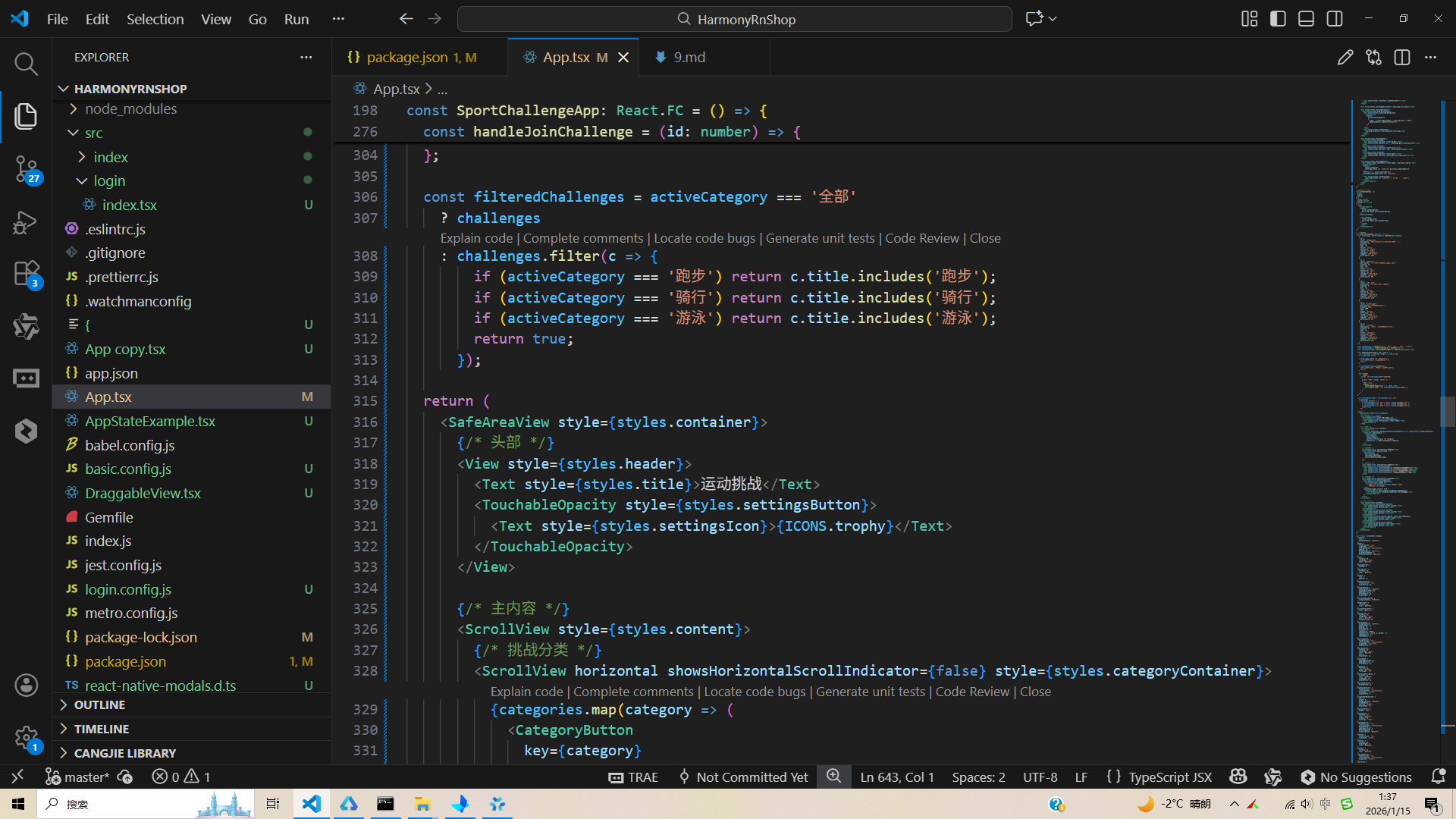
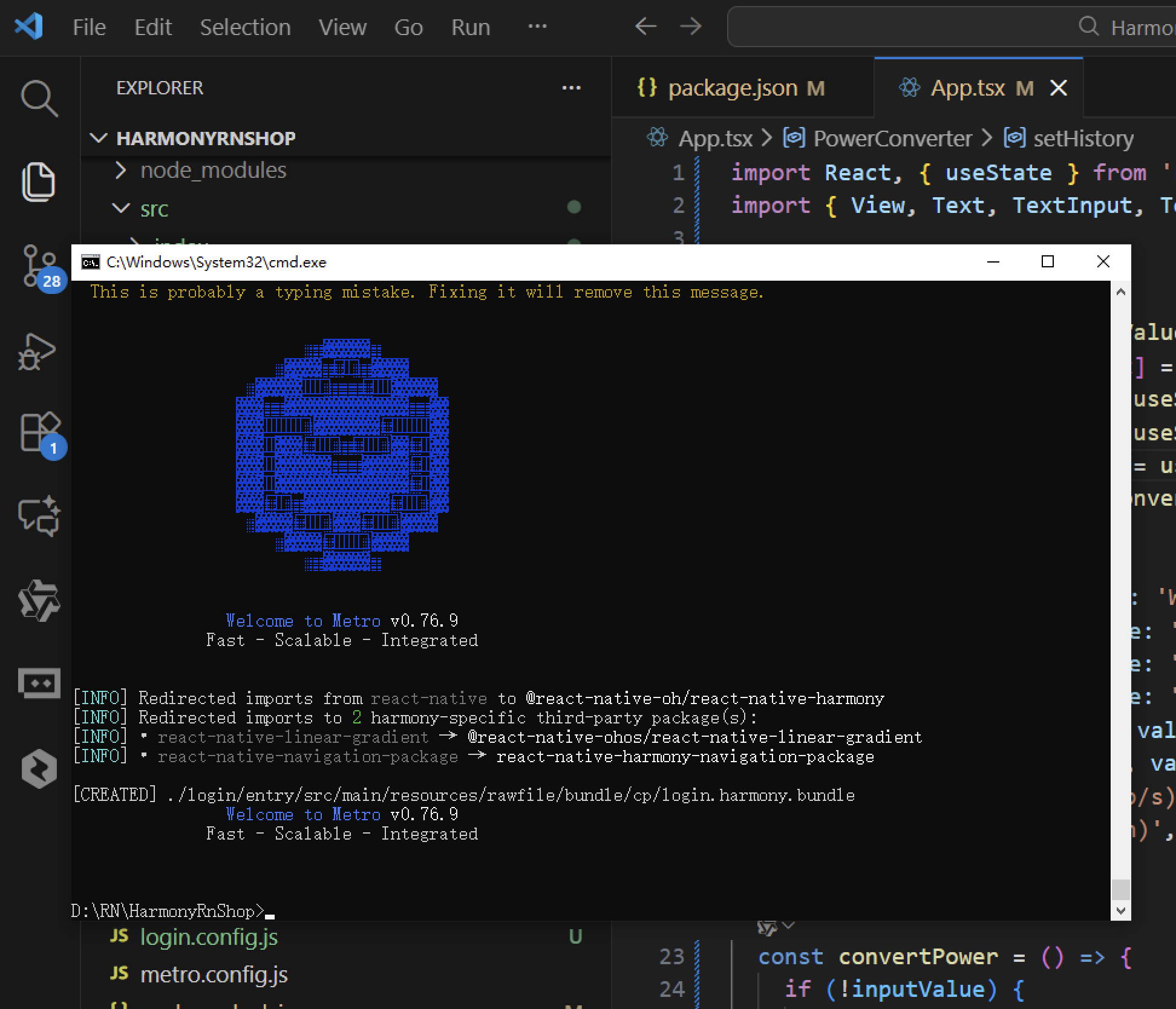
打包
接下来通过打包命令npn run harmony将reactNative的代码打包成为bundle,这样可以进行在开源鸿蒙OpenHarmony中进行使用。
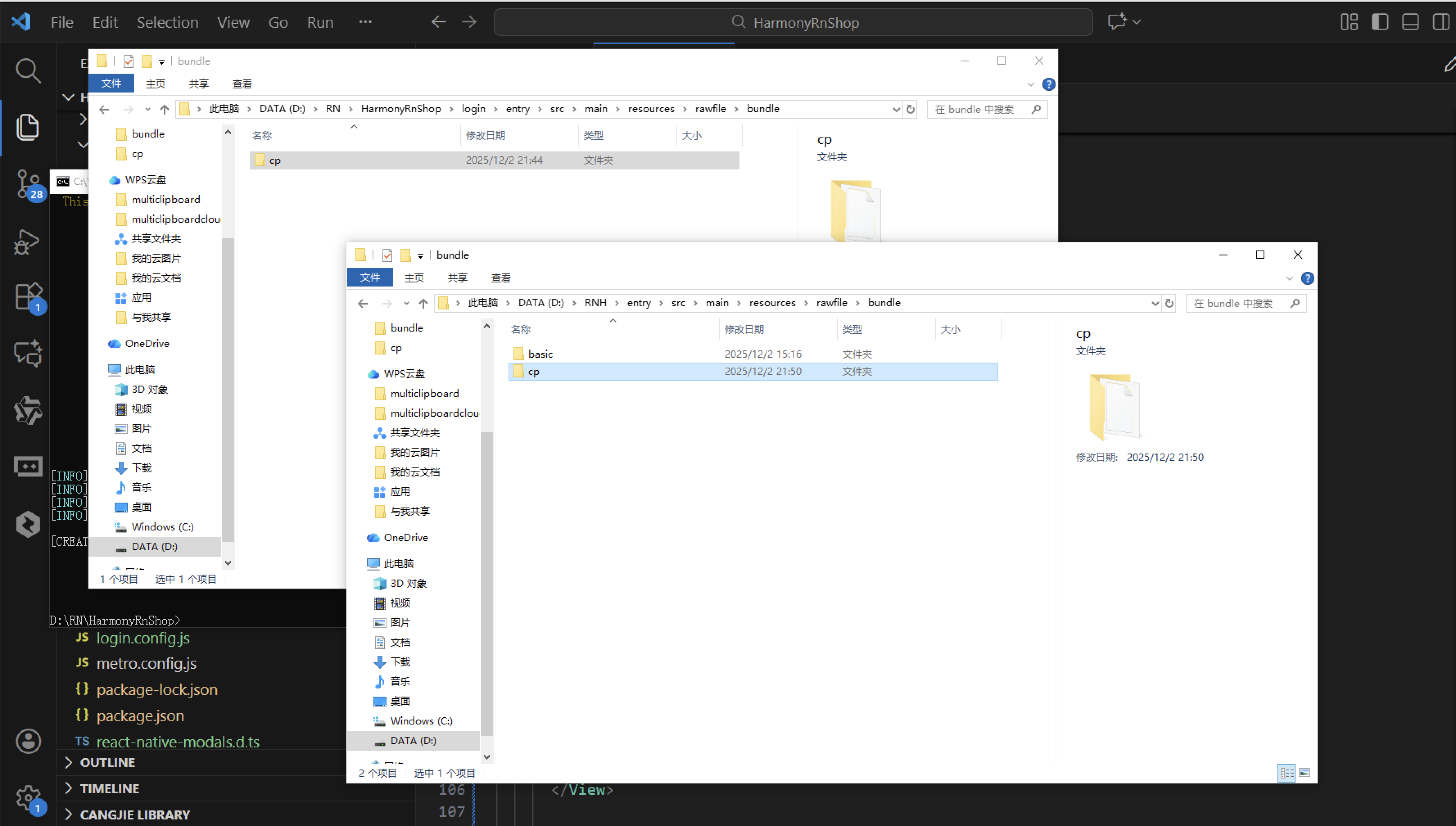
打包之后再将打包后的鸿蒙OpenHarmony文件拷贝到鸿蒙的DevEco-Studio工程目录去:
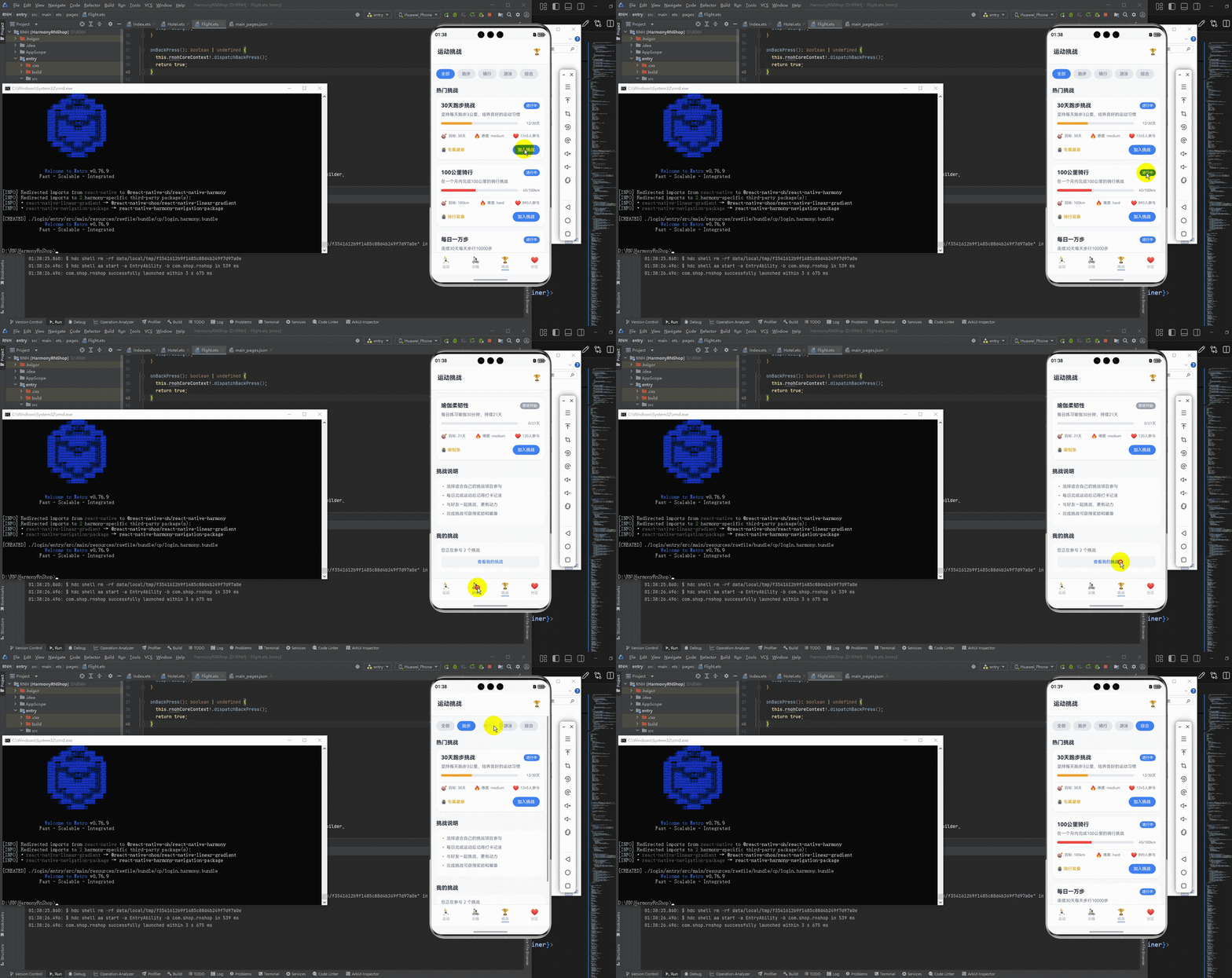
最后运行效果图如下显示:
欢迎大家加入开源鸿蒙跨平台开发者社区,一起共建开源鸿蒙跨平台生态。

Agent 垂直技术社区,欢迎活跃、内容共建。
更多推荐

 25
25 0
0- 0


 已为社区贡献9条内容

所有评论(0)