在WSL中配置VS Code C++开发环境完整教程
·
设置Linux开发环境
- 启动WSL终端:在Windows搜索栏输入"Ubuntu"并打开
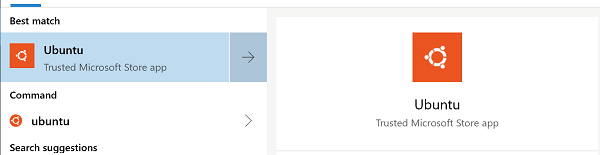
Ubuntu in Start Menu
- 首次启动会要求设置用户名和密码,请记住此密码,后续使用sudo命令时需要
- 更新系统包列表并安装GNU编译器工具和GDB调试器:
代码语言:bash
AI代码解释
sudo apt-get update
sudo apt-get install build-essential gdb- 验证安装是否成功:
代码语言:bash
AI代码解释
whereis g++
whereis gdb
如果安装成功,会显示g++和gdb的路径信息。
- 创建项目目录:
代码语言:bash
AI代码解释
mkdir projects
cd projects
mkdir helloworld
cd helloworld
在WSL中启动VS Code
在WSL终端中,进入项目目录并输入以下命令启动VS Code:
代码语言:bash
AI代码解释
code .首次启动时,VS Code会自动下载并安装WSL服务器组件。成功启动后,VS Code窗口标题栏会显示"WSL: Ubuntu",状态栏会显示远程连接状态。

Remote context in the Status bar
安装C/C++扩展
- 在VS Code中打开扩展面板(Ctrl+Shift+X)
- 搜索"C/C++"扩展(由Microsoft提供)
- 如果已在本地安装,点击"Install in WSL"按钮将其安装到WSL环境中
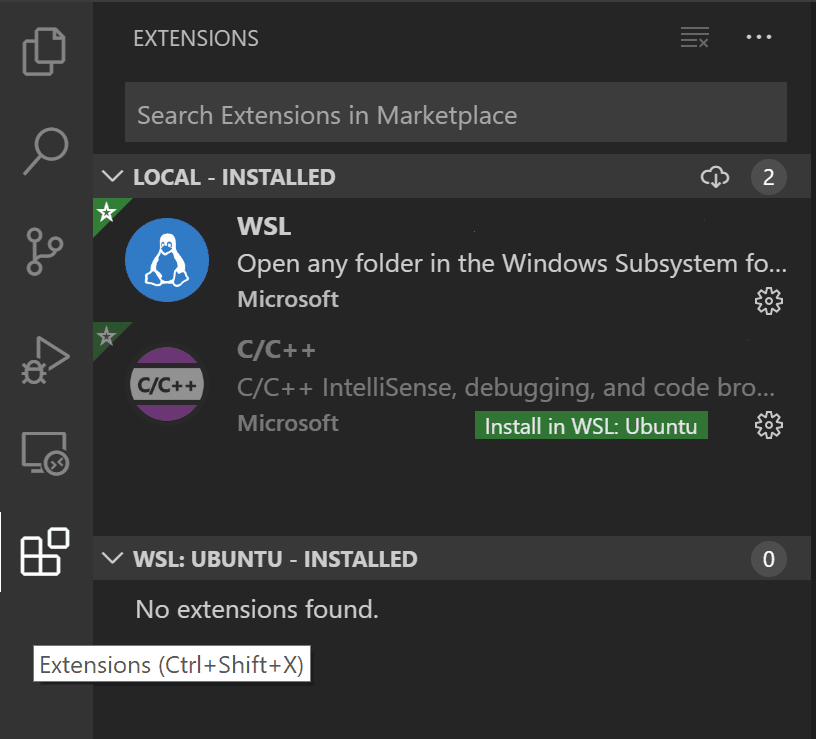
Install in WSL button
安装完成后需要重新加载VS Code以生效。
创建和编写C++代码
- 在VS Code文件资源管理器中,点击"新建文件"按钮,创建
helloworld.cpp
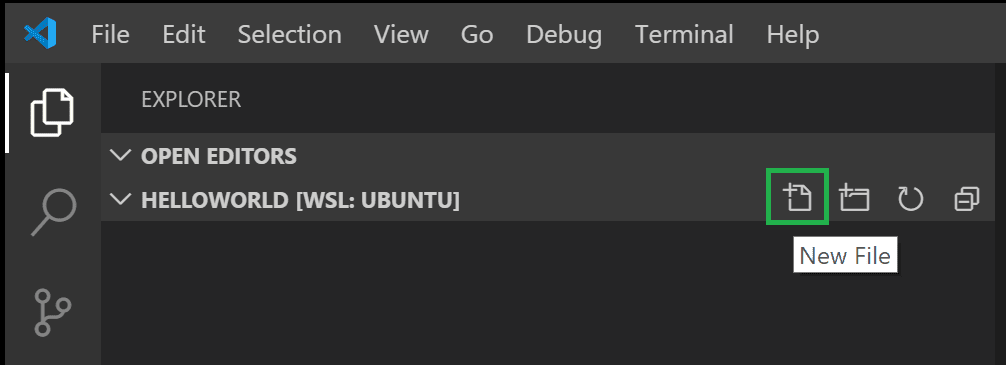
New File title bar button
- 粘贴以下示例代码:
代码语言:cpp
AI代码解释
#include <iostream>
#include <vector>
#include <string>

using namespace std;

int main()
{
    vector<string> msg {"Hello", "C++", "World", "from", "VS Code", "and the C++ extension!"};

    for (const string& word : msg)
    {
        cout << word << " ";
    }
    cout << endl;
}- 保存文件(Ctrl+S)
探索IntelliSense功能
VS Code的C/C++扩展提供了强大的IntelliSense功能:
- 悬停在
vector或string上查看类型信息 - 输入
msg.时会自动显示成员函数列表 - 自动补全功能可通过Tab键触发
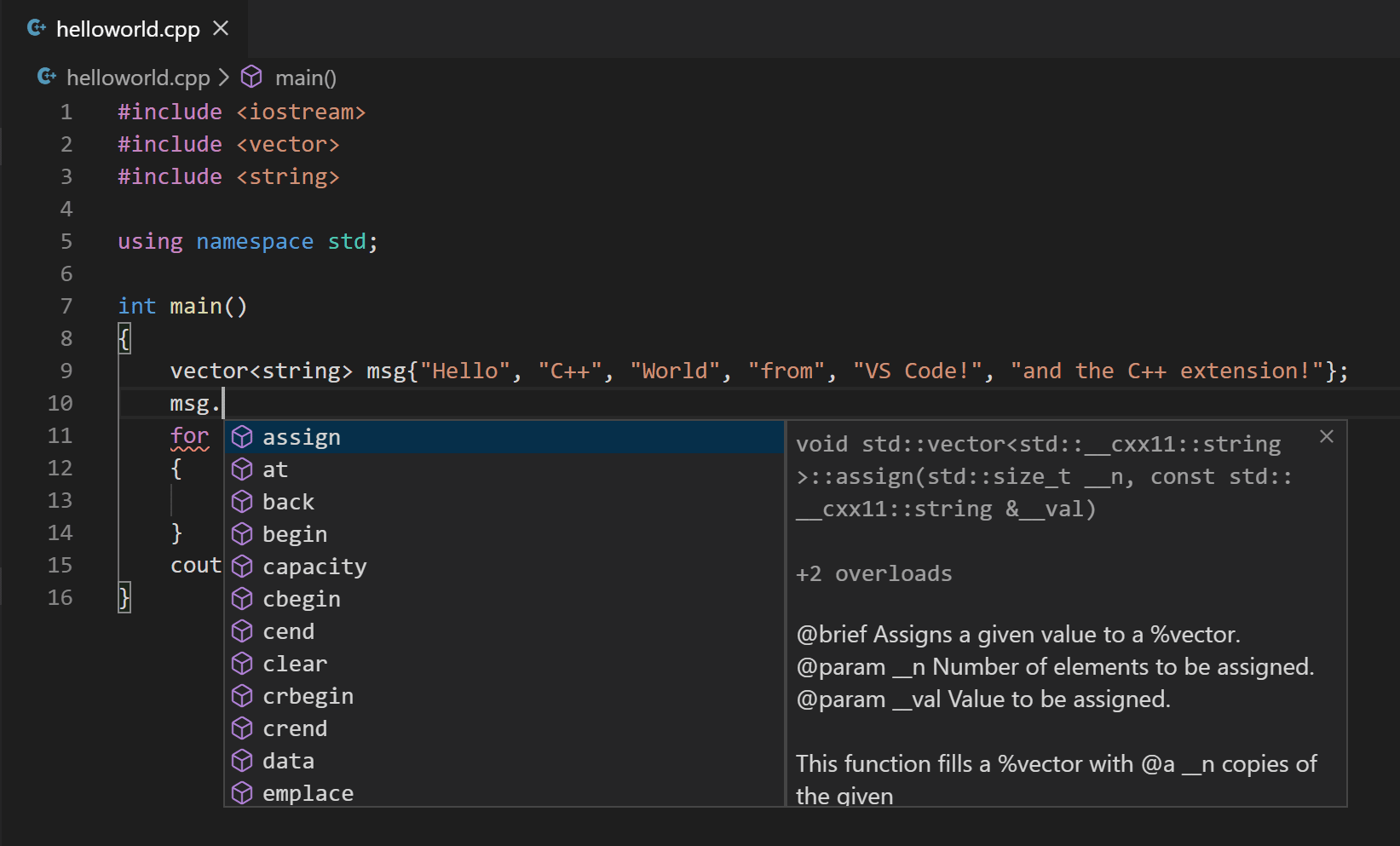
Statement completion IntelliSense
运行C++程序
- 确保
helloworld.cpp是当前活动文件 - 点击编辑器右上角的"播放"按钮
- 在弹出的编译器选择中,选择"g++ build and debug active file"
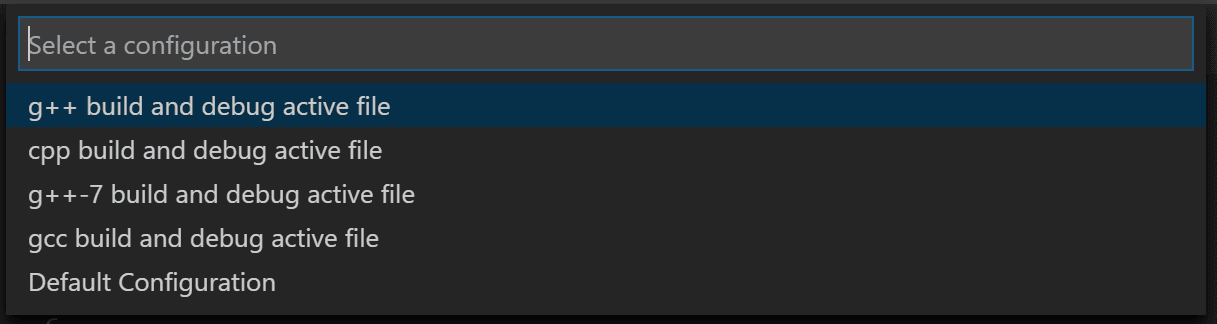
C++ debug configuration dropdown
VS Code会自动生成tasks.json文件,用于配置构建任务。成功运行后,在集成终端中会看到输出:
代码语言:txt
AI代码解释
Hello C++ World from VS Code and the C++ extension!理解tasks.json
自动生成的tasks.json位于.vscode目录下,内容如下:
代码语言:json
AI代码解释
{
  "version": "2.0.0",
  "tasks": [
    {
      "type": "shell",
      "label": "C/C++: g++ build active file",
      "command": "/usr/bin/g++",
      "args": ["-g", "${file}", "-o", "${fileDirname}/${fileBasenameNoExtension}"],
      "options": {
        "cwd": "/usr/bin"
      },
      "problemMatcher": ["$gcc"],
      "group": {
        "kind": "build",
        "isDefault": true
      },
      "detail": "Task generated by Debugger."
    }
  ]
}
关键参数说明:
command: 指定编译器路径(g++)args: 编译参数,-g表示生成调试信息${file}: 当前活动文件${fileDirname}/${fileBasenameNoExtension}: 输出可执行文件路径和名称

Agent 垂直技术社区,欢迎活跃、内容共建。
更多推荐
 13
13 0
0- 0


 已为社区贡献12条内容

所有评论(0)