openclaw 扩展企业微信模块
·

前提要求
- Linux安装 docker docker-compose 参考
- Windows 10 ,11 2022 docker docker-compose 参考
- ollama 及模型配置
-
openclawa安装参考
安装企业微信模块
docker exec -it openclaw /bin/bash -c "openclaw plugins install @wecom/wecom-openclaw-plugin"openclaw.json 配置企业微信智能机器人模块
- OpenClaw如何接入企业微信智能机器人参考
- 正确放入位置(放在 commands 下)
- docker-compose restart 重启服务
  "session": {
    "dmScope": "per-channel-peer"
  },
  "channels": {
    "wecom": {
      "enabled": true,
      "botId": "aibzFoTYzrHi8hXB4yz7itGDsiMxzptgCEM",
      "secret": "9clqrajxG95QLFnhNSV2mmeFmbbYJFD2bXUpWDoHb9k",
      "allowFrom": [],
      "dmPolicy": "pairing"
    }
  },
  "gateway": {
    "port": 18789,
    "mode": "local",
    "bind": "lan",
    "controlUi": {
      "enabled": true,
      "allowedOrigins": [
        "*"
      ],
      "allowInsecureAuth": true,
      "dangerouslyDisableDeviceAuth": true
    },
    "auth": {
      "mode": "token",
      "token": "85ee32ad9b5076be296ace3d9eb334efd00cc70eeee2d711c"
    },
    "tailscale": {
      "mode": "off",
      "resetOnExit": false
    }
  },
  "skills": {
    "allowBundled": [
      "gemini",
      "peekaboo"
    ],
    "load": {},
    "install": {},
    "entries": {}
  },
  "plugins": {
    "entries": {
      "wecom-openclaw-plugin": {
        "enabled": true
      }
    },
    "installs": {
      "wecom-openclaw-plugin": {
        "source": "npm",
        "spec": "@wecom/wecom-openclaw-plugin",
        "installPath": "/home/node/.openclaw/extensions/wecom-openclaw-plugin",
        "version": "2026.3.24",
        "resolvedName": "@wecom/wecom-openclaw-plugin",
        "resolvedVersion": "2026.3.24",
        "resolvedSpec": "@wecom/wecom-openclaw-plugin@2026.3.24",
        "integrity": "sha512-OLtuhEPiLnn/nRZAjeBOa3bBN4Vd9pRtHGhPYLluyZ7/W8K2slngCnC0QNcg3UiCf4b9GnXTJ/EQIckfSjW47w==",
        "shasum": "a3a2e121e6a1e2e64a247f78d058767692ff0e8e",
        "resolvedAt": "2026-03-25T09:09:12.512Z",
        "installedAt": "2026-03-25T09:09:30.210Z"
      }
    }
  }
}
查看是否启用和安装完成
docker exec -it openclaw /bin/bash -c "openclaw plugins list"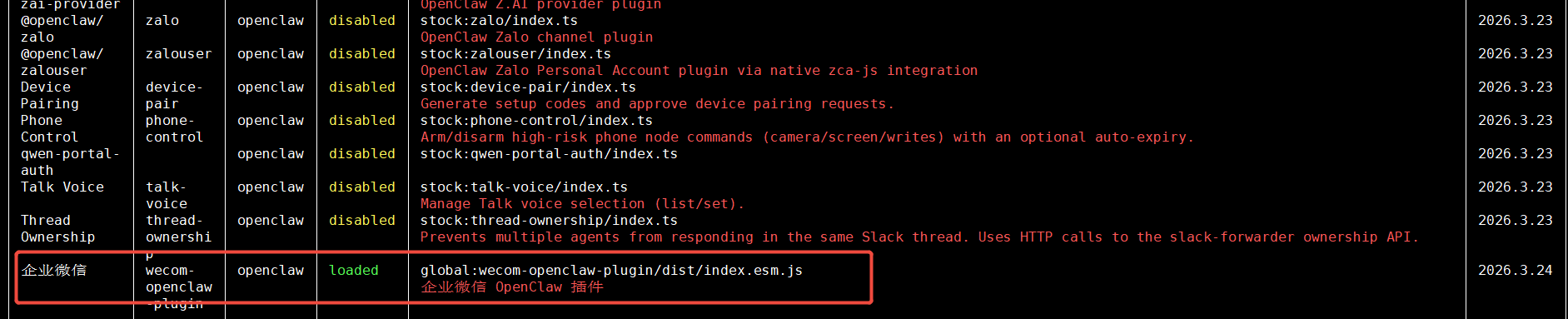
打开创建好的企业微信智能机器人
-
OpenClaw如何接入企业微信智能机器人参考 创建可以参考,此处不在介绍
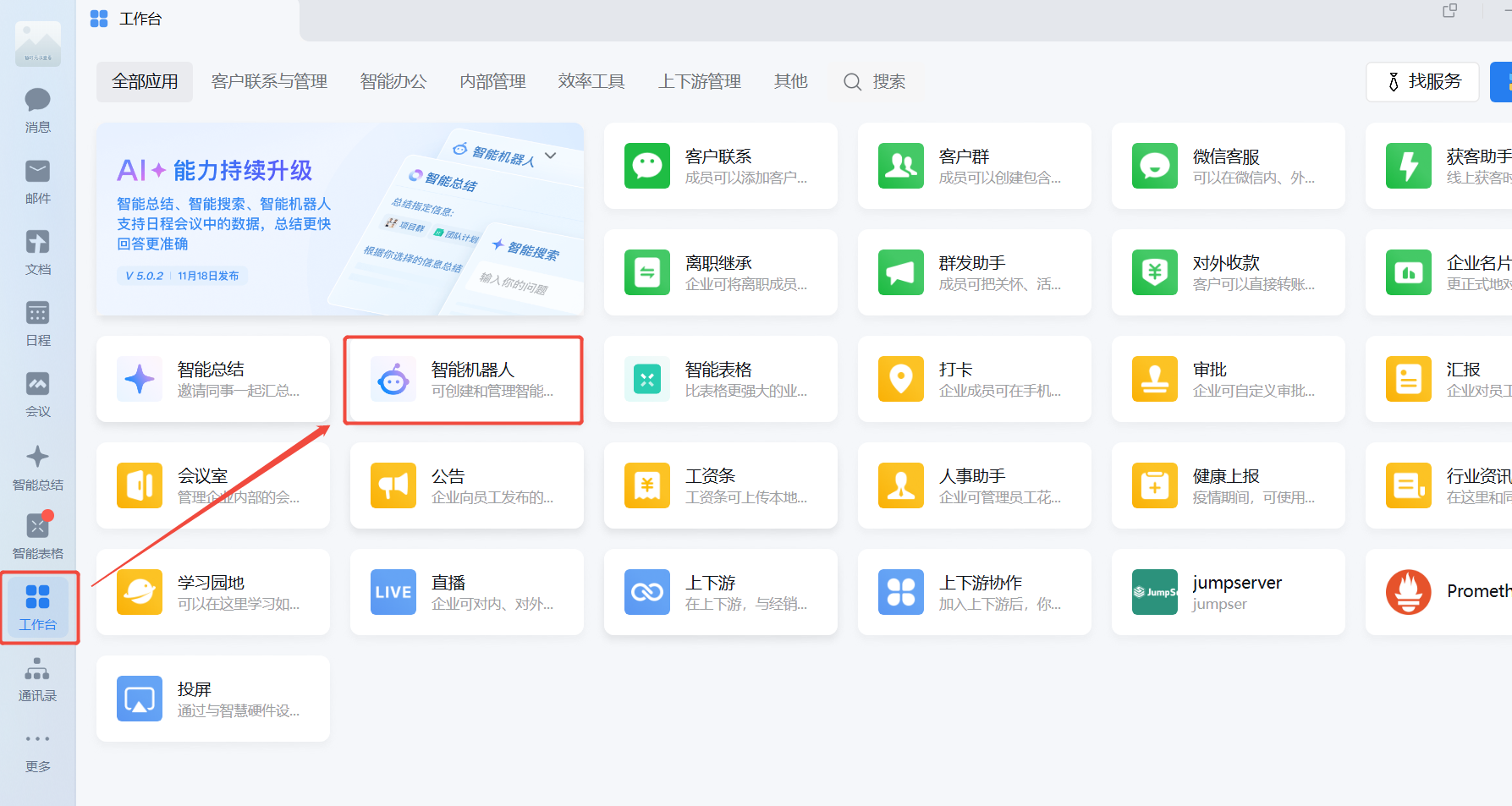
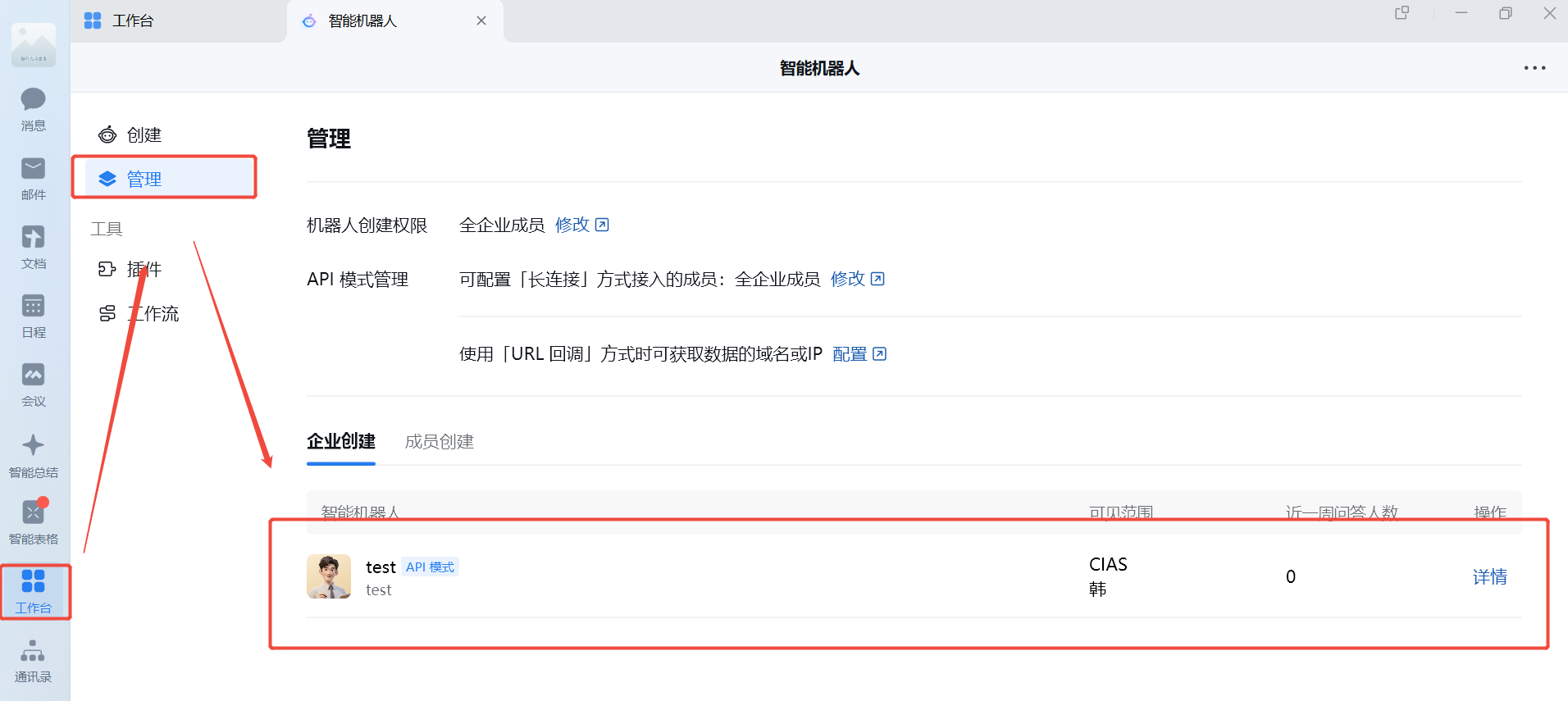
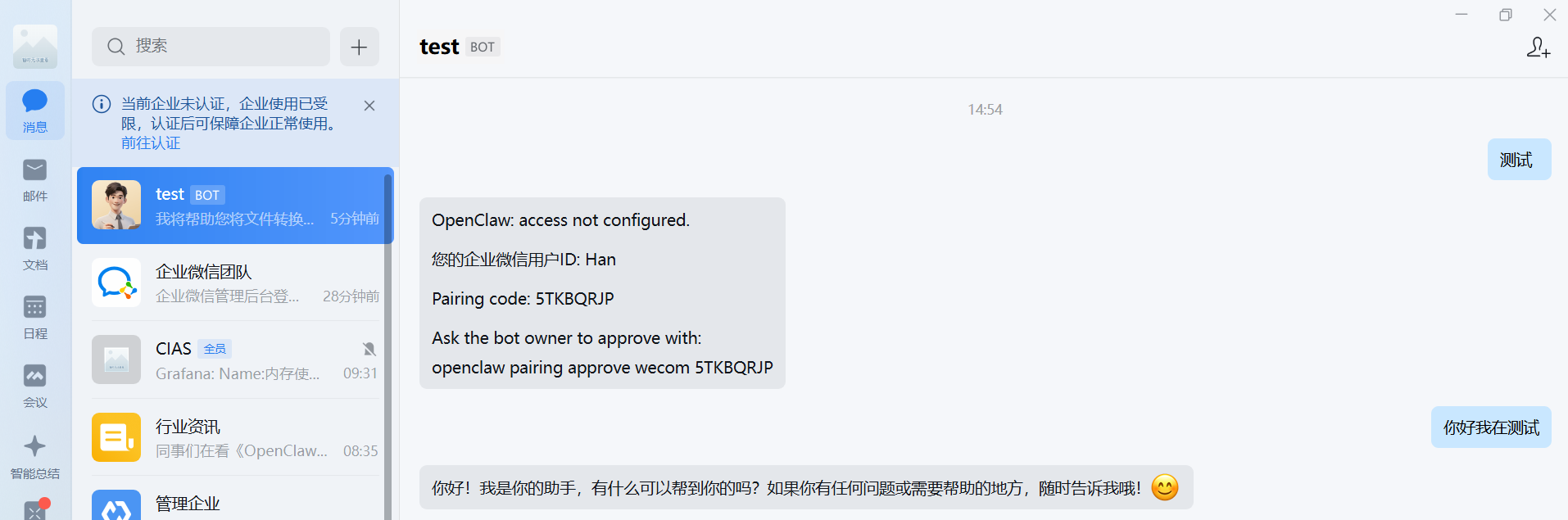
发送一条消息,机器人会返回一个 配对码:
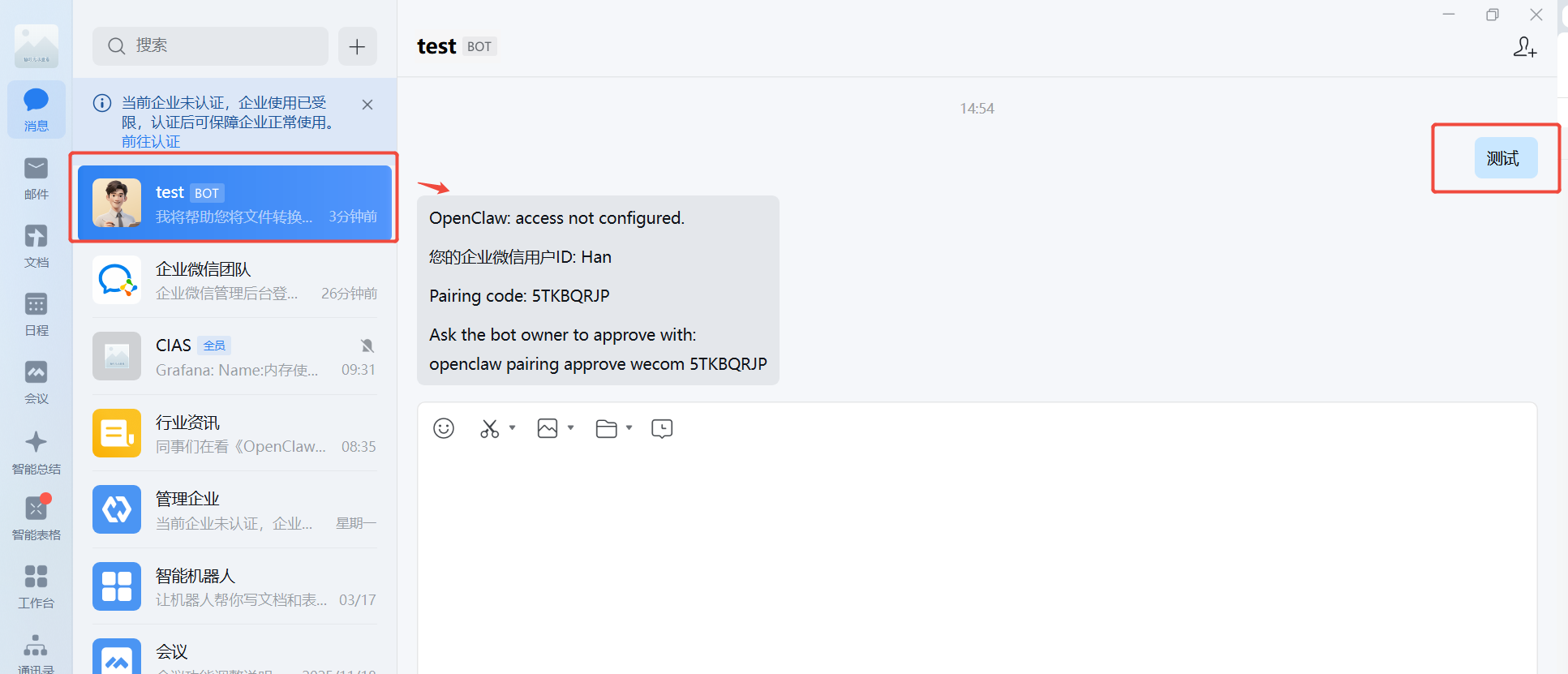
回到终端,执行以下命令完成绑定(把 <配对码> 替换成你收到的那串码)
docker exec -it openclaw /bin/bash -c "openclaw pairing approve wecom 5TKBQRJP"再发一条消息测试,成功收到回复,说明对接完成!

Agent 垂直技术社区,欢迎活跃、内容共建。
更多推荐
 3
3 0
0- 0


 已为社区贡献1条内容

所有评论(0)