OpenClaw Browser 快照:页面分析与操作
本文深入解析OpenClaw Browser快照功能的核心技术与应用。快照通过语义理解页面结构,相比传统选择器具有自适应、可读性强等优势。文章详细介绍了快照生成流程、元素类型映射和引用机制(简短/角色/Aria三种引用类型及其稳定性差异),并提供了获取快照的代码示例和参数说明。在实践层面,重点讲解了页面分析技巧,包括结构识别、元素查找和状态检测方法,最后展示了等待元素出现的高级操作技巧。这些内容为
·
目录
摘要
本文深入探讨 OpenClaw Browser 的快照功能。从快照原理、元素引用机制、页面分析方法到高级操作技巧,全面解析如何通过快照实现精准的页面操作。通过实际案例演示复杂页面分析、动态内容处理、多元素交互等场景,帮助开发者掌握浏览器自动化的核心技术。📸
1. 引言 - 为什么需要快照?
1.1 快照的作用
| 作用 | 说明 | 示例 |
|---|---|---|
| 页面理解 | AI 理解页面结构 | 识别按钮、输入框 |
| 元素定位 | 精确定位操作目标 | 找到"提交"按钮 |
| 状态检测 | 检测页面状态变化 | 判断加载是否完成 |
| 数据提取 | 提取页面内容 | 获取商品信息 |
1.2 快照 vs 传统选择器
1.3 快照核心优势
| 优势 | 说明 |
|---|---|
| 语义理解 | AI 理解元素含义而非依赖选择器 |
| 自适应 | 页面结构变化时自动适应 |
| 可读性 | 快照内容人类可读 |
| 跨页面 | 相似页面可复用逻辑 |
2. 快照原理详解
2.1 快照生成流程
2.2 快照内容结构
{
  "url": "https://example.com",
  "title": "Example Page",
  "elements": [
    {
      "ref": "e1",
      "type": "heading",
      "level": 1,
      "text": "Welcome"
    },
    {
      "ref": "e2",
      "type": "button",
      "text": "Submit",
      "attributes": {
        "class": "btn-primary",
        "aria-label": "Submit form"
      }
    },
    {
      "ref": "e3",
      "type": "textbox",
      "placeholder": "Enter email",
      "required": true
    }
  ]
}
2.3 元素类型映射
| DOM 元素 | 快照类型 | 说明 |
|---|---|---|
<button> |
button | 按钮 |
<input type="text"> |
textbox | 文本输入框 |
<input type="checkbox"> |
checkbox | 复选框 |
<select> |
combobox | 下拉选择框 |
<a> |
link | 链接 |
<h1>-<h6> |
heading | 标题 |
<img> |
image | 图片 |
3. 引用机制
3.1 引用类型
| 类型 | 格式 | 示例 |
|---|---|---|
| 简短引用 | e1, e2 | e1 |
| 角色引用 | role[name] | button[登录] |
| Aria引用 | aria-ref-id | abc123 |
3.2 引用选择策略
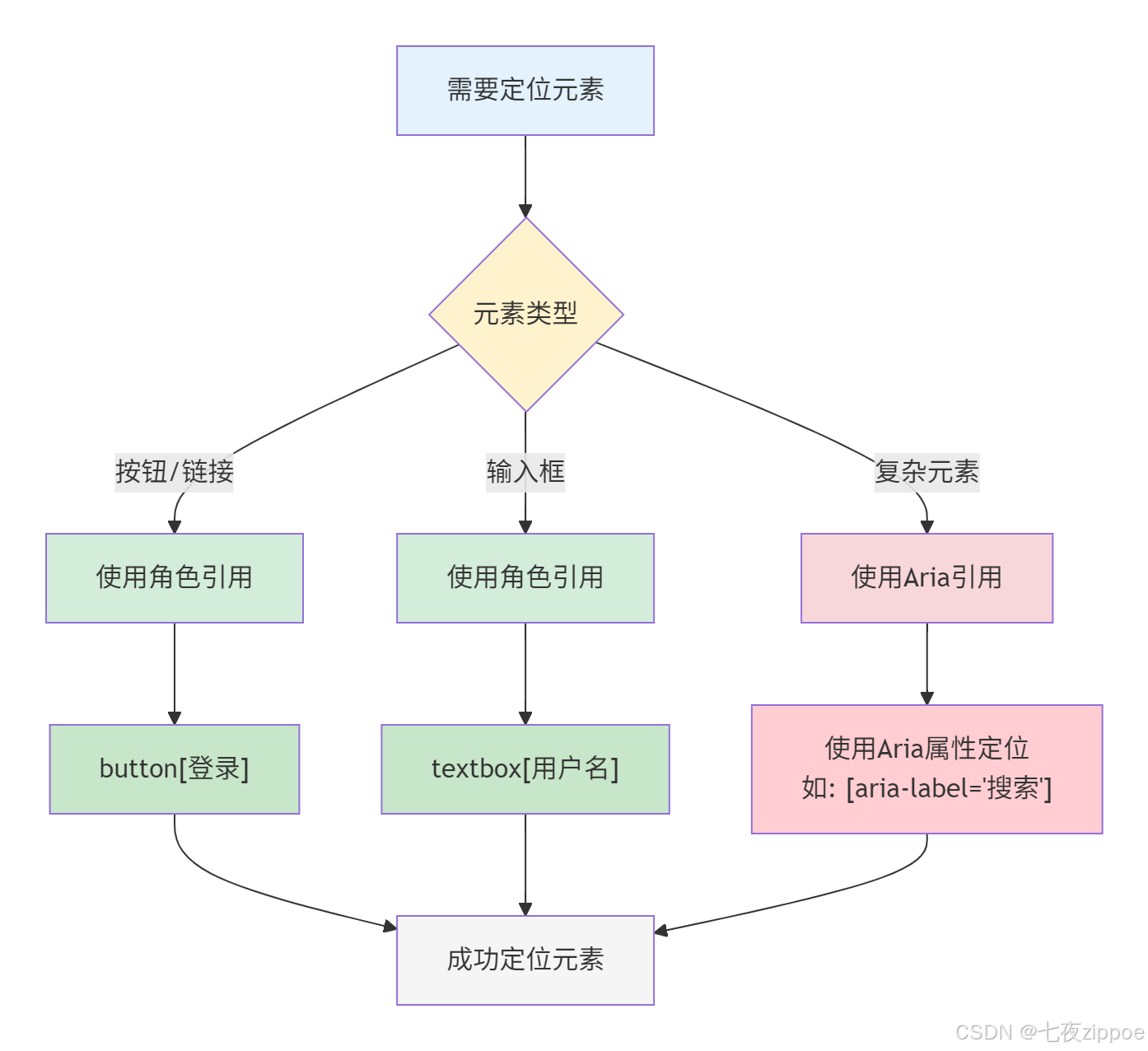
3.3 引用稳定性
| 引用类型 | 稳定性 | 说明 |
|---|---|---|
| 简短引用 | 低 | 页面变化可能失效 |
| 角色引用 | 中 | 基于语义,较稳定 |
| Aria引用 | 高 | Playwright 内部ID,最稳定 |
4. 快照操作详解
4.1 获取快照
# 基本快照
snapshot = browser(
    action="snapshot",
    targetId="ABC123"
)

# 指定引用类型
snapshot = browser(
    action="snapshot",
    targetId="ABC123",
    refs="aria"  # 或 "role"
)

# 指定深度
snapshot = browser(
    action="snapshot",
    targetId="ABC123",
    depth=3  # DOM 深度
)
4.2 快照参数
| 参数 | 类型 | 说明 |
|---|---|---|
| targetId | string | 标签页ID |
| refs | string | 引用类型:role/aria |
| depth | number | DOM遍历深度 |
| interactive | boolean | 只返回可交互元素 |
4.3 快照过滤
# 只获取可交互元素
snapshot = browser(
    action="snapshot",
    targetId="ABC123",
    interactive=True
)

# 返回示例
{
  "elements": [
    {"ref": "e1", "type": "button", "text": "Submit"},
    {"ref": "e2", "type": "textbox", "placeholder": "Email"}
    // 只包含可交互元素
  ]
}
5. 页面分析技巧
5.1 识别页面结构
def analyze_page_structure(snapshot):
    """分析页面结构"""
    structure = {
        "headings": [],
        "forms": [],
        "buttons": [],
        "links": []
    }

    for element in snapshot["elements"]:
        if element["type"] == "heading":
            structure["headings"].append(element)
        elif element["type"] == "textbox":
            structure["forms"].append(element)
        elif element["type"] == "button":
            structure["buttons"].append(element)
        elif element["type"] == "link":
            structure["links"].append(element)

    return structure
5.2 查找特定元素
def find_element(snapshot, element_type, text=None):
    """查找特定元素"""
    for element in snapshot["elements"]:
        if element["type"] == element_type:
            if text is None or text in element.get("text", ""):
                return element
    return None

# 示例:查找登录按钮
login_btn = find_element(snapshot, "button", "登录")
5.3 检测页面状态
def check_page_state(snapshot):
    """检测页面状态"""
    # 检查是否有加载指示器
    loading = find_element(snapshot, "generic", "loading")
    if loading:
        return "loading"

    # 检查是否有错误消息
    error = find_element(snapshot, "alert", "error")
    if error:
        return "error"

    return "ready"
6. 高级操作技巧
6.1 等待元素出现
def wait_for_element(target_id, element_type, timeout=10000):
    """等待元素出现"""
    start_time = time.time()

    while time.time() - start_time < timeout / 1000:
        snapshot = browser(
            action="snapshot",
            targetId=target_id,
            interactive=True
        )

        element = find_element(snapshot, element_type)
        if element:
            return element

        time.sleep(0.5)

    raise TimeoutError(f"Element {element_type} not found")
6.2 处理动态内容
def handle_dynamic_content(target_id):
    """处理动态加载内容"""
    # 初始快照
    snapshot1 = browser(action="snapshot", targetId=target_id)

    # 触发动态加载(如滚动)
    browser(action="act", kind="scroll", y=500)

    # 等待加载
    time.sleep(2)

    # 新快照
    snapshot2 = browser(action="snapshot", targetId=target_id)

    # 比较差异
    new_elements = compare_snapshots(snapshot1, snapshot2)
    return new_elements
6.3 处理 iframe
# 切换到 iframe
browser(
    action="act",
    kind="evaluate",
    fn="() => { return document.querySelector('iframe').contentDocument; }"
)

# 在 iframe 内获取快照
snapshot = browser(
    action="snapshot",
    frame="iframe-selector"
)
6.4 处理弹窗
def handle_popup(target_id):
    """处理弹窗"""
    # 获取快照检测弹窗
    snapshot = browser(action="snapshot", targetId=target_id)

    # 查找弹窗元素
    popup = find_element(snapshot, "dialog")

    if popup:
        # 处理弹窗(如点击确认)
        browser(
            action="act",
            kind="click",
            ref=popup["ref"]
        )
        return True

    return False
7. 实战案例
7.1 案例一:复杂表单分析
场景:分析并填写复杂的注册表单
def analyze_and_fill_form(target_id, form_data):
    """分析并填写表单"""
    # 1. 获取页面快照
    snapshot = browser(
        action="snapshot",
        targetId=target_id,
        interactive=True
    )

    # 2. 分析表单结构
    form_elements = [
        e for e in snapshot["elements"]
        if e["type"] in ["textbox", "checkbox", "combobox"]
    ]

    print(f"发现 {len(form_elements)} 个表单元素")

    # 3. 匹配并填写
    for element in form_elements:
        # 根据标签或占位符匹配数据
        label = element.get("label", "")
        placeholder = element.get("placeholder", "")

        for key, value in form_data.items():
            if key in label or key in placeholder:
                if element["type"] == "textbox":
                    browser(
                        action="act",
                        kind="type",
                        ref=element["ref"],
                        text=value
                    )
                elif element["type"] == "checkbox":
                    if value:
                        browser(
                            action="act",
                            kind="click",
                            ref=element["ref"]
                        )
                elif element["type"] == "combobox":
                    browser(
                        action="act",
                        kind="select",
                        ref=element["ref"],
                        value=value
                    )
                break

    # 4. 查找并点击提交按钮
    submit_btn = find_element(snapshot, "button", "提交")
    if submit_btn:
        browser(
            action="act",
            kind="click",
            ref=submit_btn["ref"]
        )
7.2 案例二:数据表格提取
场景:从表格中提取数据
def extract_table_data(target_id):
    """从表格提取数据"""
    # 获取快照
    snapshot = browser(action="snapshot", targetId=target_id)

    # 查找表格元素
    tables = [
        e for e in snapshot["elements"]
        if e["type"] == "table"
    ]

    data = []
    for table in tables:
        # 执行JS提取表格数据
        table_data = browser(
            action="act",
            kind="evaluate",
            fn=f"""
            () => {{
                const table = document.querySelector('[data-ref="{table["ref"]}"]');
                const rows = table.querySelectorAll('tr');
                return Array.from(rows).map(row =>
                    Array.from(row.querySelectorAll('td, th')).map(cell => cell.textContent)
                );
            }}
            """
        )
        data.extend(table_data)

    return data
7.3 案例三:多页面导航
场景:在多个页面间导航并收集信息
def multi_page_navigation(base_url, pages):
    """多页面导航"""
    results = []

    for page in pages:
        # 打开页面
        url = f"{base_url}/{page}"
        browser(action="open", targetUrl=url)

        # 等待加载
        browser(action="act", kind="wait", timeMs=2000)

        # 获取快照
        snapshot = browser(action="snapshot")

        # 提取信息
        info = extract_page_info(snapshot)
        results.append({
            "page": page,
            "info": info
        })

    return results
8. 调试与排错
8.1 常见问题
| 问题 | 原因 | 解决方案 |
|---|---|---|
| 元素找不到 | 页面未加载完成 | 增加等待时间 |
| 引用失效 | 页面结构变化 | 刷新快照 |
| 操作无响应 | 元素不可交互 | 检查元素状态 |
| 快照不完整 | 深度不够 | 增加depth参数 |
8.2 调试技巧
def debug_snapshot(target_id):
    """调试快照"""
    # 获取详细快照
    snapshot = browser(
        action="snapshot",
        targetId=target_id,
        depth=5
    )

    # 打印所有元素
    for element in snapshot["elements"]:
        print(f"Ref: {element['ref']}")
        print(f"Type: {element['type']}")
        print(f"Text: {element.get('text', 'N/A')}")
        print("---")

    # 截图保存
    browser(
        action="screenshot",
        targetId=target_id
    )
9. 性能优化
9.1 快照缓存
class SnapshotCache:
    def __init__(self, ttl=5):
        self.cache = {}
        self.ttl = ttl

    def get(self, target_id):
        if target_id in self.cache:
            cached, timestamp = self.cache[target_id]
            if time.time() - timestamp < self.ttl:
                return cached

        # 获取新快照
        snapshot = browser(action="snapshot", targetId=target_id)
        self.cache[target_id] = (snapshot, time.time())
        return snapshot
9.2 增量快照
def incremental_snapshot(target_id, previous_snapshot):
    """增量快照 - 只获取变化的部分"""
    current = browser(action="snapshot", targetId=target_id)

    # 比较差异
    changes = compare_snapshots(previous_snapshot, current)
    return changes
10. 总结
10.1 核心要点
| 要点 | 说明 |
|---|---|
| 先快照后操作 | 操作前先获取快照 |
| 选择合适引用 | 根据场景选择引用类型 |
| 处理动态内容 | 等待加载、刷新快照 |
| 错误处理 | 添加重试和超时机制 |
10.2 最佳实践清单
- 操作前获取快照
- 使用稳定的引用类型
- 添加适当的等待
- 处理可能的错误
- 缓存快照减少请求
10.3 下一步
- 第48篇:OpenClaw Browser 自动化:表单填写实战
- 第49篇:OpenClaw Chrome 扩展:Browser Relay 配置
参考资料

Agent 垂直技术社区,欢迎活跃、内容共建。
更多推荐


 48
48 0
0- 0



 已为社区贡献5条内容

所有评论(0)