【claude code】open-websearch mcp配置
open-websearch 提供了 AI 访问 web 网页的 MCP 服务,提供了 bing、baidu、csdn、duckduckgo、exa、brave、juejin、startpage、sougo 等搜索引擎。open-websearch 官方介绍详见 → https://github.com/Aas-ee/open-webSearch/blob/main/README-zh.md。
1 open-websearch 简介
open-websearch 提供了 AI 访问 web 网页的 MCP 服务,提供了 bing、baidu、csdn、duckduckgo、exa、brave、juejin、startpage、sougo 等搜索引擎。
open-websearch 官方介绍详见 → https://github.com/Aas-ee/open-webSearch/blob/main/README-zh.md。
2 安装 open-websearch
// 无代理安装
npm install -g open-websearch

// 代理安装
npm --proxy http://127.0.0.1:7890 --https-proxy http://127.0.0.1:7890 install -g open-websearch
3 测试 open-websearch 是否安装成功
执行以下命令。
open-websearch --help如果打印如下,说明安装成功。
$ open-websearch --help
🔍 Default search engine: bing
🔍 No search engine restrictions, all available engines can be used
🔍 Search mode: AUTO (currently only affects Bing)
🌐 No proxy configured (set USE_PROXY=true to enable)
🔐 fetchWebContent TLS verification is enabled
🧭 Playwright client source: auto
🧭 Playwright headless: true
🧭 Playwright navigation timeout: 20000ms
🖥️ Server mode: BOTH
🔒 CORS disabled (set ENABLE_CORS=true to enable)
open-websearch CLI
4 测试 open-websearch serve 是否正常工作
在命令行中执行以下命令,查看是否有搜索结果返回。如果返回了搜索列表,说明 open-websearch serve 可以正常工作。
open-websearch search "little_fat_sheep的博客"也可以开两个命令行窗口,一个窗口执行 open-websearch serve,如下。
# 无代理
open-websearch serve

# 有代理
set USE_PROXY=true
set PROXY_URL=http://127.0.0.1:7890
set NODE_TLS_REJECT_UNAUTHORIZED=0
open-websearch serve
另一个窗口执行以下命令,如果返回了博客内容,说明 open-websearch serve 可以正常工作。
curl -X POST http://127.0.0.1:3210/fetch-csdn \
  -H "Content-Type: application/json" \
  -d '{"url": "https://blog.csdn.net/m0_37602827/article/details/126715869"}'
5 配置全局 open-websearch mcp
配置 ~/.claude/settings.json 文件如下。如果无代理,可以删除 USE_PROXY、PROXY_URL、NODE_TLS_REJECT_UNAUTHORIZED 这三行配置。
{
  ...
  "mcpServers": {
    "web-search": {
      "command": "cmd",
      "args": ["/c", "npx", "-y", "open-websearch@latest"],
      "env": {
        "MODE": "stdio",
        "DEFAULT_SEARCH_ENGINE": "duckduckgo",
        "SYSTEMROOT": "C:/Windows"
		"USE_PROXY": "true",
        "PROXY_URL": "http://127.0.0.1:7890",
        "NODE_TLS_REJECT_UNAUTHORIZED": "0"
      }
    }
  },
  "permissions": {
    "allow": [
      "WebSearch",
      "WebFetch"
    ]
  }
}
6 配置项目 open-websearch mcp
如果只想在项目中配置 open-websearch mcp,可以在Projrct/.mcp.json 文件中配置如下。如果无代理,可以删除 USE_PROXY、PROXY_URL、NODE_TLS_REJECT_UNAUTHORIZED 这三行配置。
{
  "enabledMcpjsonServers": [
    "web-search"
  ],
  "mcpServers": {
    "web-search": {
      "command": "cmd",
      "args": ["/c", "npx", "-y", "open-websearch@latest"],
      "env": {
        "MODE": "stdio",
        "DEFAULT_SEARCH_ENGINE": "duckduckgo",
        "SYSTEMROOT": "C:/Windows"
		"USE_PROXY": "true",
        "PROXY_URL": "http://127.0.0.1:7890",
        "NODE_TLS_REJECT_UNAUTHORIZED": "0"
      }
    }
  }
}
在 Project/.claude/settings.local.json 文件中配置权限如下。
{
  "permissions": {
    "allow": [
      "Bash(claude mcp *)",
      "WebSearch",
      "WebFetch"
    ]
  }
}
7 测试 open-websearch mcp 是否配置成功
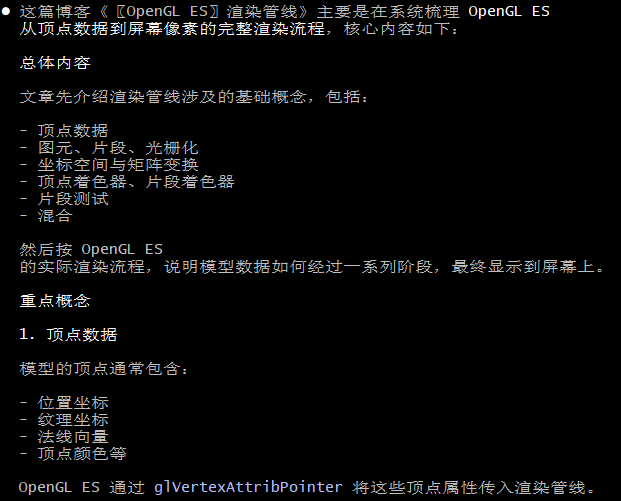
在 claude code CLI 中执行以下 Prompt。
帮忙总结一下这篇博客的内容:https://blog.csdn.net/m0_37602827/article/details/126715869运行如下。

Agent 垂直技术社区,欢迎活跃、内容共建。
更多推荐



 11
11 0
0- 0


 已为社区贡献1条内容

所有评论(0)